Settings / Setup
API Keys
API keys for external tools to access your workspace — payroll integrations, dashboards, custom internal tools.
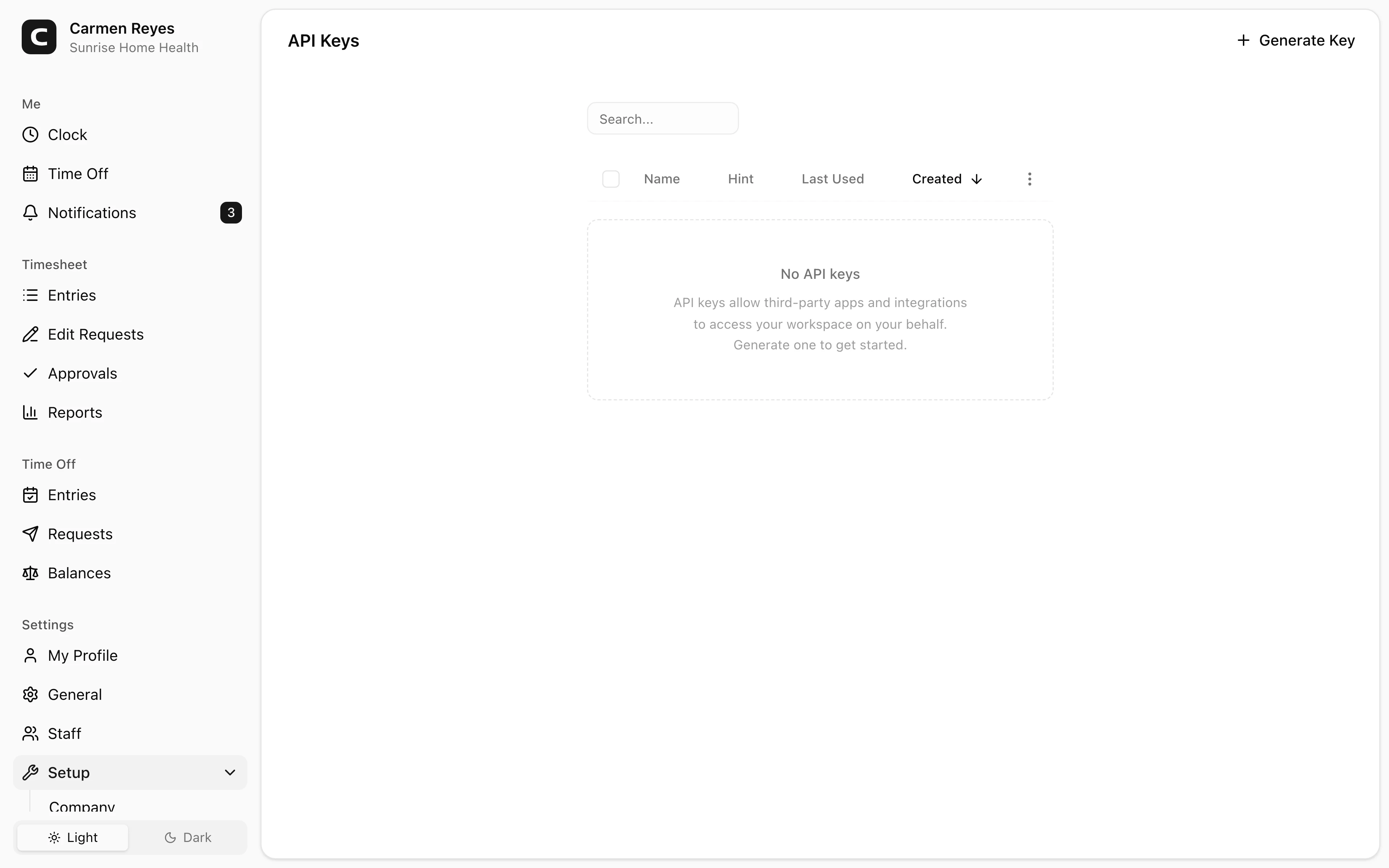
Generating a key
Press Generate Key in the page header, name it descriptively (so you can identify which integration uses it later), and press Generate. The new key value appears once — copy it immediately. We don't store the plaintext, so once you close the dialog, the value is gone.
Store the copied key in a password manager, your team's secret store, or the integration's configuration UI.
Identifying keys
The key list shows:
- Name — the label you gave the key when generating.
- Hint — the last few characters of the key, so you can match a row here against the value stored in your secrets manager.
- Last Used — when the key last made a request. Useful for spotting abandoned keys.
- Created — when the key was generated.
Rotating keys
Best practice: rotate periodically, and any time someone with access leaves.
- Generate a new key.
- Update the integration to use the new key.
- Confirm the integration works.
- Revoke the old key.
Revoking
Revoke in the row menu (or as a bulk action after selecting rows) deletes a key immediately. Any integration using a revoked key starts getting 401 errors on its next request.
Common questions
I lost the key value. Generate a new key. The old value can't be recovered — by design.
Can two integrations share one key? Technically yes, but use one key per integration so you can revoke and rotate independently.
How do I tell which integrations use which keys? The Name and Hint columns are the only signals. Naming keys descriptively at generation time is the simplest way to keep track.