Timesheet
Edit Requests
Review and decide on time-entry change requests from your team.
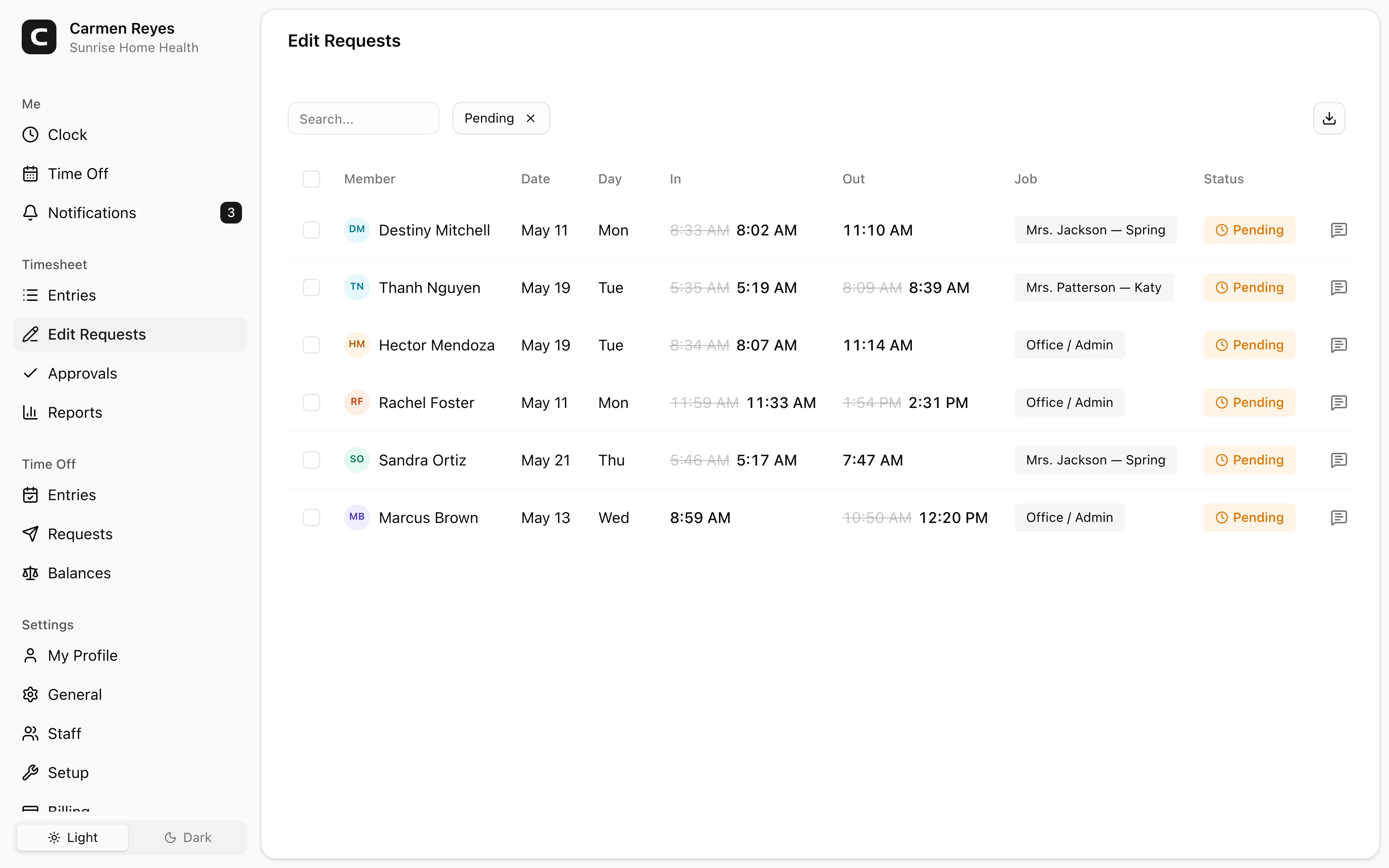
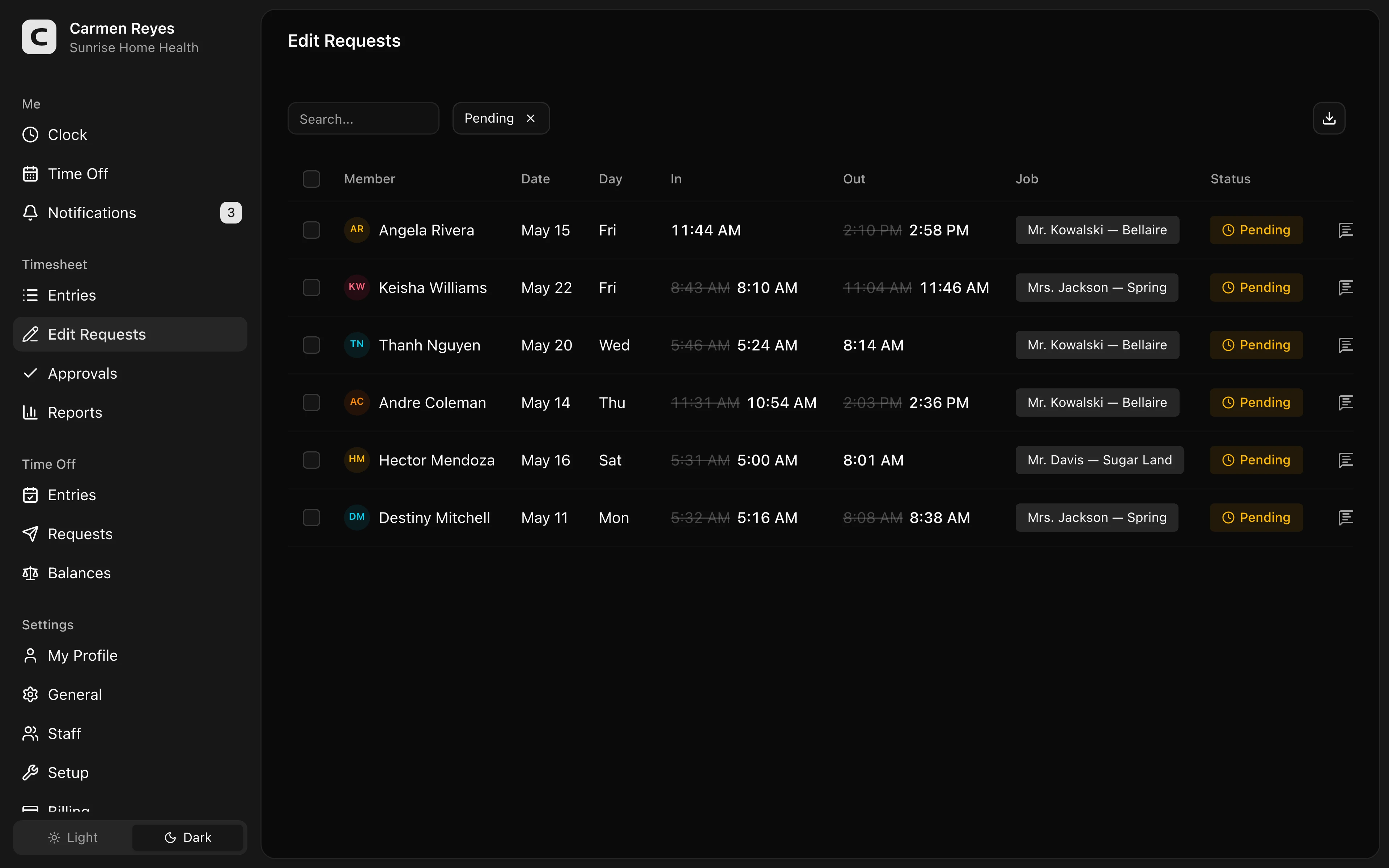
What this page shows
Every edit request your employees have submitted, with the original entry, the change they want, and the reason they gave. The list defaults to Pending — use the status filter in the toolbar to also see Approved or Rejected.
Reading a row
The Date, In, Out, and Job columns show changes inline — the original value strikethrough, the new value bold beside it. If a row has a speech-bubble icon, the requester left a note; click it to read.
Reviewing a request
Open the row menu and choose Review request to see the diff (original vs. proposed). Approve or reject from there — your review note is included in the employee's notification.
To act on many at once, select rows and use Approve or Reject in the toolbar. Bulk decisions don't carry a per-row review note; for that, decide each request individually.
What happens after a decision
- Approved — the change is applied to the original time entry, and the employee is notified.
- Rejected — the entry stays as it was. The employee is notified and can submit a new request.
Common questions
The requested change isn't quite right but I don't want to outright reject. You can only approve or reject — there's no "approve with edits". Either reject with a note explaining what you'd accept so the employee can resubmit, or reject and fix the entry yourself from the Timesheet page.
I decided on a request by mistake. Once decided, a request can't be changed. Let the employee know — they can submit a new request.