Timesheet
Approvals
Approve your team's timesheets period by period.
What this page shows
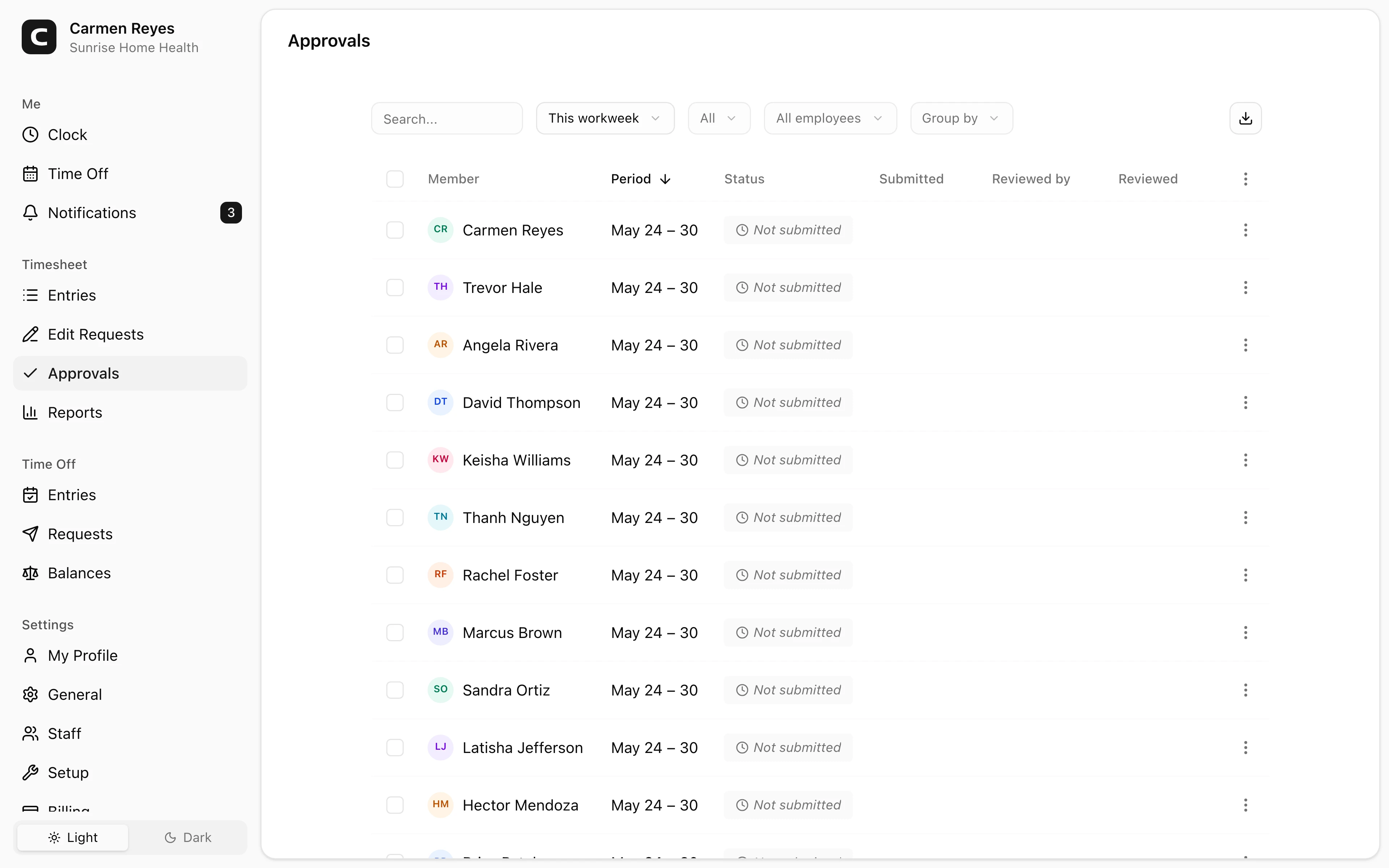
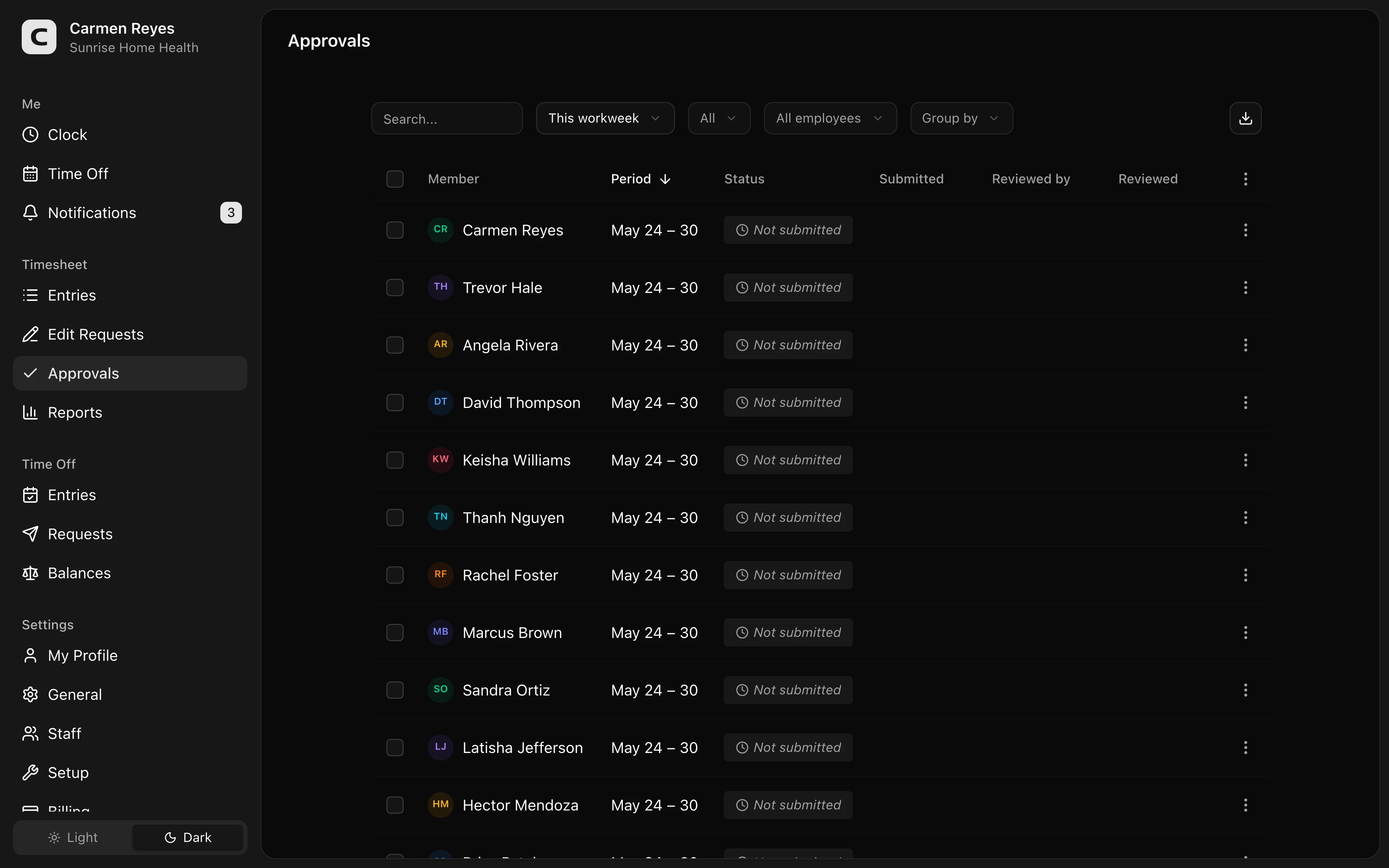
One row per employee, per pay period — the current state of their timesheet approval. Filter by date range, employee, or status (Not submitted, Submitted, Approved, Rejected) in the toolbar.
The notes icon on a row means there's a submission or review note attached; click to read.
The lifecycle
- Not submitted — the employee hasn't submitted this period yet.
- Submitted — the employee submitted; you decide.
- Approved — locked. Entries can only be changed via edit requests.
- Rejected — sent back to the employee with your note.
Reviewing a timesheet
Open a row's menu:
- View timesheet — opens the Timesheet page filtered to this employee + period so you can inspect every entry.
- Review (submitted only) — opens a dialog to approve or reject with an optional note.
- Approve (not-submitted only) — approve directly without waiting for the employee to submit (e.g. they're out and you trust their entries).
- Cancel approval (submitted or approved only) — reverse the decision and reopen entries for editing.
Bulk decisions
Select rows and use Approve, Reject, or Cancel in the toolbar. Buttons only appear when every selected row is eligible — e.g. Reject only shows when all selected are Submitted. Bulk decisions don't carry a per-row note; open each row individually if you need one.
Common questions
An employee hasn't submitted but I know their timesheet is correct. Use Approve in the row menu (or the bulk action on selected not-submitted rows) to approve directly — no employee submission needed.
An entry on an approved timesheet was wrong. What's the cleanest fix? Use Cancel approval to reverse the decision, fix the entry from the Timesheet page, then re-approve. Alternatively, the employee can submit an edit request without unlocking the timesheet.
What happens to the entries inside a rejected timesheet? The entries stay as they are but they're unlocked — the employee can edit them and resubmit for review.