Timesheet / Reports
Attendance
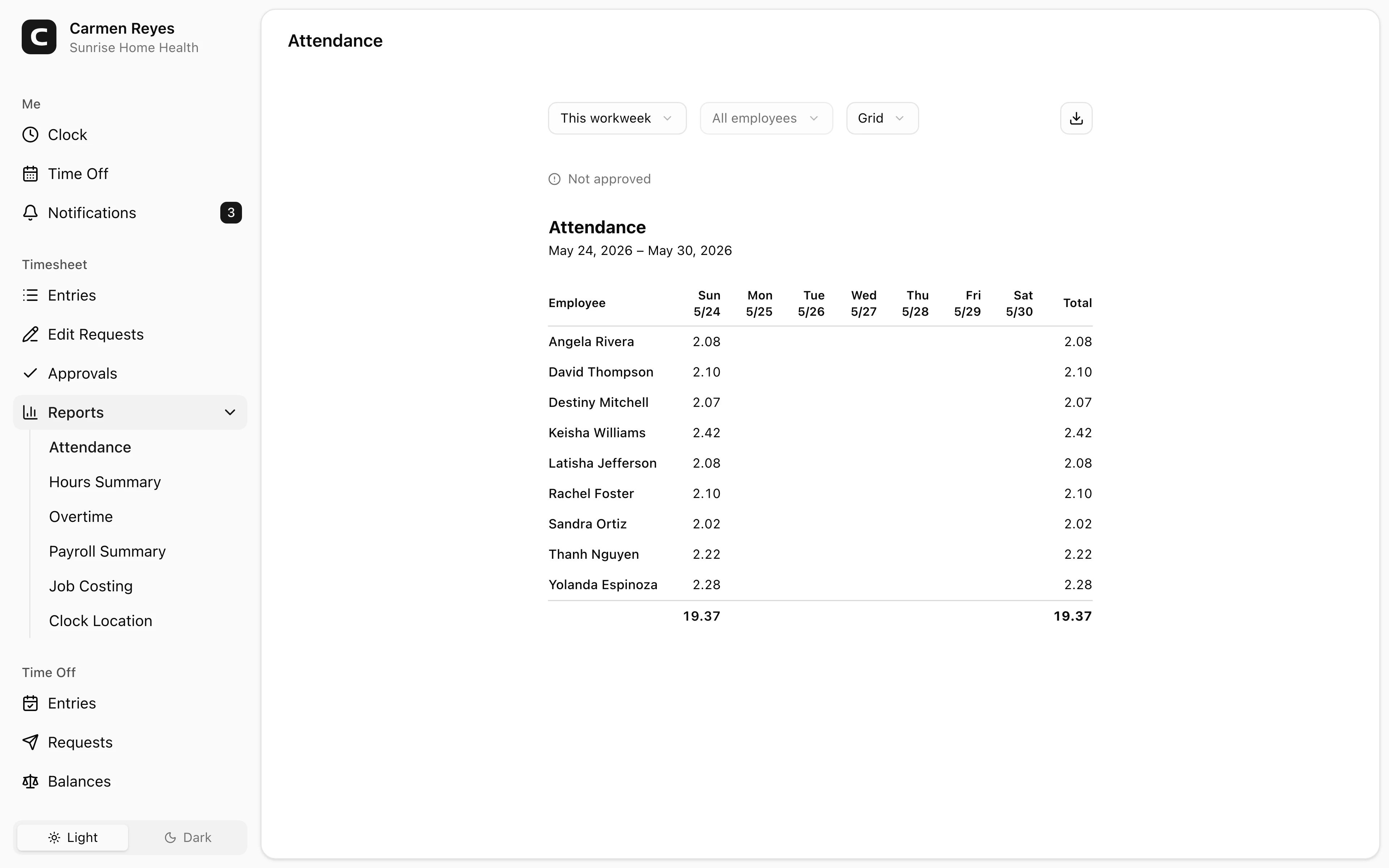
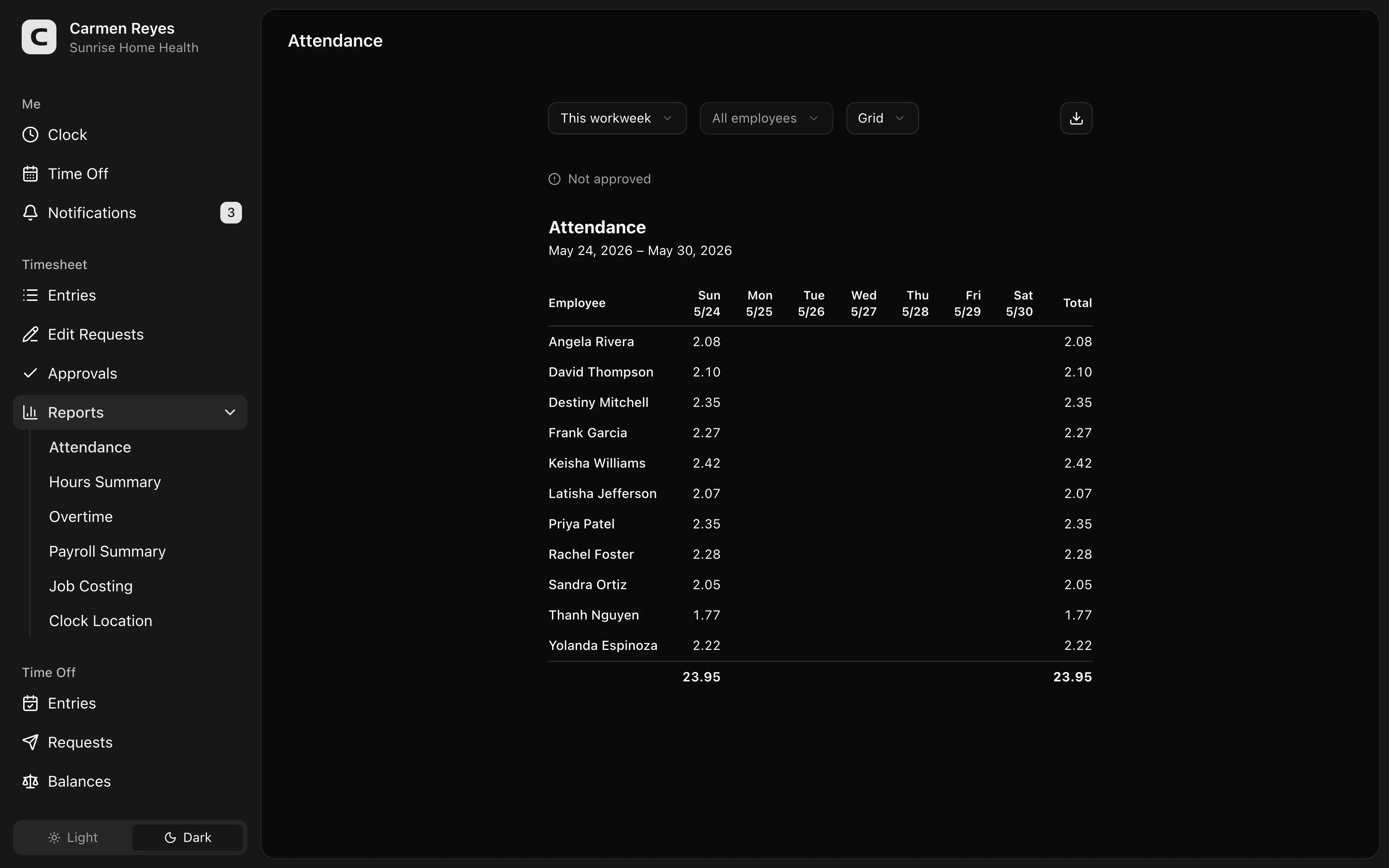
Daily hours per employee, with absent workdays marked.
What this report shows
For each employee in the selected date range: hours per day, total hours, and which scheduled workdays they missed.
View modes
- Grid (default) — rows are employees, columns are days. Cells show hours worked; a dash (–) marks a scheduled workday with no clock-in. Non-workdays are blank.
- By employee — per-employee daily breakdown, with first clock-in, last clock-out, off-clock gaps, and total hours.
- By date — for each date, who worked and their times.
Filters
Date range and employee select in the toolbar. A banner above the report shows how much of the period's timesheets are approved.
What counts as "absent"
A workday is set by the employee's work schedule (workspace default, with per-employee overrides in Staff). A scheduled day with no clock-in is marked absent. Non-workdays are blank — not absent.
Exporting
The export menu downloads the current view as CSV or copies it to the clipboard. The structure matches what's on screen.
Common questions
Someone is showing as absent on a day they were on approved leave. This report counts clock entries only — see the Hours Summary report for paid-leave totals.
Why are some employees missing on certain days? Grid view only shows employees who either worked or were scheduled to work. Employees without a schedule have no "absent" markers — they appear only on days they actually worked.
Can I see overtime or break detail here? No — this report is daily hours only. Use the Overtime report for OT breakdowns, and the By employee view for per-day in/out times and off-clock gaps.