Timesheet / Reports / Clock Location
Activity
Every clock-in and clock-out, with the location where it happened.
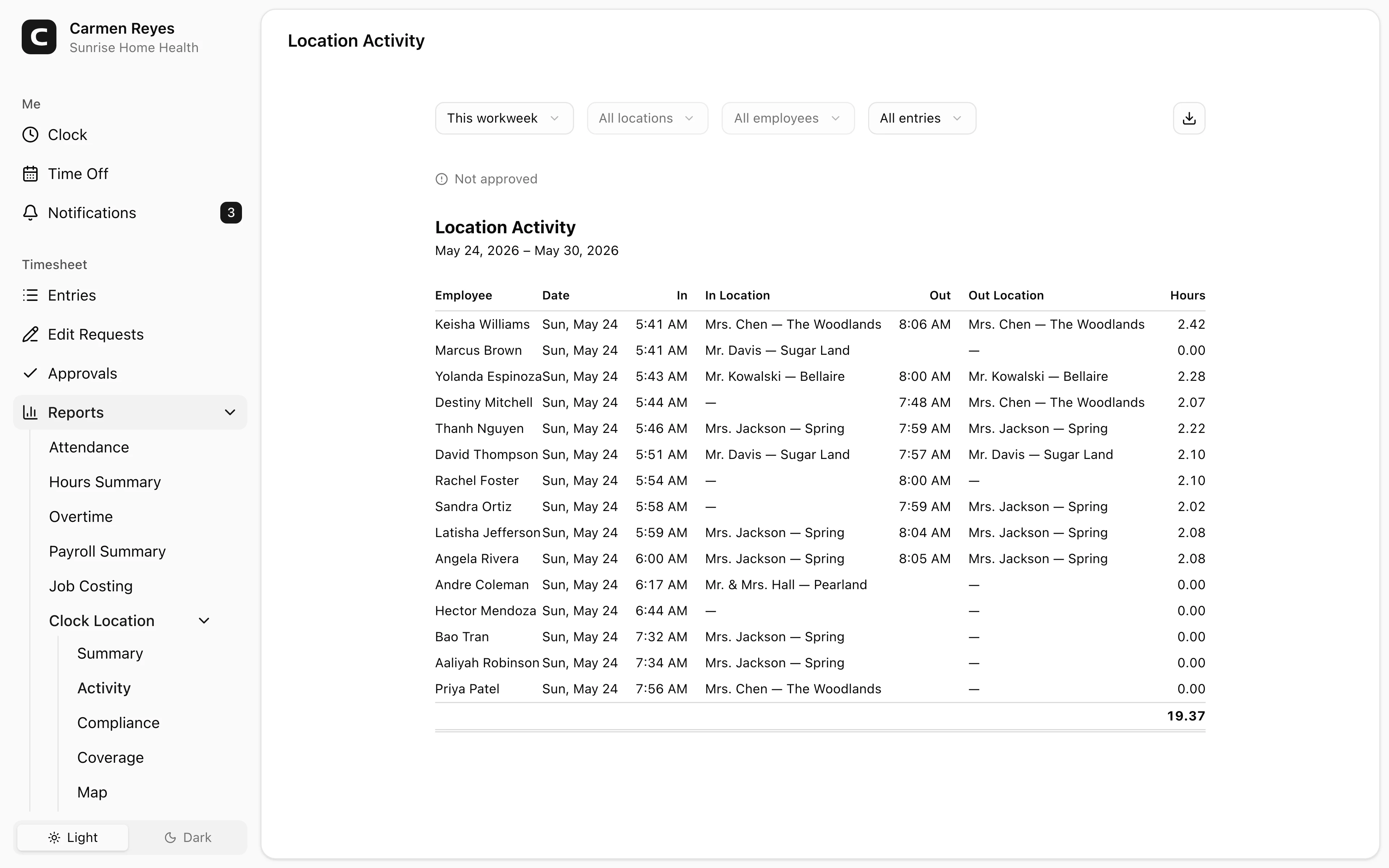
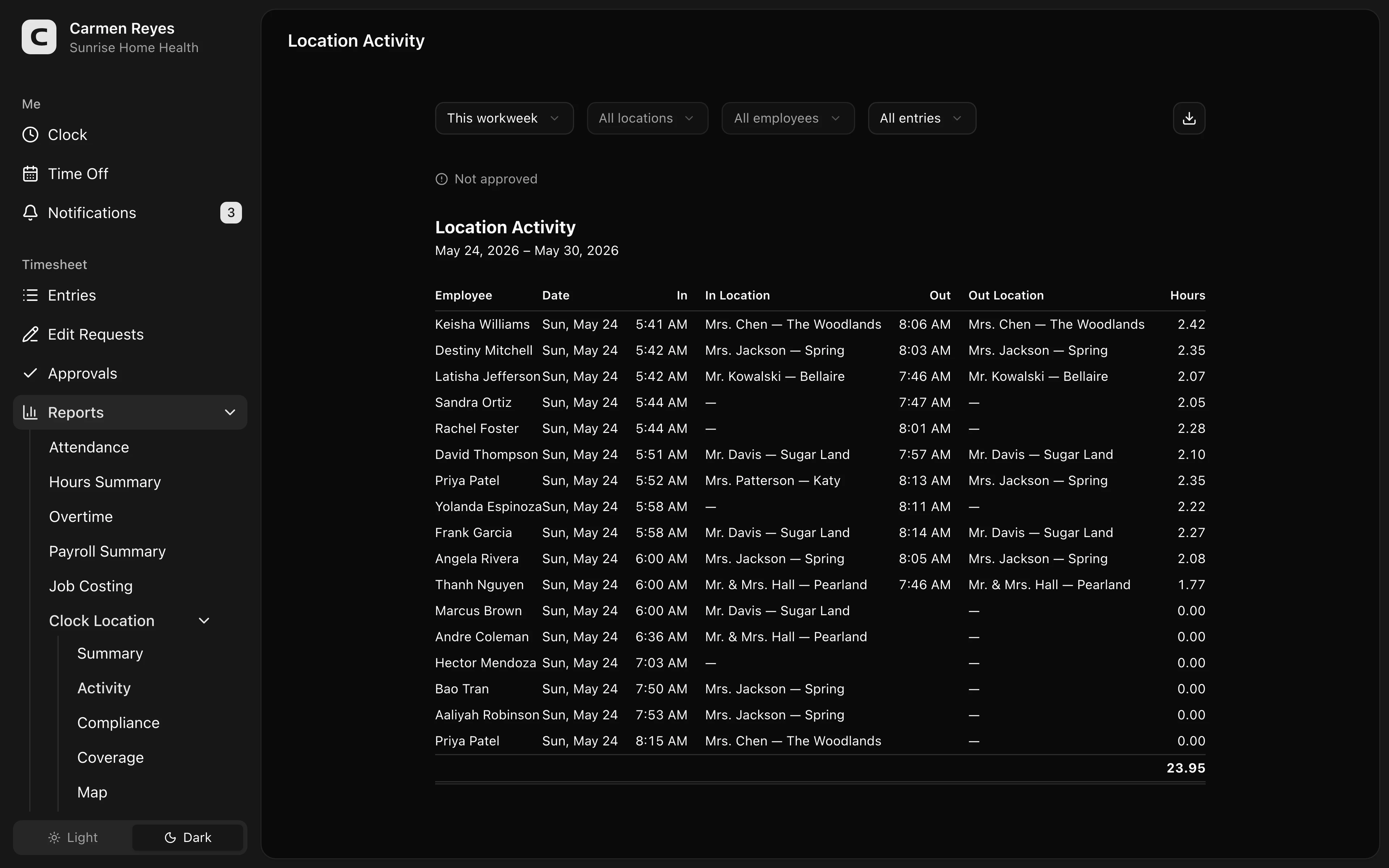
What this report shows
For each entry in the date range: who clocked in, when, where, and where they clocked out. Three views:
- All entries (default) — every entry as a flat list, sorted by time.
- By employee — grouped per employee with a per-employee subtotal.
- By date — grouped per date with a per-day subtotal.
A clock-in or clock-out without a recognized location shows as —.
Filters
Date range, location, employee, and view mode in the toolbar. A banner above the report shows how much of the period's timesheets are approved.
Exporting
The export menu downloads the flat list as CSV or copies it to the clipboard, regardless of the current view.
When to use a different report
- Hours rolled up per location → Location Summary
- Were sites covered every day? → Location Coverage
- Were clock-ins inside the geofence? → Location Compliance
- Spatial / map view → Location Map
Common questions
An entry's location shows as —. The employee didn't pick a clock location, or clocked from somewhere the workspace doesn't recognize. The Compliance report shows the geofence detail.
Out location differs from in location. The employee clocked in at one location and clocked out somewhere else. Common for mobile work — worth checking if it's surprising for a desk-based role.