Timesheet / Reports / Clock Location
Coverage
Where each employee worked — a matrix view across locations or across days.
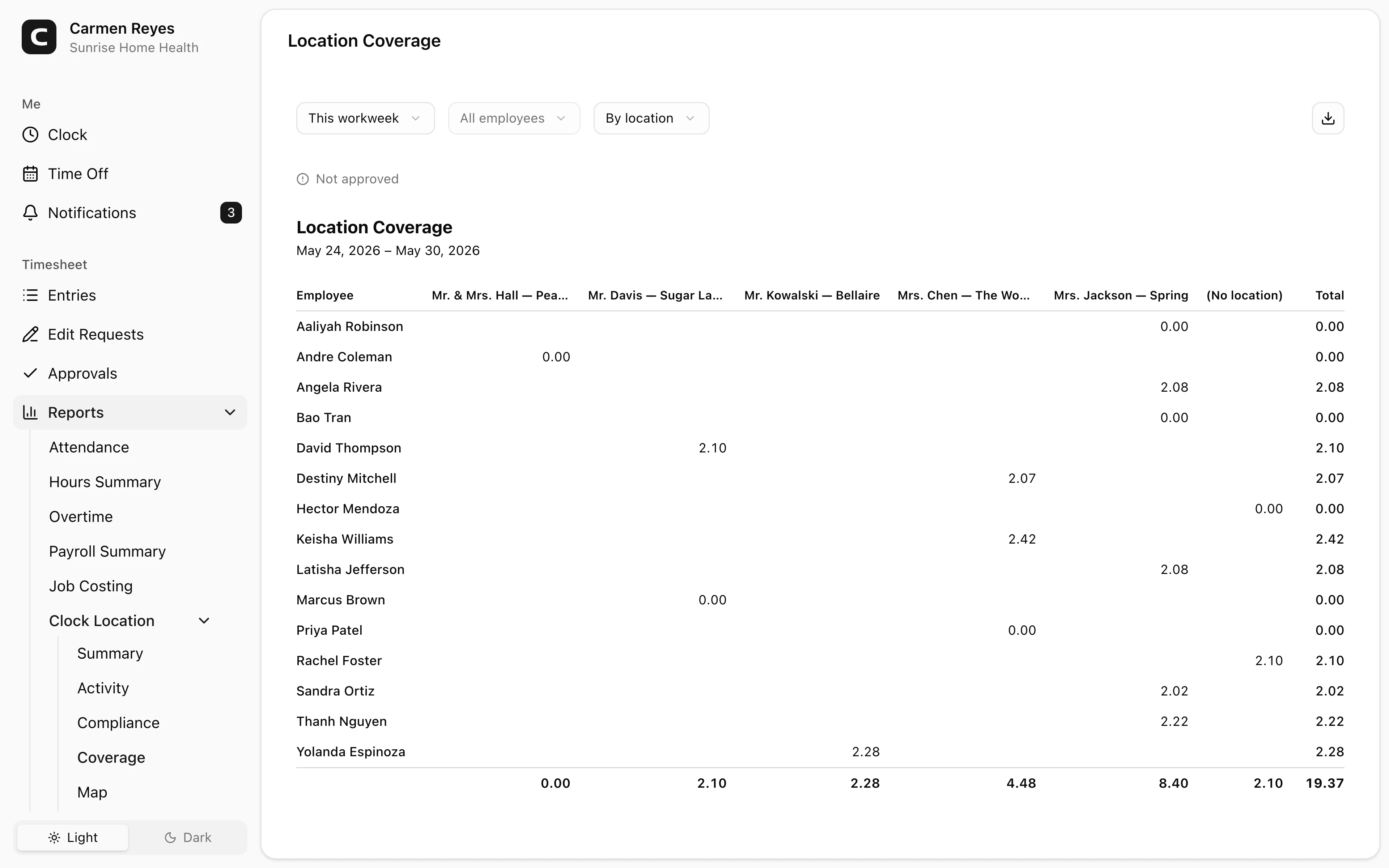
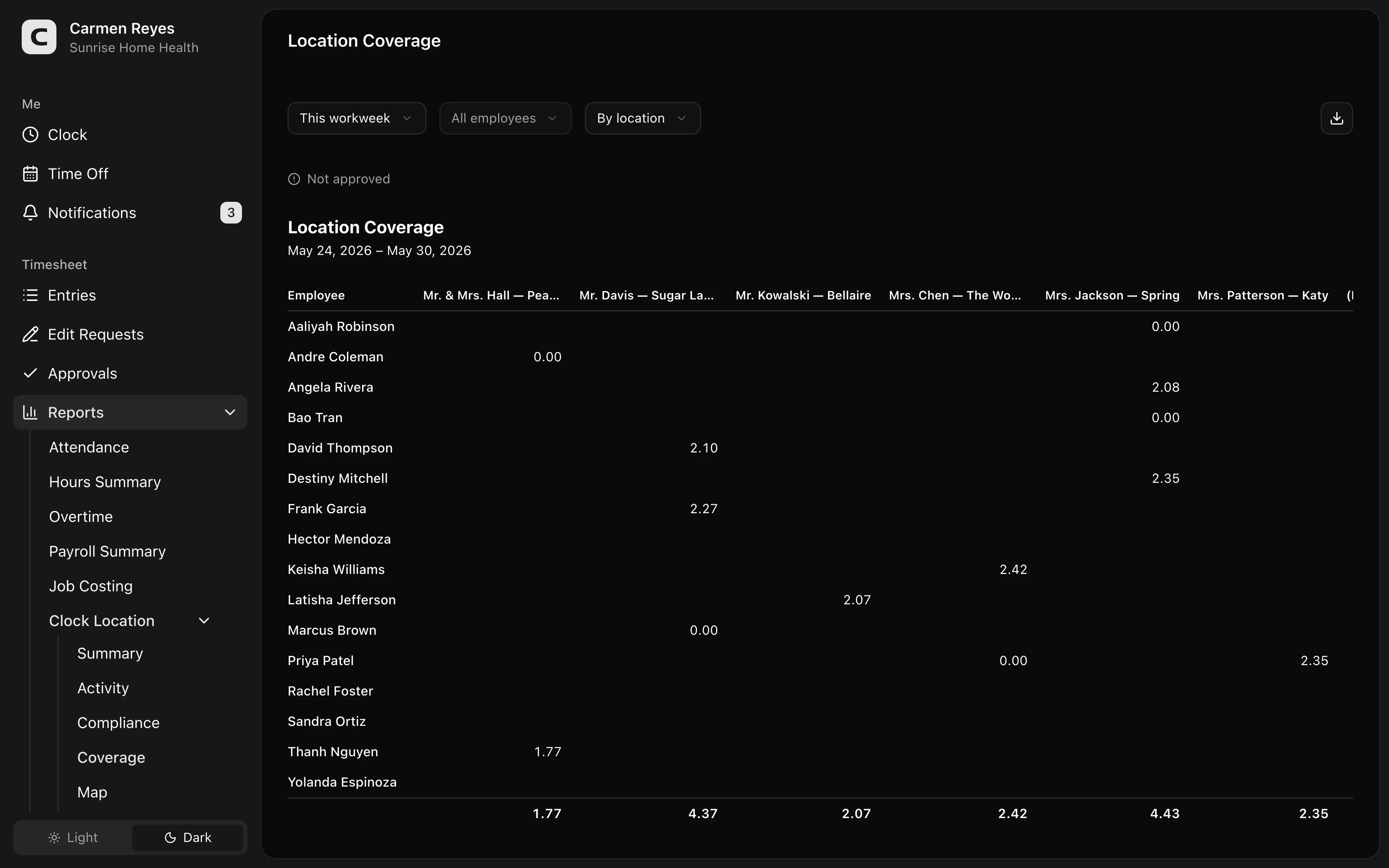
What this report shows
A matrix of employees against either locations or dates:
- By location (default) — rows are employees, columns are locations. Each cell shows the hours that employee worked at that location, plus row and column totals. Best for: "who works where, and how much?"
- By date — rows are employees, columns are dates. Each cell shows the primary location for that day (with +N if the employee was at multiple locations). Best for: "where was each person on each day?"
Filters
Date range, employee, and view mode in the toolbar. A banner above the report shows how much of the period's timesheets are approved.
Exporting
The export menu downloads the current grid as CSV or copies it to the clipboard. The CSV preserves the same row/column shape as on screen.
When to use a different report
- Hours per location with employee breakdown → Location Summary
- Every clock-in/out with locations → Location Activity
- Missing or mismatched location data → Location Compliance
Common questions
A cell is empty in the By-location view. That employee didn't clock in at that location during the date range.
A cell shows "+N" in the By-date view. The employee was at more than one location that day. The visible name is the location where they spent the most time; +N is the count of additional locations.
An employee's hours here don't match the Hours Summary report. Hours Summary includes paid leave (which this report doesn't); confirm both reports are scoped to the exact same date range.