Me
Clock
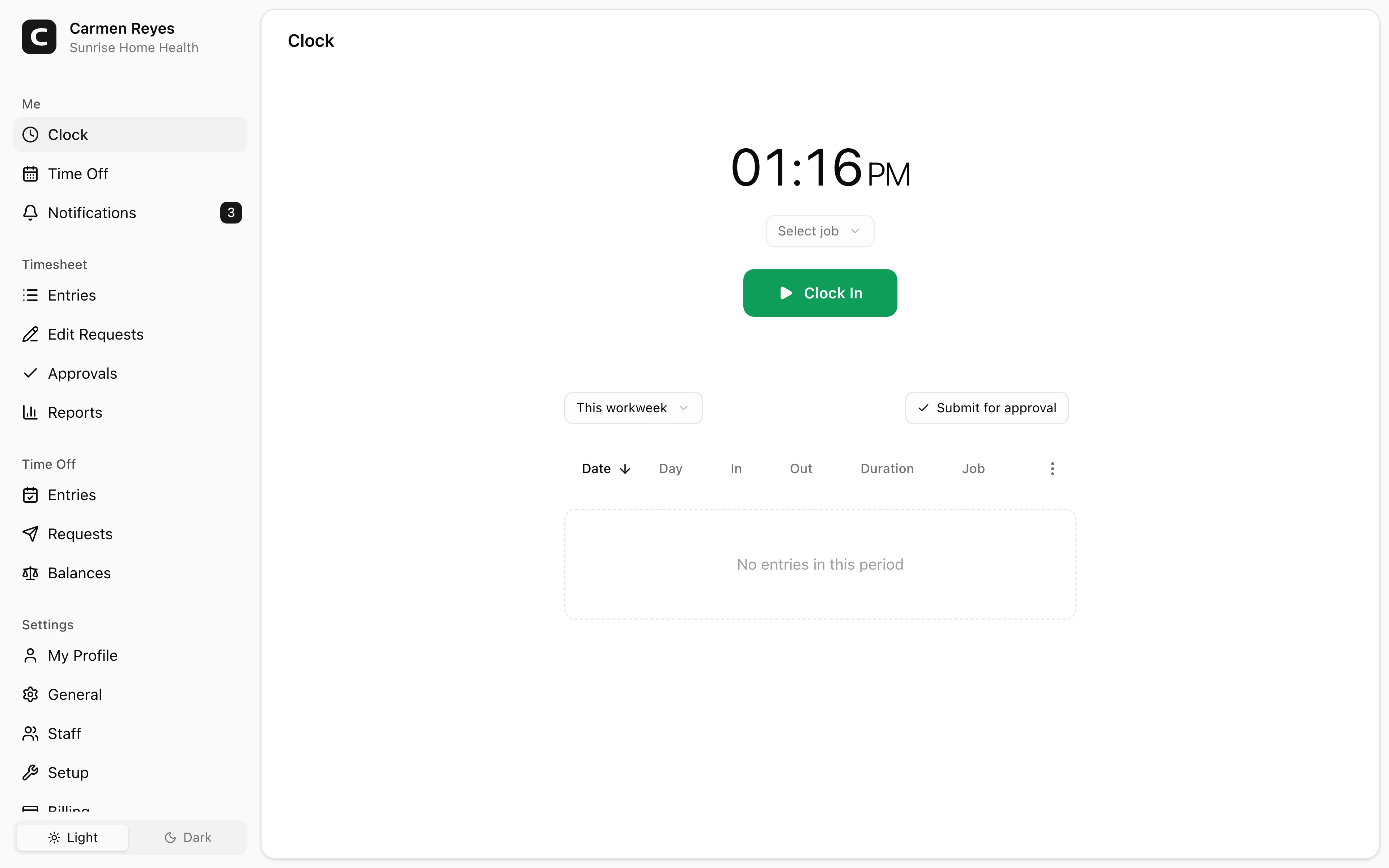
Start and end your shifts here, and submit your timesheet at the end of each pay period.
Clocking in and out
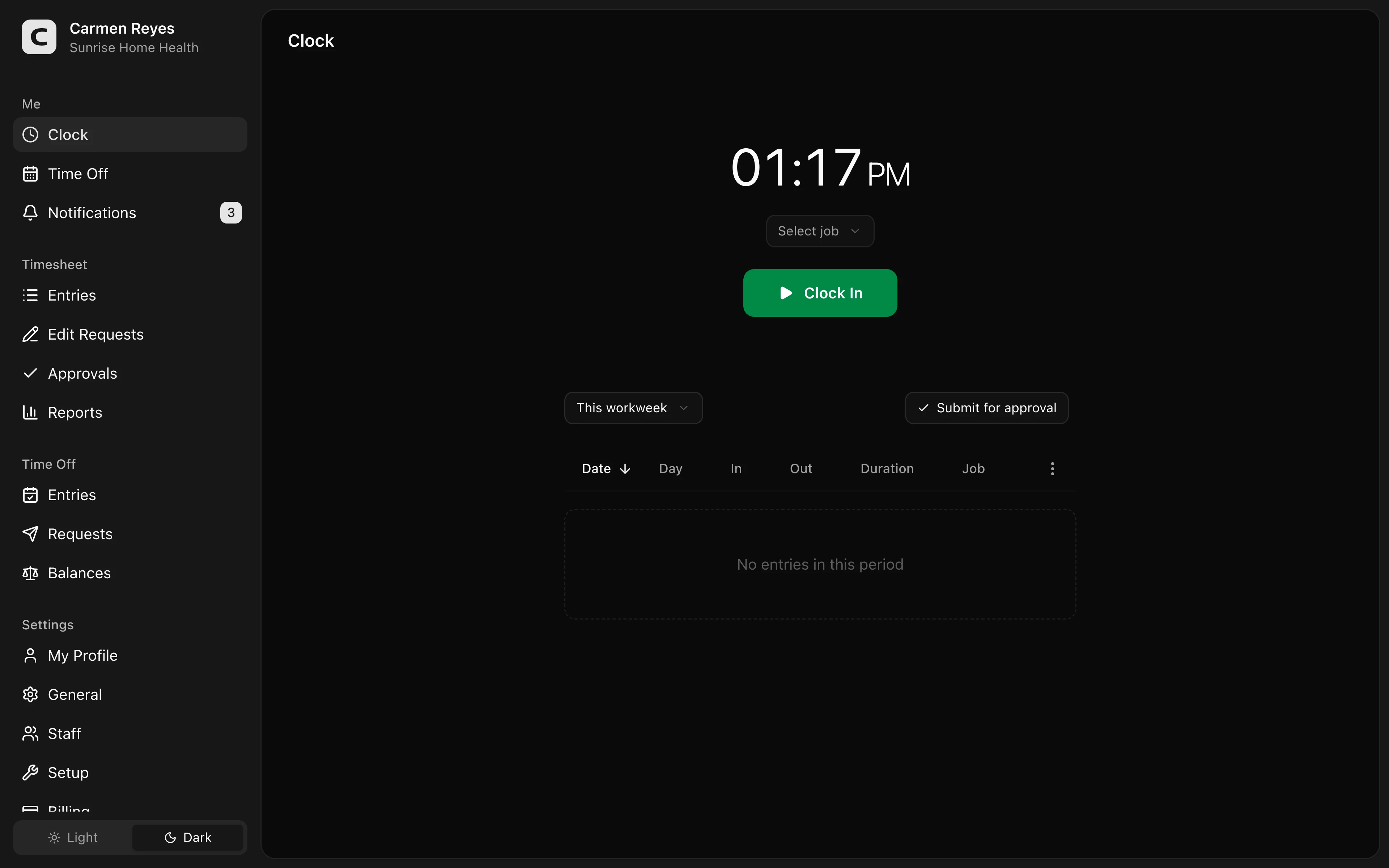
Press Clock In at the start of your shift, Clock Out at the end.
Your workspace may also require you to pick a job, add a shift note, or fill in custom fields. If anything required is missing when you press the button, a message tells you what's needed.
Submitting your timesheet
Your entries appear below the clock — by default, the current week. Press Submit for approval to send them to your manager, with an optional note.
While the submission is pending, you can cancel it to make further edits. Once approved, entries are locked — to request a change, open the row menu on the entry and choose Request edit. Your manager reviews and decides.
If your location isn't recognized
When your workspace tracks clock-in location and you try to clock in from outside any of its clock locations, a confirmation appears: "You are clocking in from an unrecognized location. This will be visible to your manager."
Proceeding records the entry with a flag for your manager to review. If you regularly work from a spot that isn't recognized, ask an admin to add it as a clock location.
Common questions
Can I clock in for a time in the past? No — clock-in and clock-out always record the current moment. If you forgot to clock in, ask your manager to add the entry from the Timesheet page.
I forgot to clock out at the end of yesterday's shift. Clock out as soon as you notice — the recorded time will be wrong by hours. Then submit an edit request with the actual end time.
I see a wrong or duplicate entry. You can't edit or delete an existing entry directly — submit an edit request and your manager will fix it.