Timesheet / Reports
Job Costing
Where your team's hours are going, broken down by job.
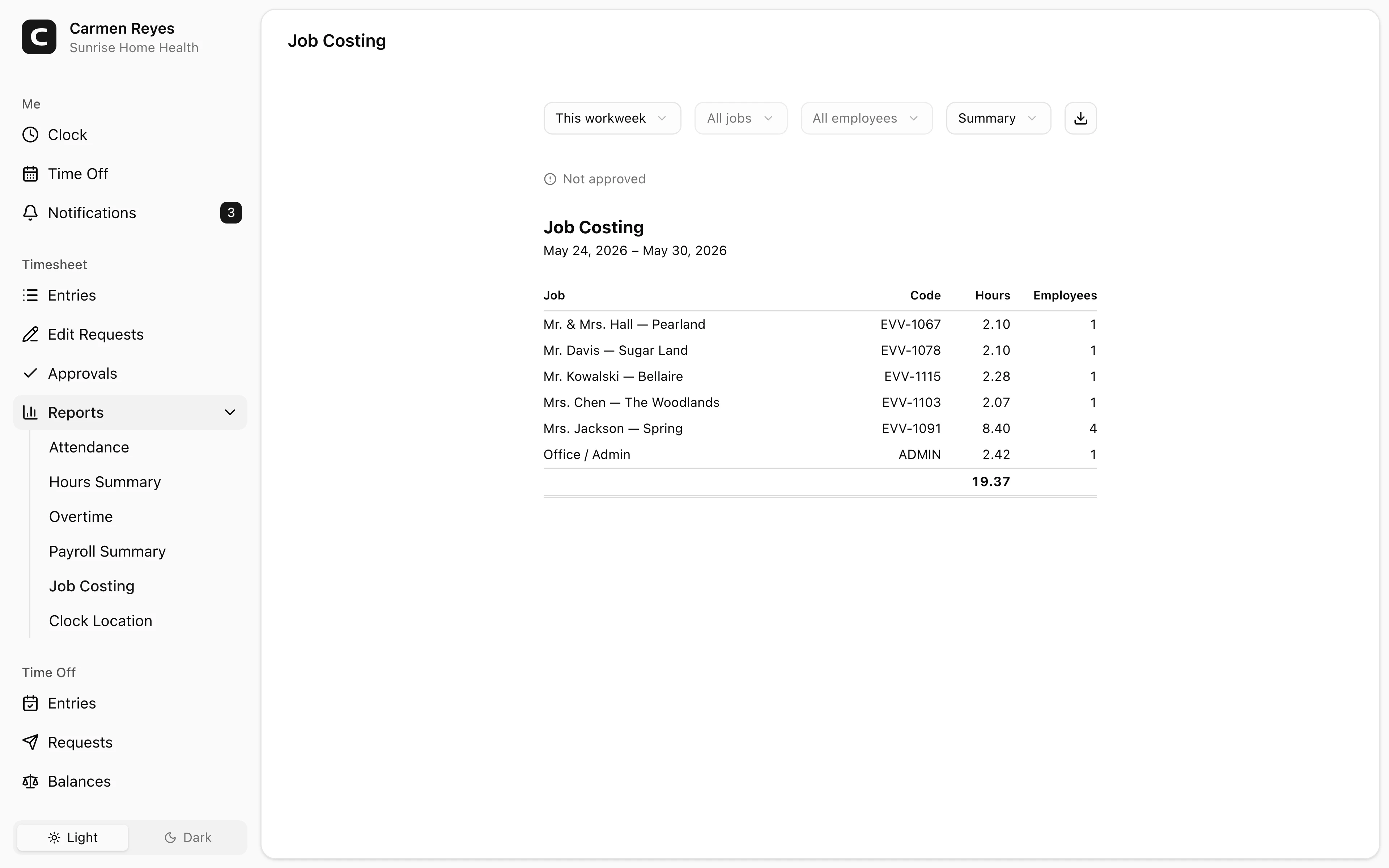
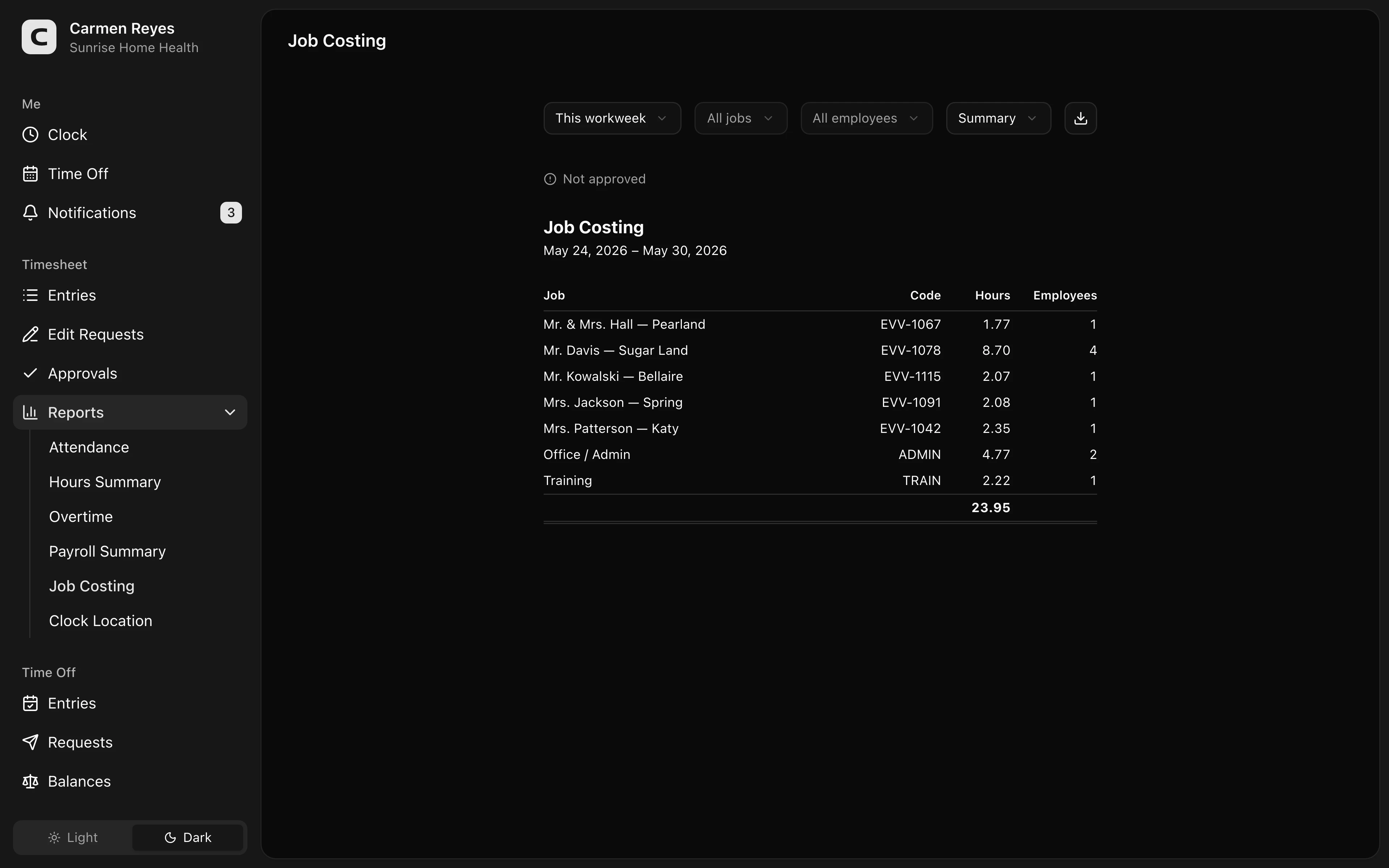
What this report shows
For the date range, how many hours your team logged against each job. Three views:
- Summary (default) — one row per job with total hours and unique employee count.
- By job — each job with the employees who worked on it and their per-job hours.
- By employee — each employee with the jobs they worked on and their per-job hours.
Hours not assigned to any job show under (No job), sorted last.
Filters
Date range, job, employee, and view mode in the toolbar. A banner above the report shows how much of the period's timesheets are approved.
Exporting
The export menu downloads the current view as CSV or copies it to the clipboard. The structure matches what's on screen, with subtotals and a grand total.
Common questions
Hours are showing under "(No job)". Those clock-ins didn't specify a job. To require employees to pick a job before clocking in, enable Require job at clock-in in Settings → General.
An employee is missing from a job they worked on. Open the Timesheet page, filter to that employee and date range, and check whether the entries actually have that job assigned. Entries with no job land in (No job).
Can I see labor cost, not just hours? This report shows hours only. For pay totals (regular + overtime + leave with hourly rates), see the Payroll Summary report.