Settings / Setup
Clock Locations
Named locations where employees can clock in, each defined by one or more rules (geolocation, IP, or device).
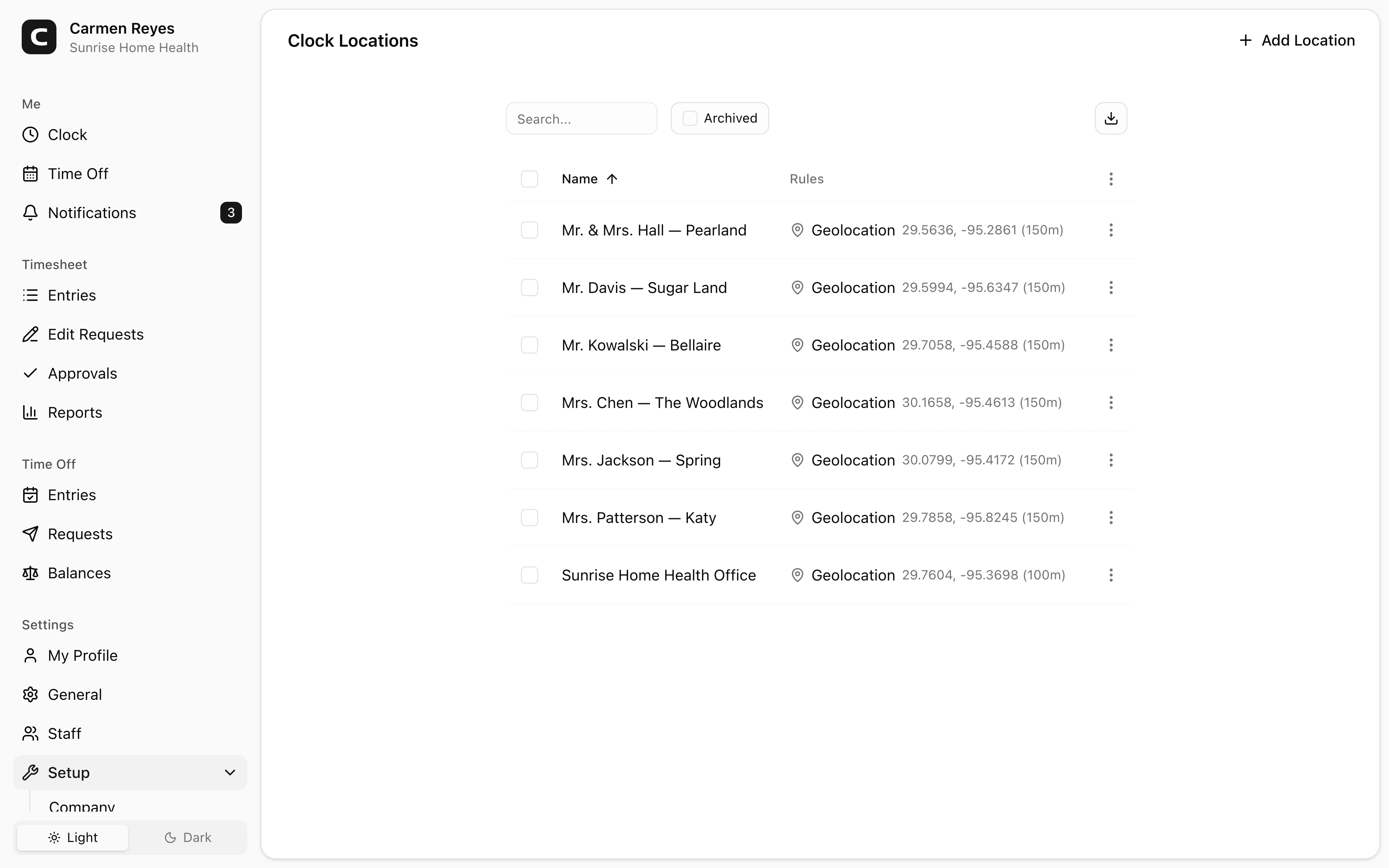
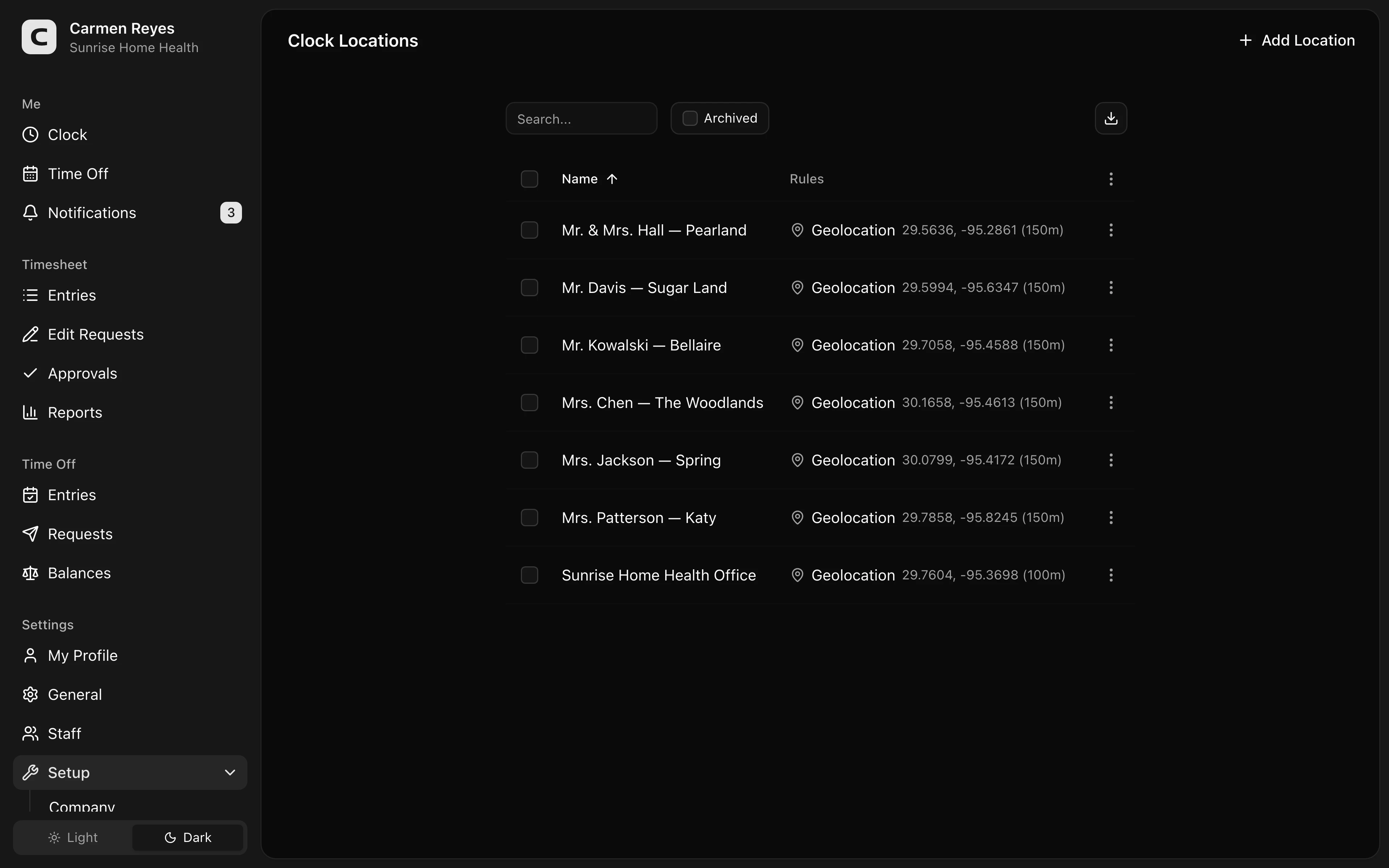
What a clock location is
A name plus one or more rules that describe how an employee must be present to clock in there. The supported rule types:
- Geolocation — a latitude, longitude, and radius (in meters). The device's GPS must report a position inside the radius.
- IP — IP addresses the device must connect from (e.g. your office Wi-Fi).
- Device — specific device IDs registered with the workspace.
A single location can combine rule types — for example, "Office HQ" matched by either the office Wi-Fi IP or its geofence.
Adding a location
Press Add Location in the page header, name it, and add at least one rule. Save.
How clock-ins match locations
When an employee clocks in, their context (GPS, IP, device) is checked against every defined location. The first match becomes the entry's clock location.
If the workspace has Warn employees clocking from unrecognized locations enabled (Settings → General) and no location matches, the employee sees a confirmation and the entry is flagged — visible on the Location Compliance report.
Archiving
Use Archive (row menu or bulk action) to retire a location. Toggle the Archived view and use Restore to bring it back. Locations can't be deleted — archiving keeps historical entries linked correctly.
Common questions
An employee says they were on-site but their clock-in didn't match. For Geolocation, the radius may be too tight or GPS was inaccurate — widen the radius. For IP, confirm the device is on the expected network. For Device, the employee may be on hardware that isn't on the device list.
Where do I see who clocked in here? The location reports under Reports → Clock Location show hours, presence, and per-location details.
Can I rename a location? Yes — use Edit location in the row menu. The new name flows through to reports.