Timesheet
Entries
Every employee's time entries in one place — review, approve, edit, and add.
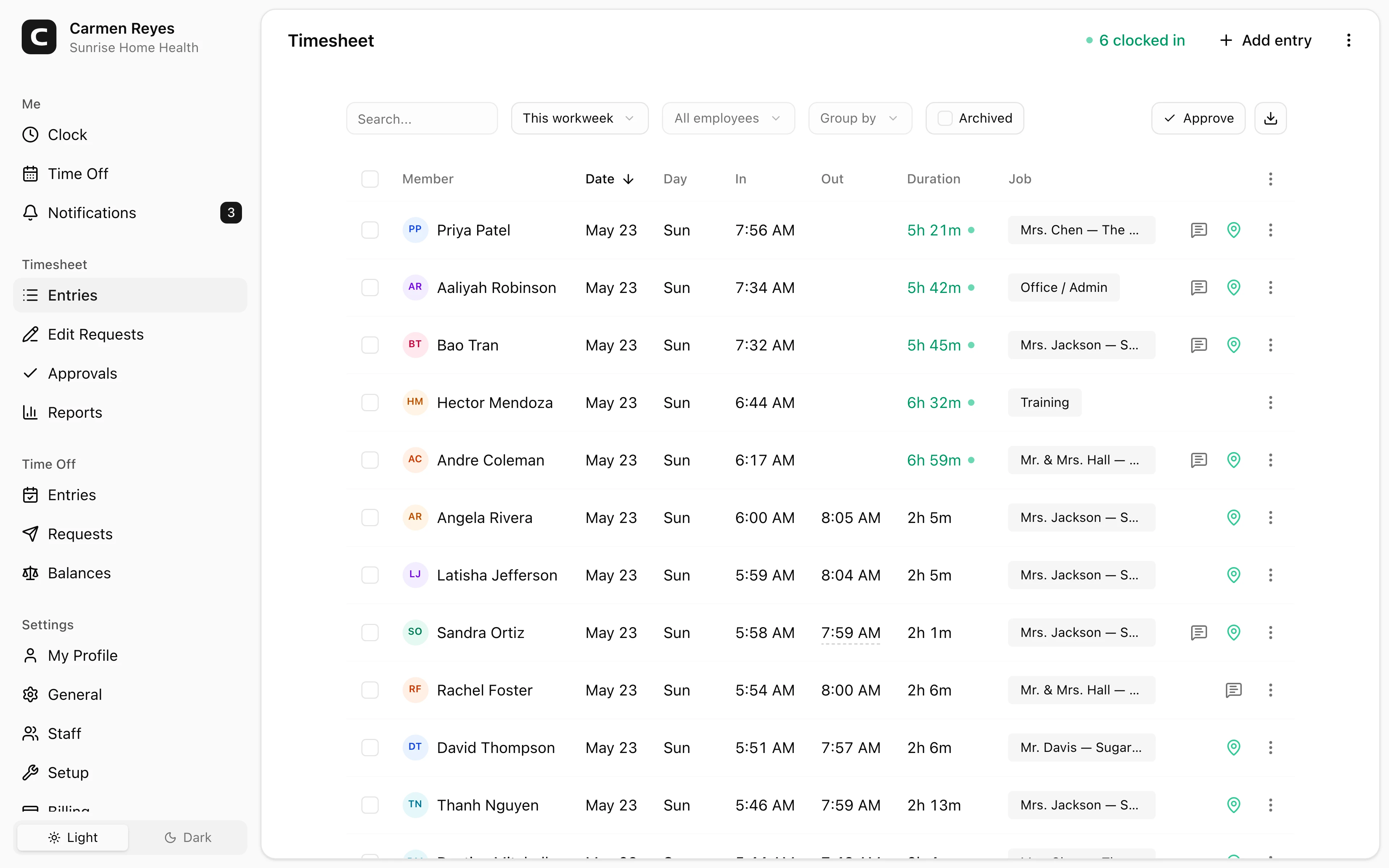
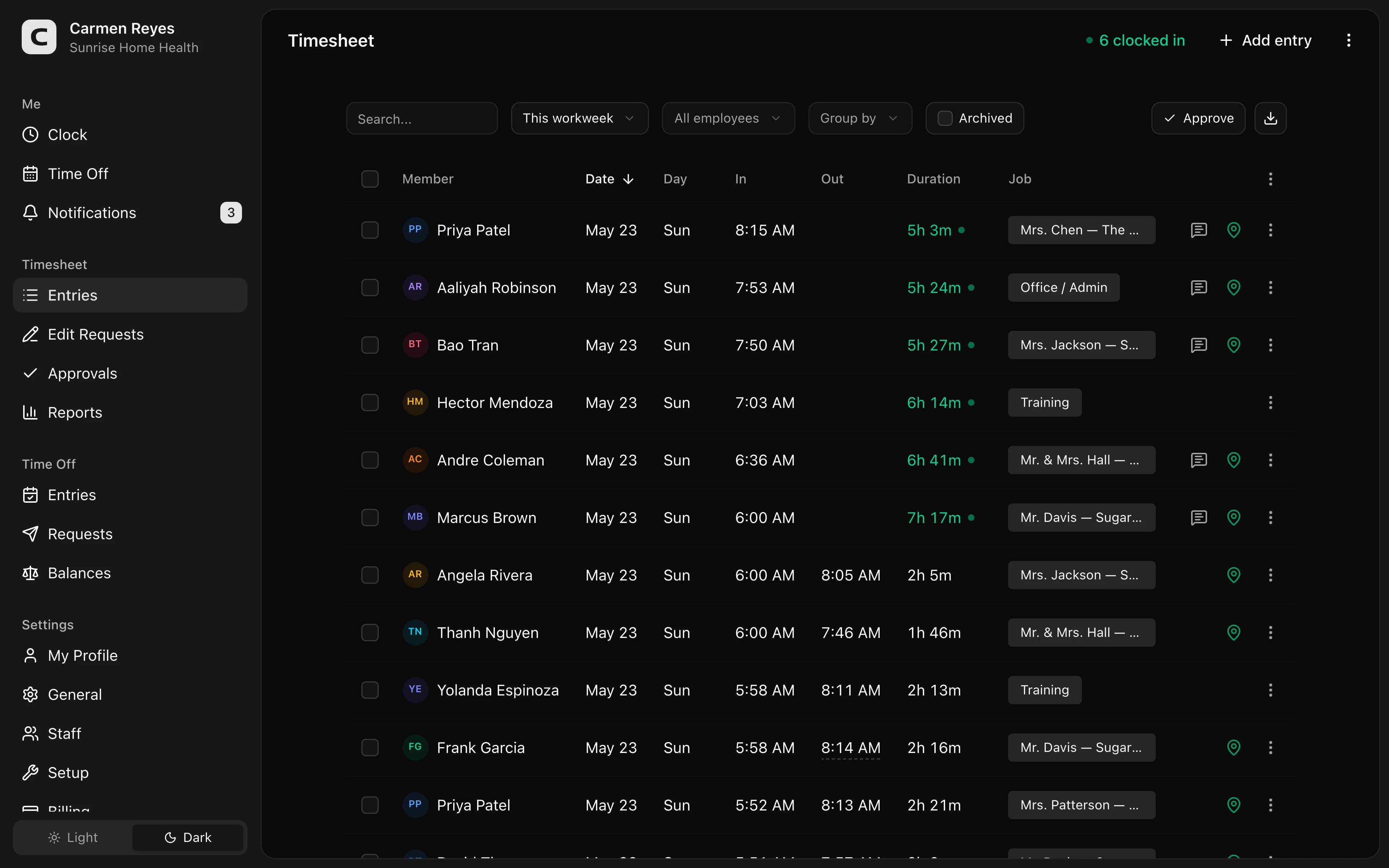
What this page shows
The team timesheet — every clock-in/clock-out from every employee, with date, job, duration, and approval status. Filter by employee or date range in the toolbar.
Add entry in the page header adds an entry for any employee. Clocked in shows who's currently on the clock.
Reviewing and editing
Click cells to edit inline; the row menu's Edit entry opens the full form (in/out times, job, note, custom fields). Every edit is audit-trailed — open Edit history to see what changed, who changed it, and when.
The clock-location indicator on each row shows whether the clock-in matched a defined location. Click it for details.
Approving timesheets
Each row's approval pill reflects the submission state of the timesheet that includes the entry:
- Submitted — employee submitted; awaiting your decision
- Approved — locked; employees use edit requests for changes
- Rejected — sent back with a note
- No pill — entry isn't part of any submission yet
To approve everything currently shown, press Approve in the toolbar. Once approved, the toolbar switches to Approved — click it to cancel and reopen entries for editing. To cancel just one entry, click its row pill.
Adding entries
Press Add entry in the page header. Choose the employee and set the in time (required). Out time, job, note, and custom fields are optional — leave the out time blank for an open shift the employee will close themselves.
Archiving
The row menu's Archive removes an entry from timesheets and reports (or select multiple rows and use Archive in the toolbar). Toggle Archived in the toolbar to see archived entries and Restore to bring them back.
Common questions
An employee's entry is wrong but their timesheet is approved. Click the row's approval pill to cancel the approval (add a note explaining why), edit the entry, then re-approve. Alternatively, the employee can submit an edit request from their Clock page.
I added an entry but it doesn't have an approval status. Entries get a Submitted/Approved/Rejected status only when they're part of a timesheet submission. Direct admin-added entries don't go through that flow until the employee submits the period.
Where do I see overtime hours? The Overtime report breaks out which hours triggered which rule. Hours Summary shows per-employee totals split into regular, overtime, and paid leave.