Time Off
Entries
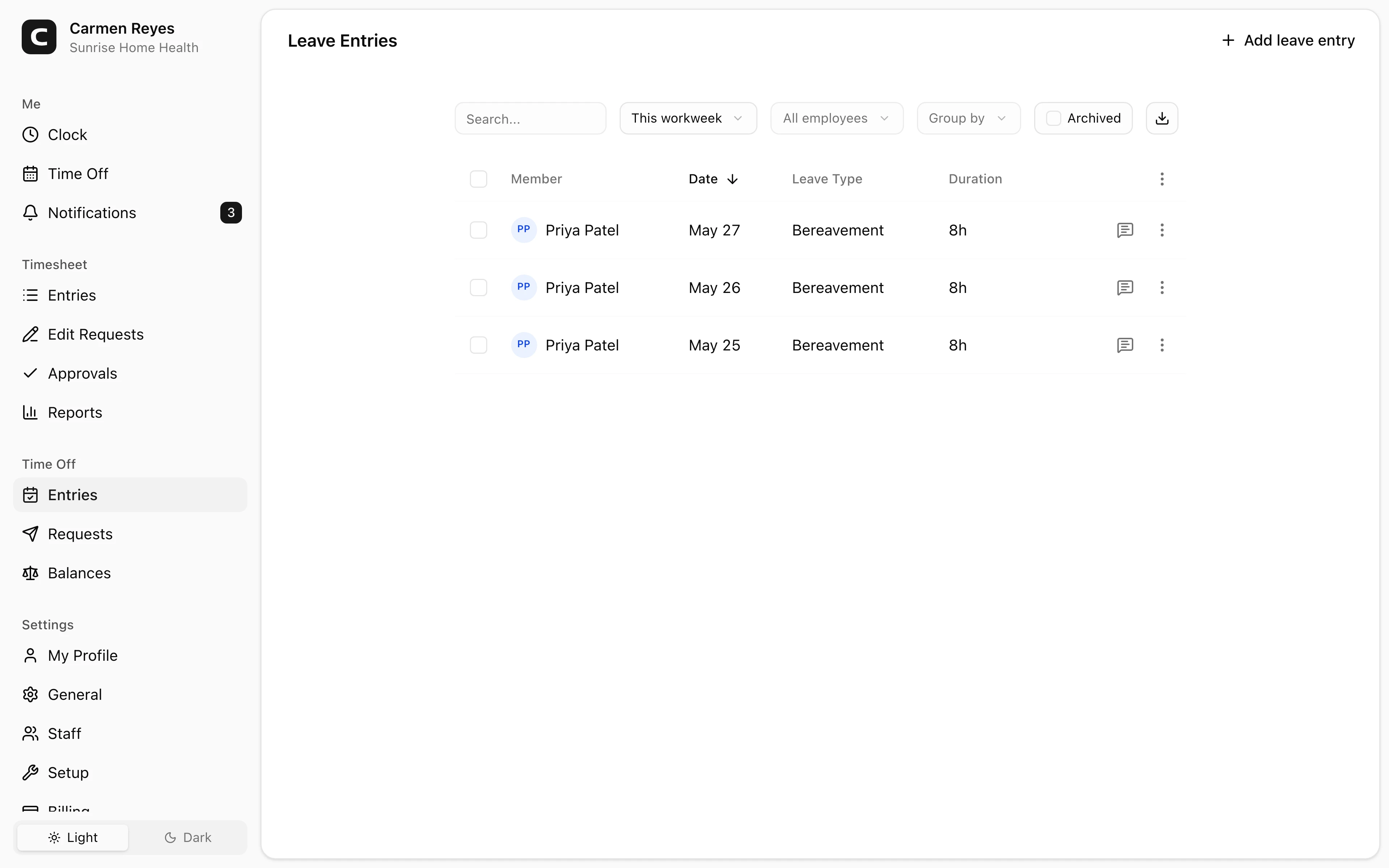
Every leave entry across your team — from approved requests and from manual additions.
What this page shows
One row per leave entry, with the employee, the date the leave was taken, the leave type, and how many hours it counted for. Each day of a multi-day leave is its own row.
Entries land here in two ways:
- Approved leave requests create entries automatically once you approve them on the Leave Requests page.
- Manual entries — use Add leave entry in the page header to record leave on someone's behalf (e.g. a phone call from a sick employee).
If the requester left a note, a speech-bubble icon appears on the row — click to read.
Filters
Date range and employee in the toolbar. Toggle Archived to see archived entries instead of live ones.
Editing and archiving
- Edit entry (row menu) — opens a dialog to change date, leave type, hours, or note. Balances adjust automatically.
- Archive (row menu) — removes the entry from balances and reports. Toggle Archived in the toolbar and use Restore to bring an archived entry back.
When to use a different page
- Requests still waiting on a decision → Leave Requests
- Current accrual and remaining balance per employee → Leave Balances
Common questions
An employee's leave isn't showing up. Check the date range and employee filter first. If it's still missing, the request may not be approved yet — check Leave Requests for pending items.
How do I bulk-archive leave entries? There's no bulk archive — each one is one-at-a-time so it's hard to do by mistake. For wholesale corrections, the Leave Balances page supports manual adjustments with an audit note.
How are the hours decided for a multi-day leave? Each entry stores the hours per day that the requester selected (e.g. 8 for a full day, 4 for a half-day). Editing an entry lets you change the hours per day directly.