Me
Notifications
Your inbox for approval, edit-request, and leave-request activity.
What you'll see
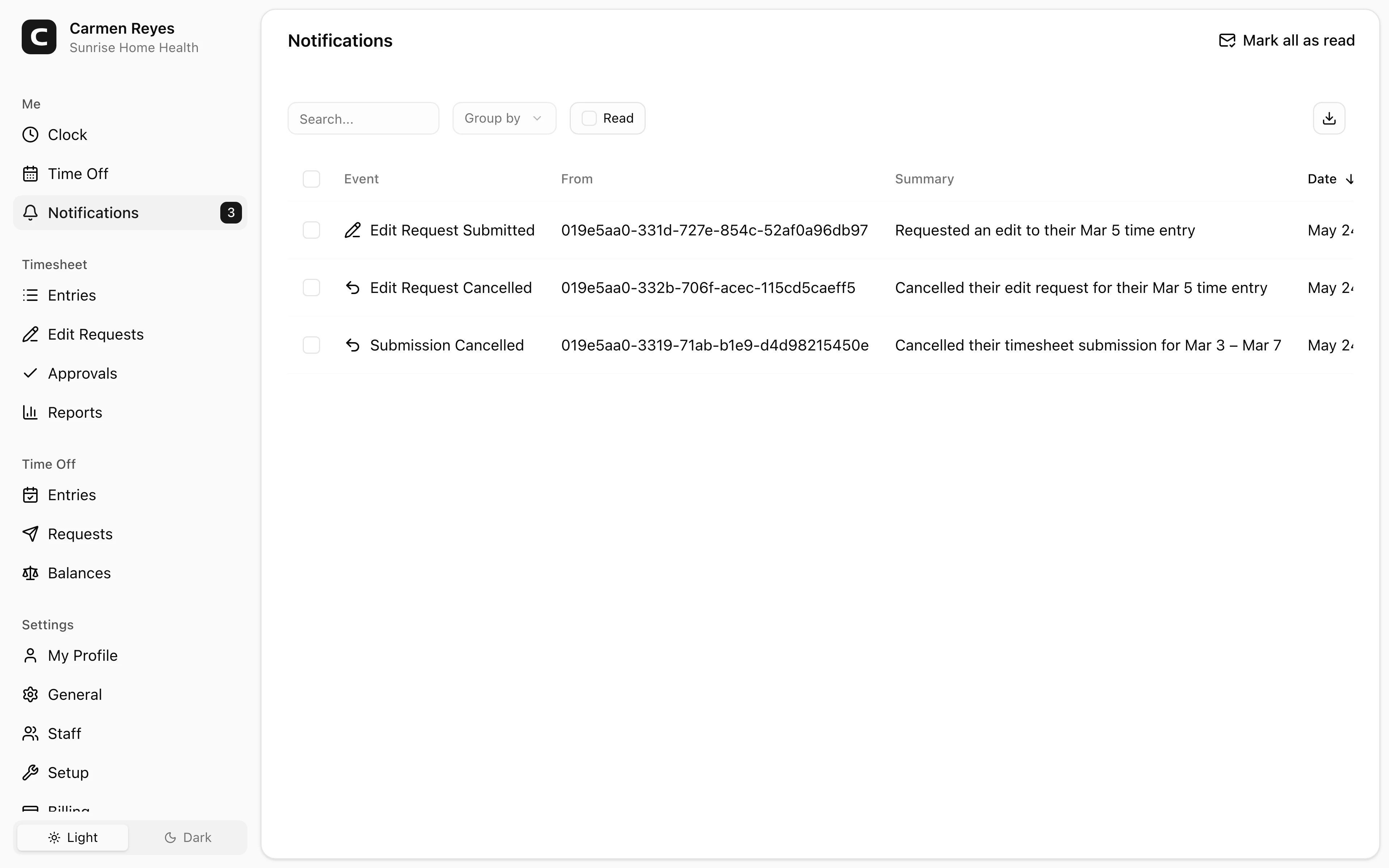
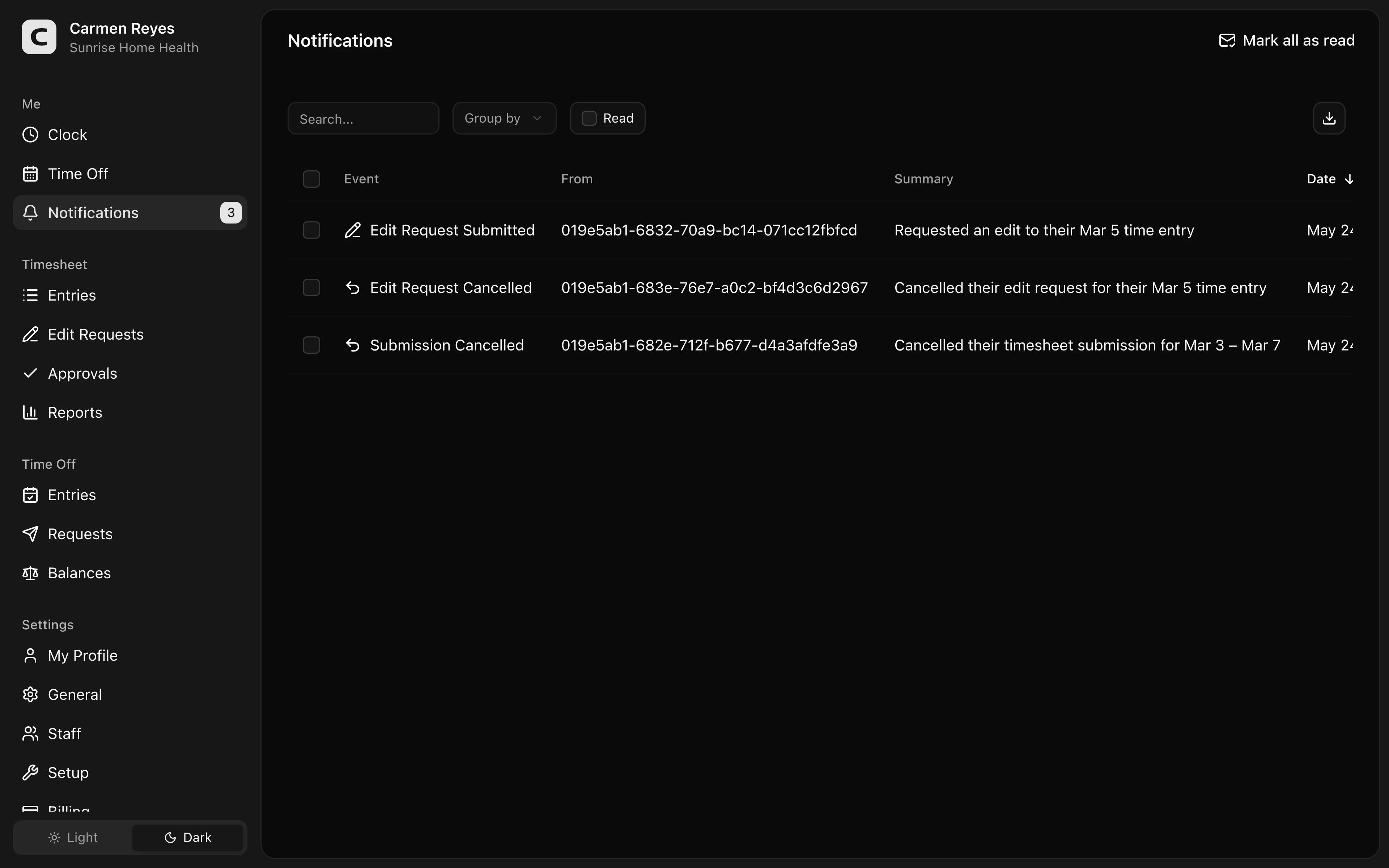
Each row is one notification: the event (like "Timesheet Approved"), the person who triggered it, a one-line summary, and when it happened. The number next to Notifications in the menu is your unread count.
Use the Read toggle in the toolbar to switch between unread (default) and read.
Acting on a notification
Open a row's menu and choose View to jump to the underlying approval, edit request, or leave request. View only appears when a notification points to a page.
Select notifications and use Mark read to clear them, or press Mark all as read in the page header to clear everything at once.
To move a read notification back to unread, toggle Read in the toolbar and use Mark unread from its row menu.
Customizing what you receive
The Notification Preferences page (under Settings → Setup) controls which events get sent by Email or SMS. In-app delivery (this page, plus the bell icon) is always on.
Common questions
I didn't get a notification I was expecting. Open Notification Preferences and confirm that event type is turned on for Email or SMS — whichever channel you're watching.
How do I find notifications I've already cleared? Toggle Read in the toolbar to see your read notifications.