Timesheet / Reports
Hours Summary
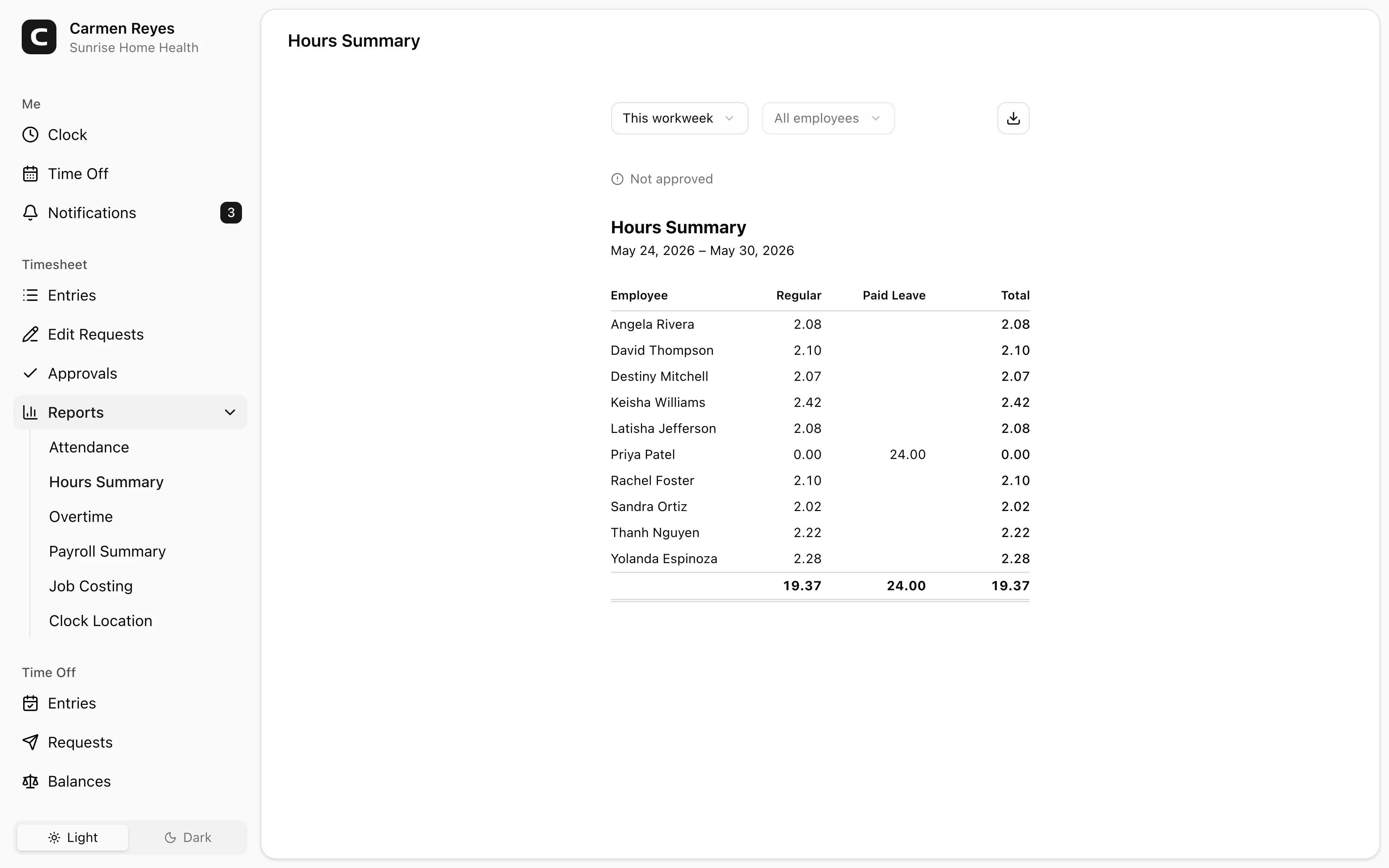
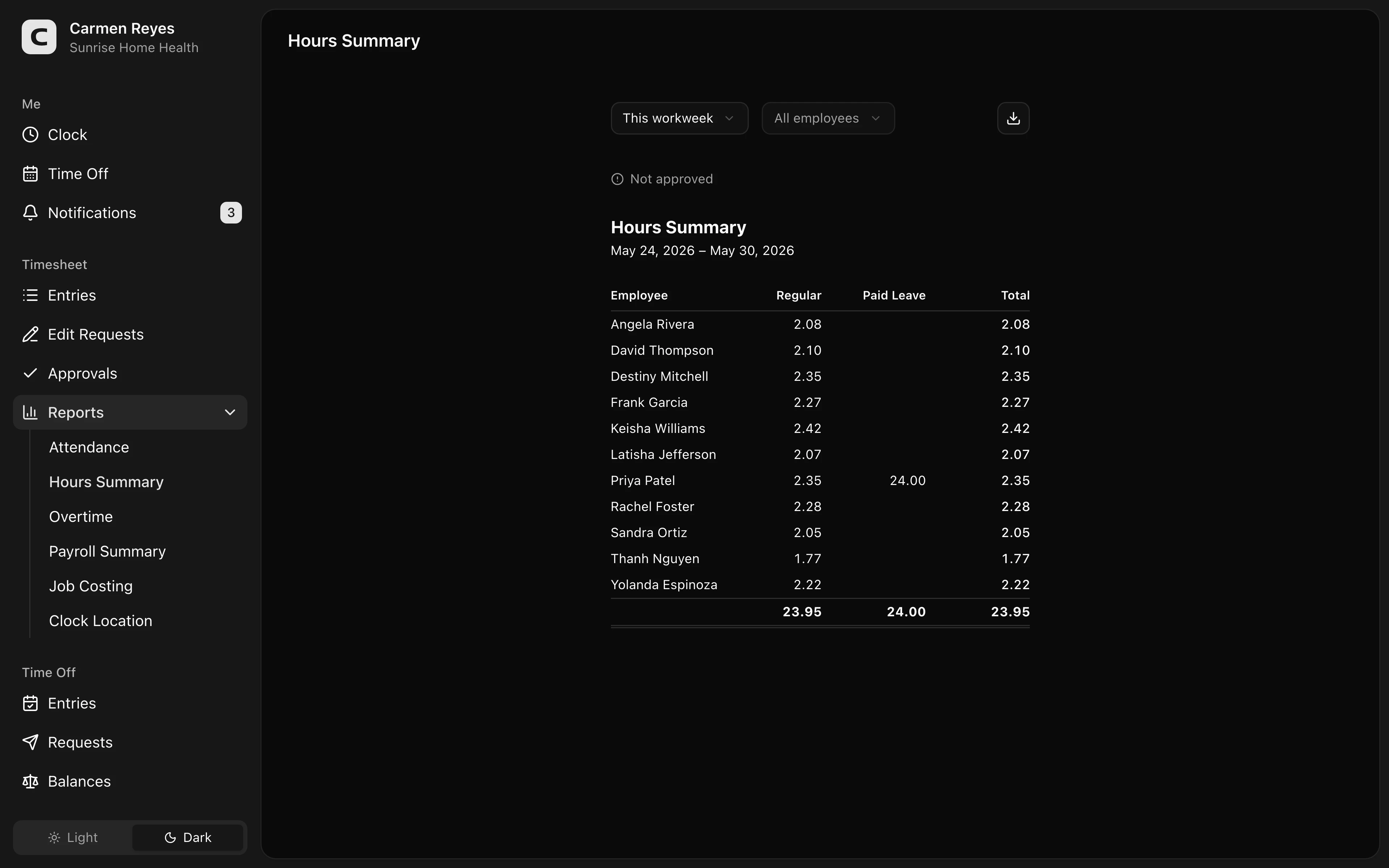
Total hours per employee, split into regular, overtime, and leave.
What this report shows
One row per employee with their hours for the selected date range, broken into:
- Regular — hours worked, excluding overtime
- Overtime — hours beyond your workspace's overtime rules (configured in Settings → General)
- Paid leave — approved leave on leave types marked as paid
- Unpaid leave — approved leave on leave types marked as unpaid
The Overtime, Paid Leave, and Unpaid Leave columns only appear when there's data in them.
Filters
Date range and employee select in the toolbar. A banner above the table shows how much of the period's timesheets are approved — useful to check before sharing the report with payroll.
Exporting
The export menu downloads the table as CSV or copies it to the clipboard. The column structure matches what's on screen, plus a totals row at the bottom.
Common questions
The total is lower than I expected. Open the Timesheet page filtered to that employee and date range to see every entry. The approval coverage banner above the report flags periods that aren't fully approved — that's often the gap.
How do I send this to payroll? Use the export menu in the toolbar for a CSV (or copy to clipboard). Most payroll systems can import a CSV with these columns directly — map them in your payroll tool's import step.
Where is "Paid leave" vs "Unpaid leave" set? Each leave type has a paid/unpaid flag (Settings → Setup → Leave Types). The columns here roll up by that flag.