Timesheet / Reports / Clock Location
Compliance
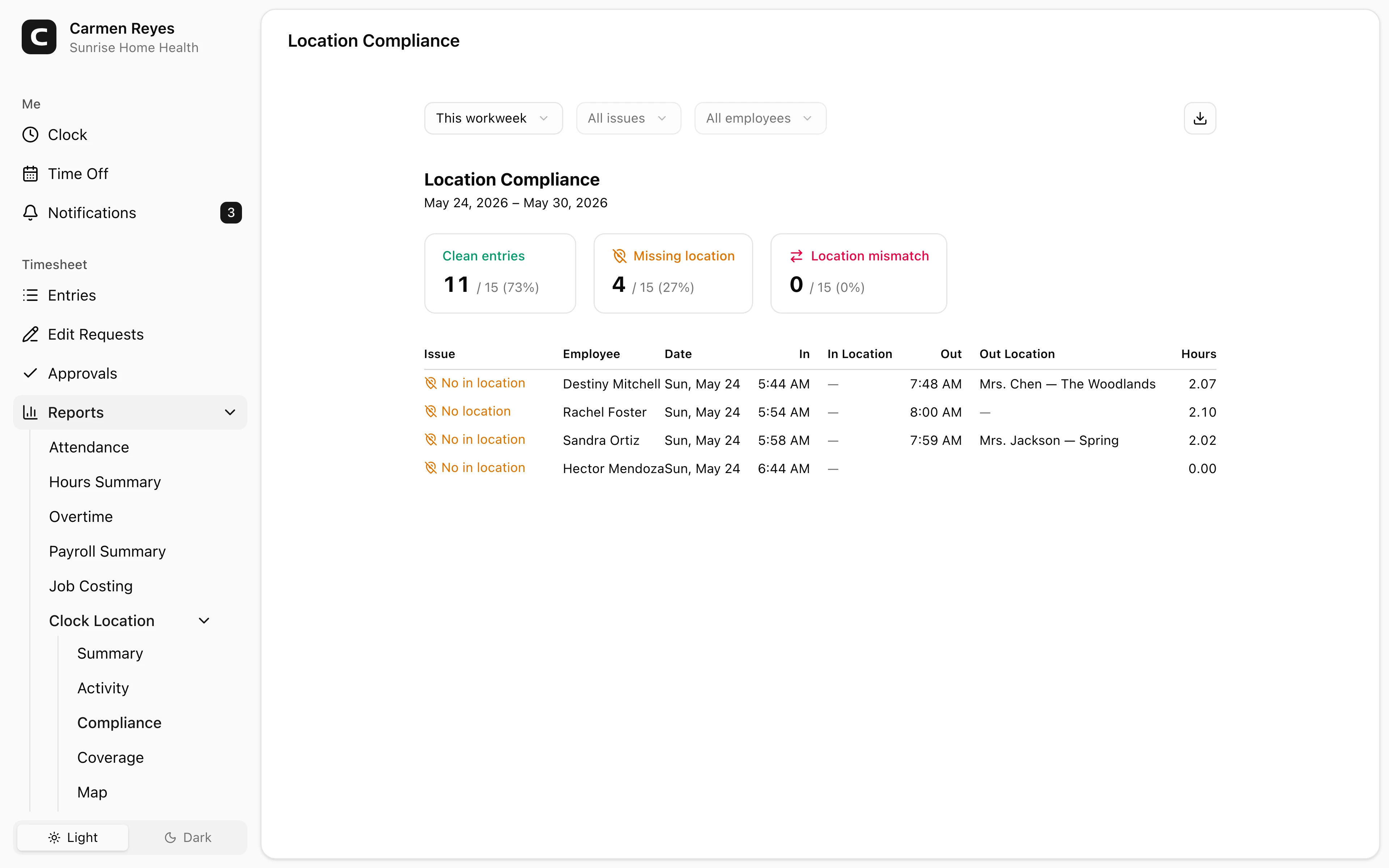
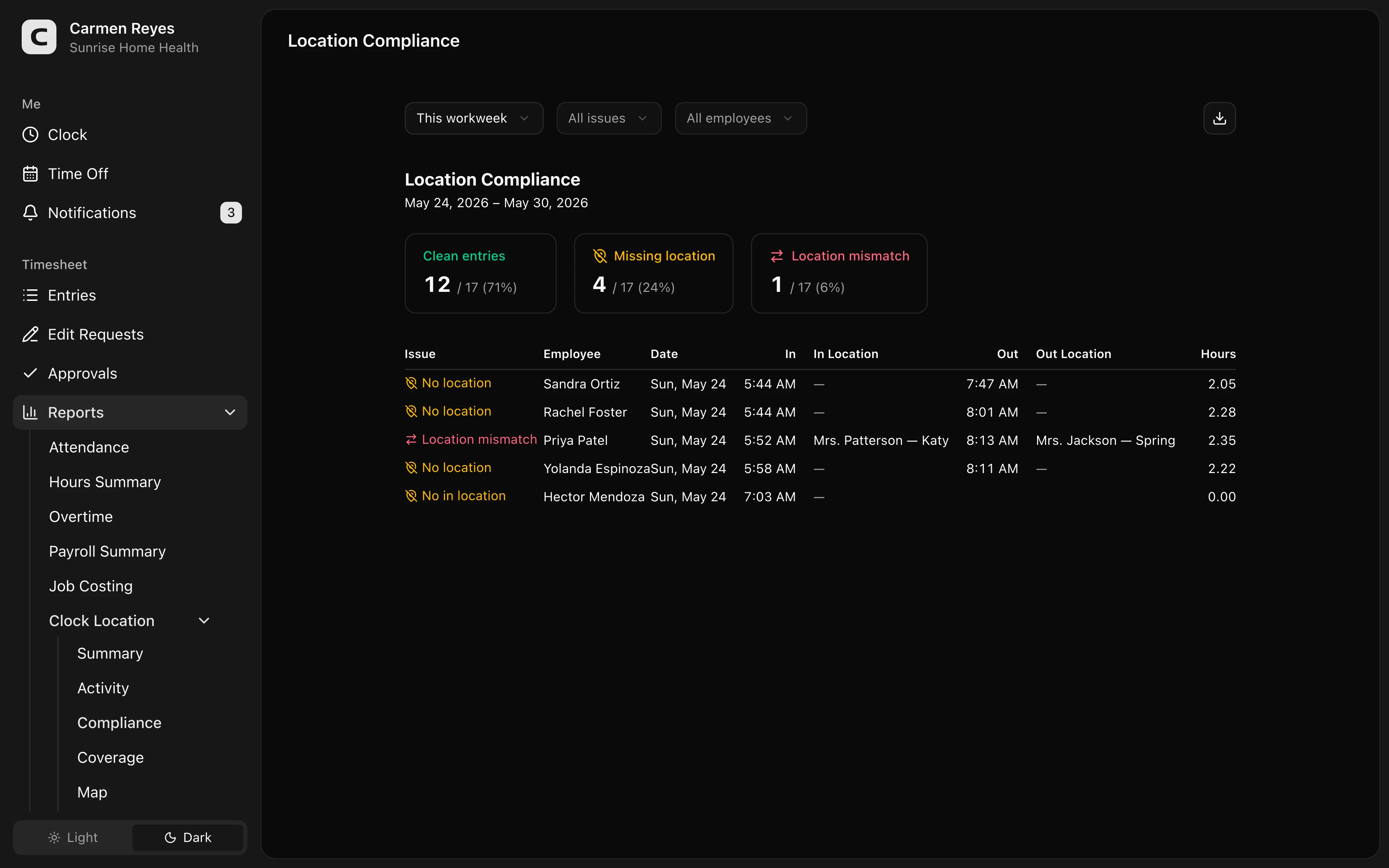
Entries with location problems — missing locations or in/out mismatches.
What this report shows
Time entries where the clock-location data is incomplete or inconsistent:
- Missing location — the entry has no clock location on the in side, the out side, or both.
- Location mismatch — the employee clocked in at one location and clocked out at another.
A summary at the top counts mismatches, missing-location entries, and clean entries against the total.
Filters
Date range, issue type, and employee in the toolbar.
Exporting
The export menu downloads the issue list as CSV or copies it to the clipboard. The Issue column matches what's shown in the table.
When mismatches are OK
Mismatches are normal for mobile work — driving routes, multi-site shifts, or anything where an employee starts at site A and ends at site B. Flag them only if your business expects single-location shifts.
Common questions
An employee has lots of "no location" entries. They aren't picking a clock location before clocking in, or there aren't any clock locations configured for them to choose from. Open Clock Locations in Settings → Setup to check.
Can I fix the location on an entry? Open the entry on the Timesheet page — the row menu's Edit entry lets you set or change the clock location along with time, job, and other fields.