Timesheet / Reports / Clock Location
Map
A map of where clock-ins and clock-outs happened, color-coded by employee or location.
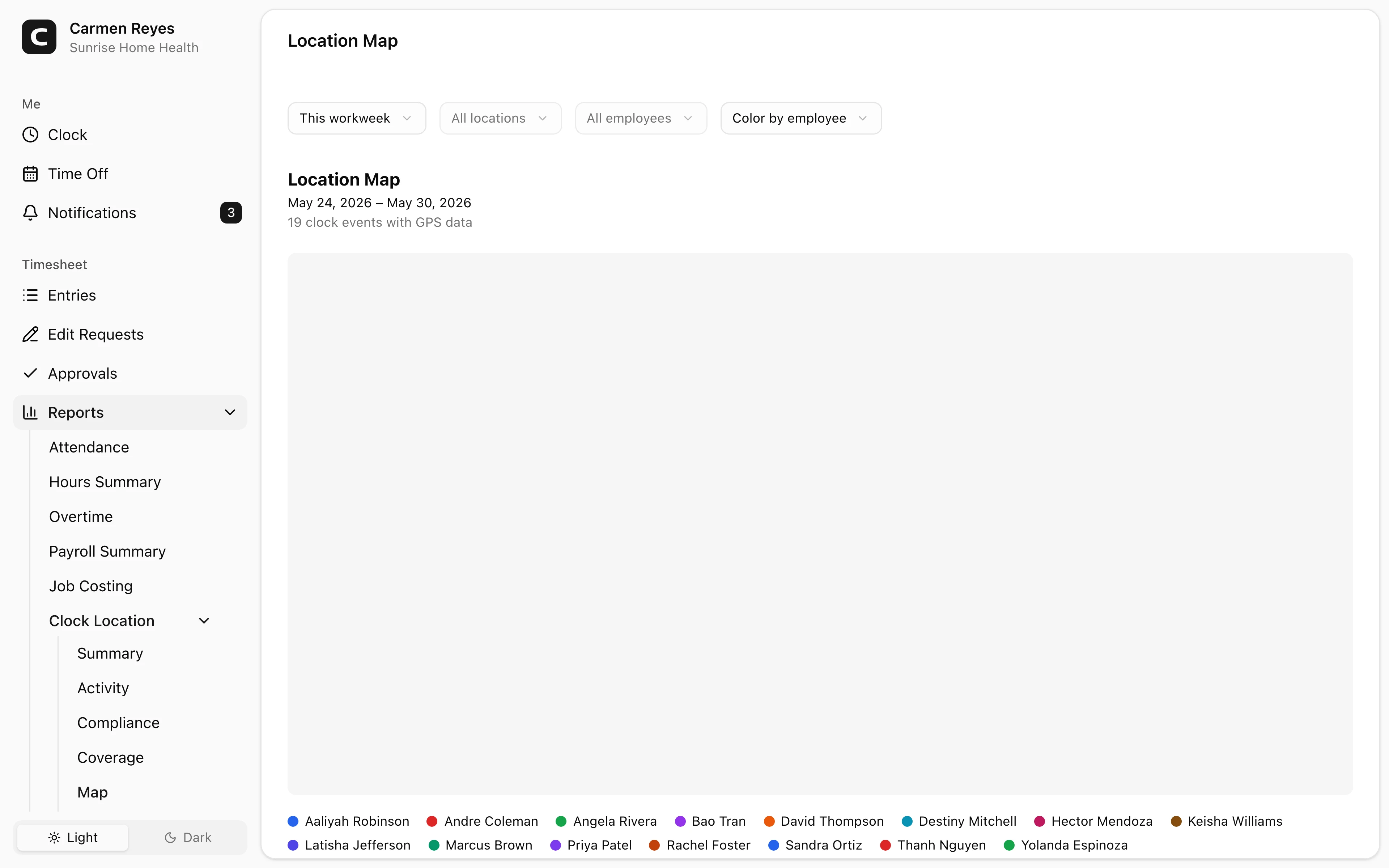
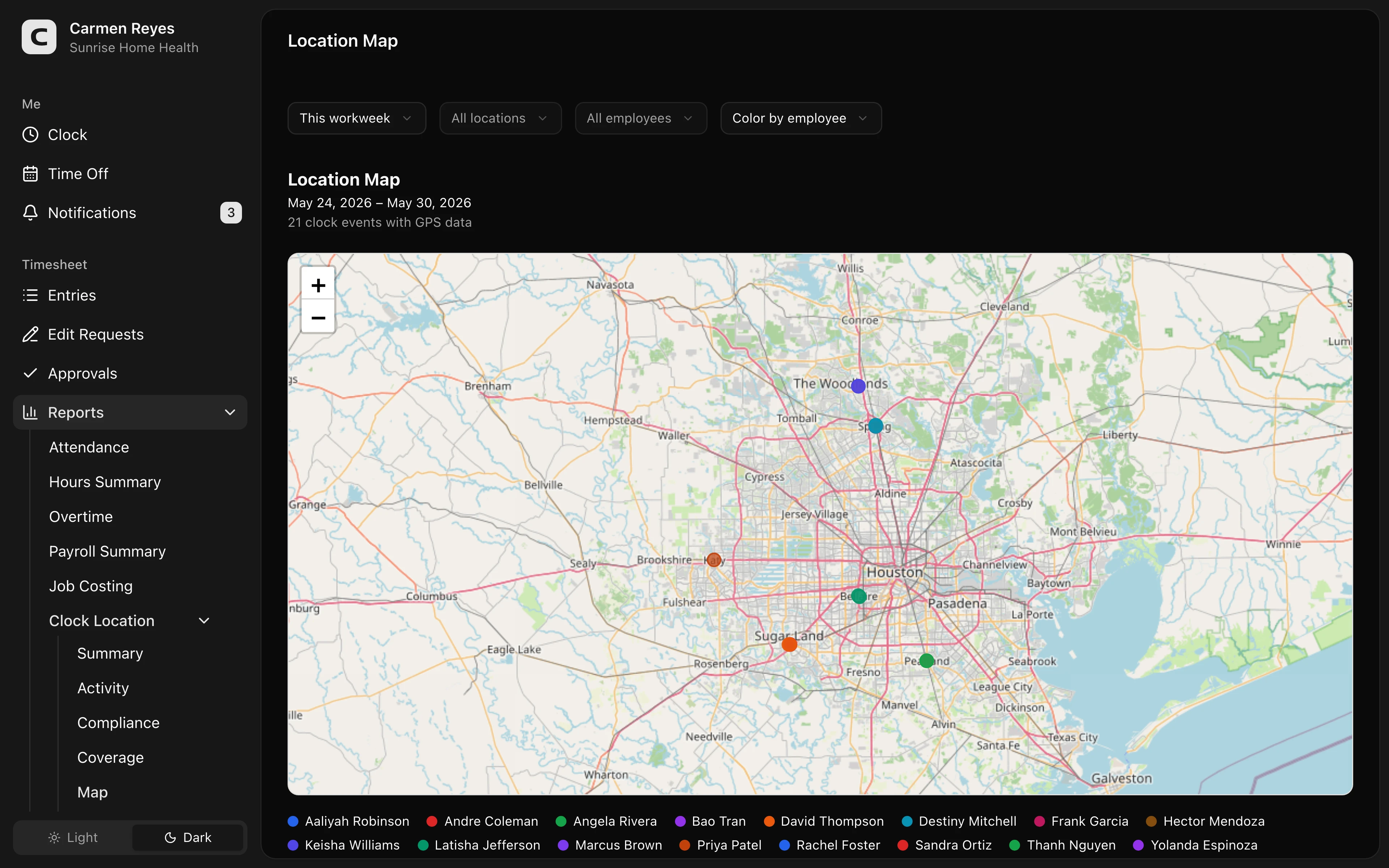
What the map shows
Each pin is one GPS-tagged clock-in or clock-out. Click a pin to see who, when, whether it was an In or Out event, and which clock location it was associated with.
A legend below the map maps colors to employees or locations. Use the Color by toggle in the toolbar to switch between coloring by employee or by location.
Filters
Date range, location, employee, and Color by mode in the toolbar.
When the map is empty
The map only shows clock events with GPS coordinates. If your workspace doesn't capture geolocation, or employees clock in from devices that don't share GPS, those events won't appear here. The Location Activity report shows every entry regardless of GPS.
When to use a different report
- Hours rolled up per location → Location Summary
- Every clock-in/out as a list → Location Activity
- Missing or mismatched location data → Location Compliance
Common questions
A pin appears far from where I expected. GPS readings can drift, especially indoors. Click the pin to confirm the time and employee — if it's clearly wrong (off by miles), the device GPS was off; if it's slightly off (across the street), that's normal GPS variation.
Can I see the route between two clock-ins? No — the map shows discrete clock events only, not travel between them.