Timesheet / Reports / Clock Location
Site Overview
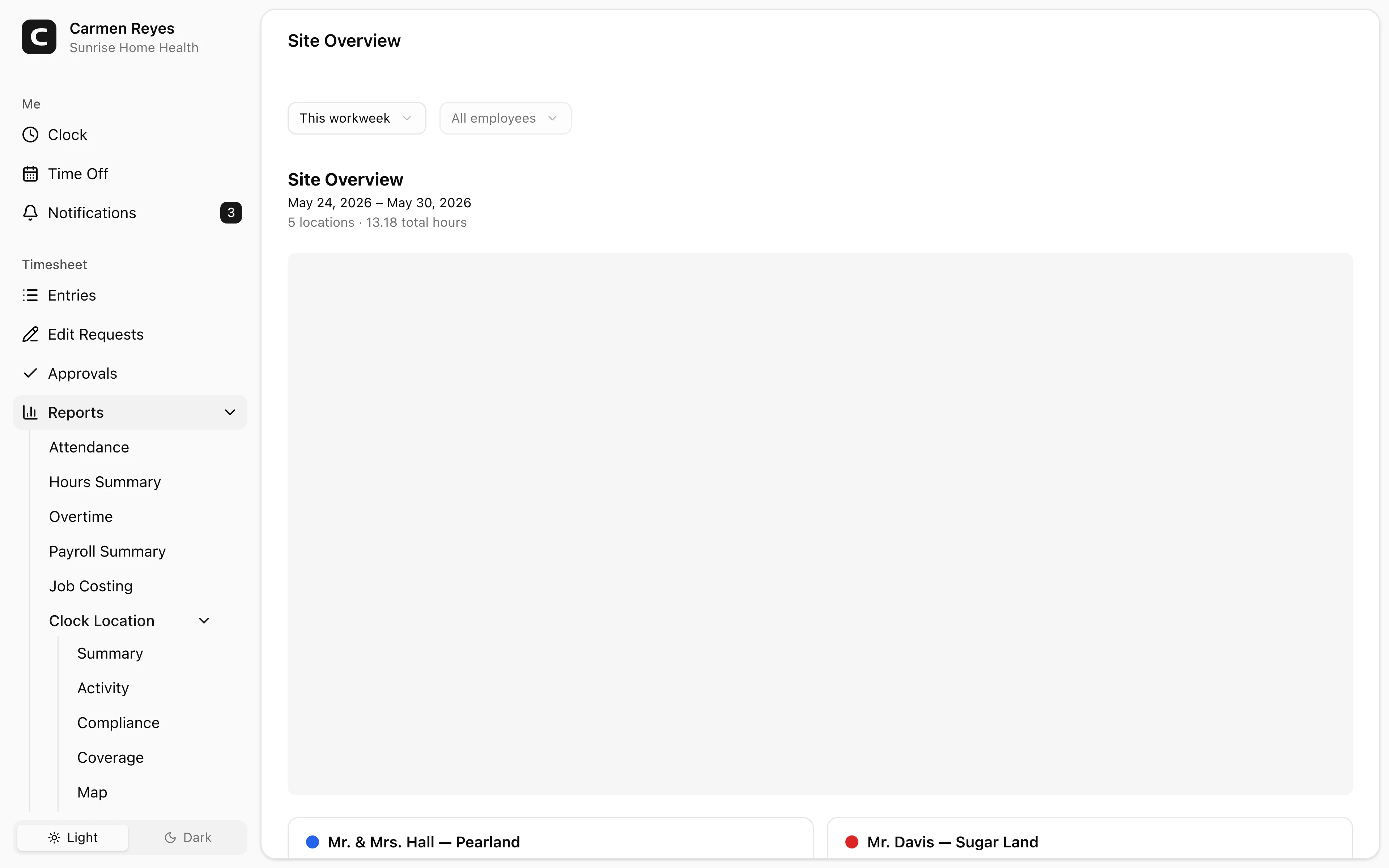
An at-a-glance overview of every location — hours, entries, and the employees who worked there.
What this report shows
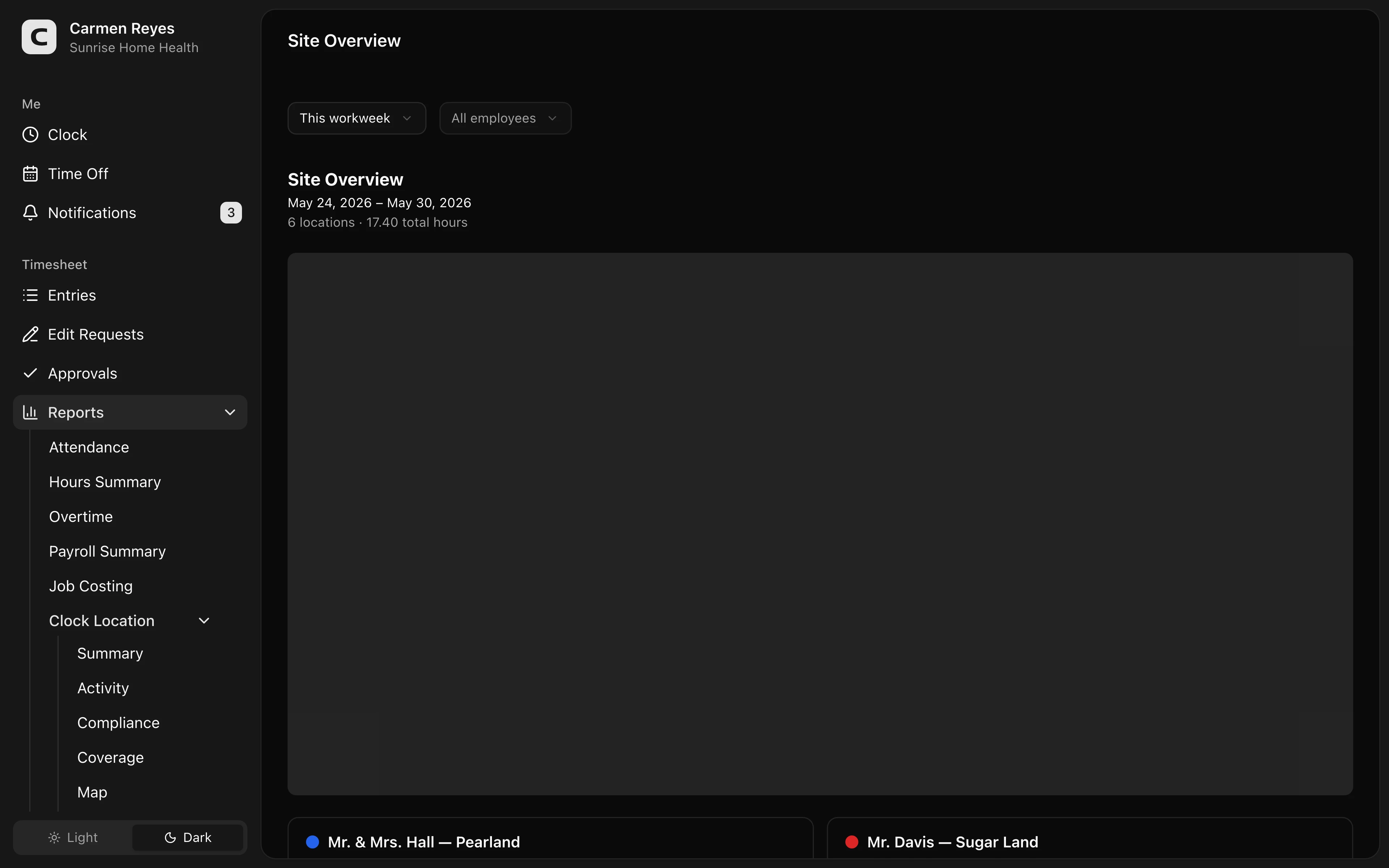
A map with one bubble per location (bigger bubble = more hours) and a list of cards below.
Each card includes:
- Total hours at the location
- Entries — the number of clock-ins recorded there
- Employees — how many distinct people worked there
- The top 5 employees and how many hours each spent, with +N more for the rest
Filters
Date range and employee in the toolbar.
When to use a different report
- Detailed hours per location with employee breakdown → Location Summary
- Every clock-in/out event with location → Location Activity
- Where each employee was day by day → Location Coverage
- Map of every individual clock event → Location Map
- Missing or mismatched location data → Location Compliance
Common questions
A location isn't showing up. This report only includes locations whose clock-ins captured GPS coordinates. For a non-GPS view of every entry, see Location Summary.
Only 5 employees show on a site card — where are the rest? The card lists the top 5 by hours; +N more is the count of additional employees. For the full breakdown per location, use the By-location view in Location Summary.