Timesheet / Reports
Payroll Summary
Hours and pay per employee, ready to hand off to your payroll provider.
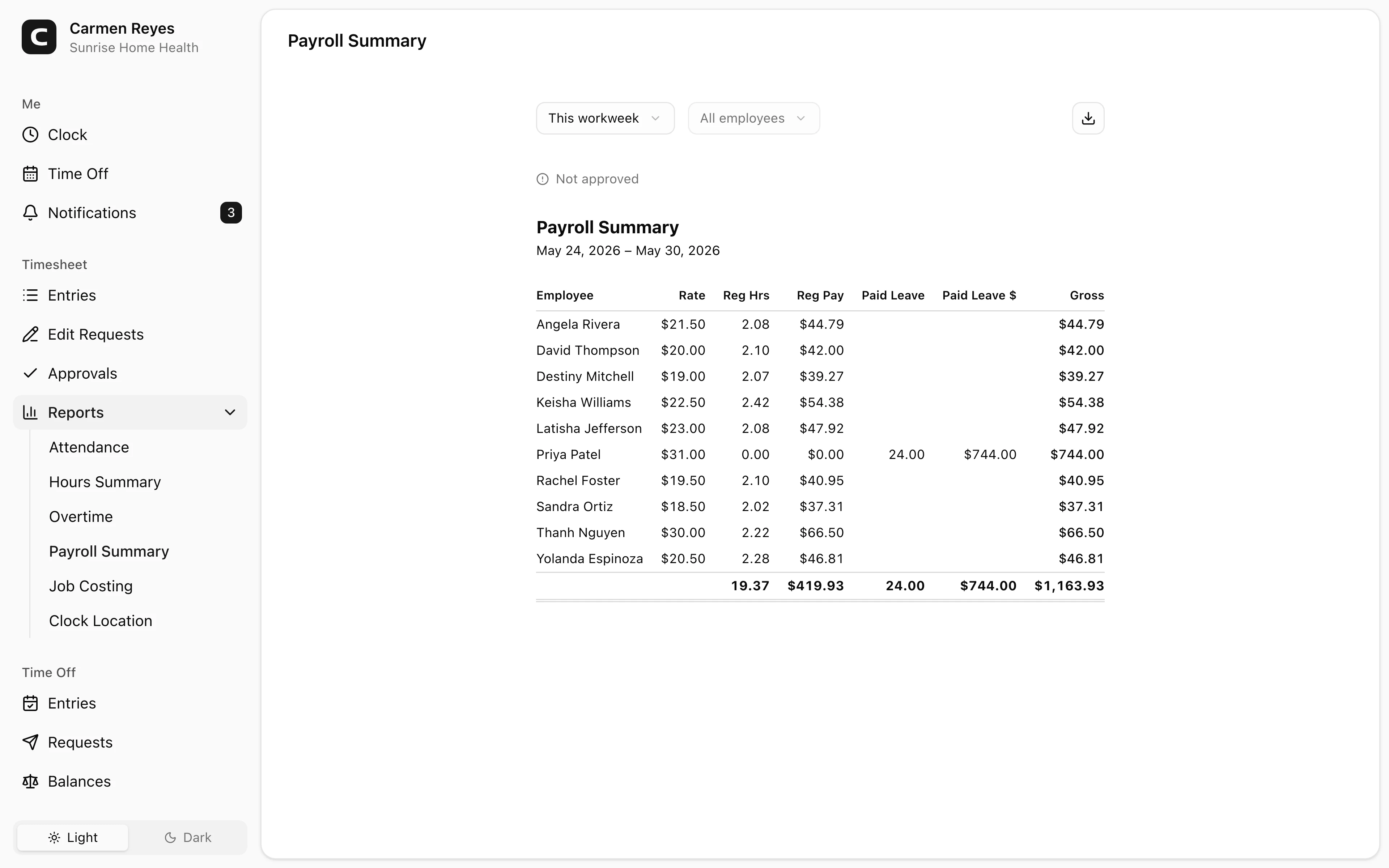
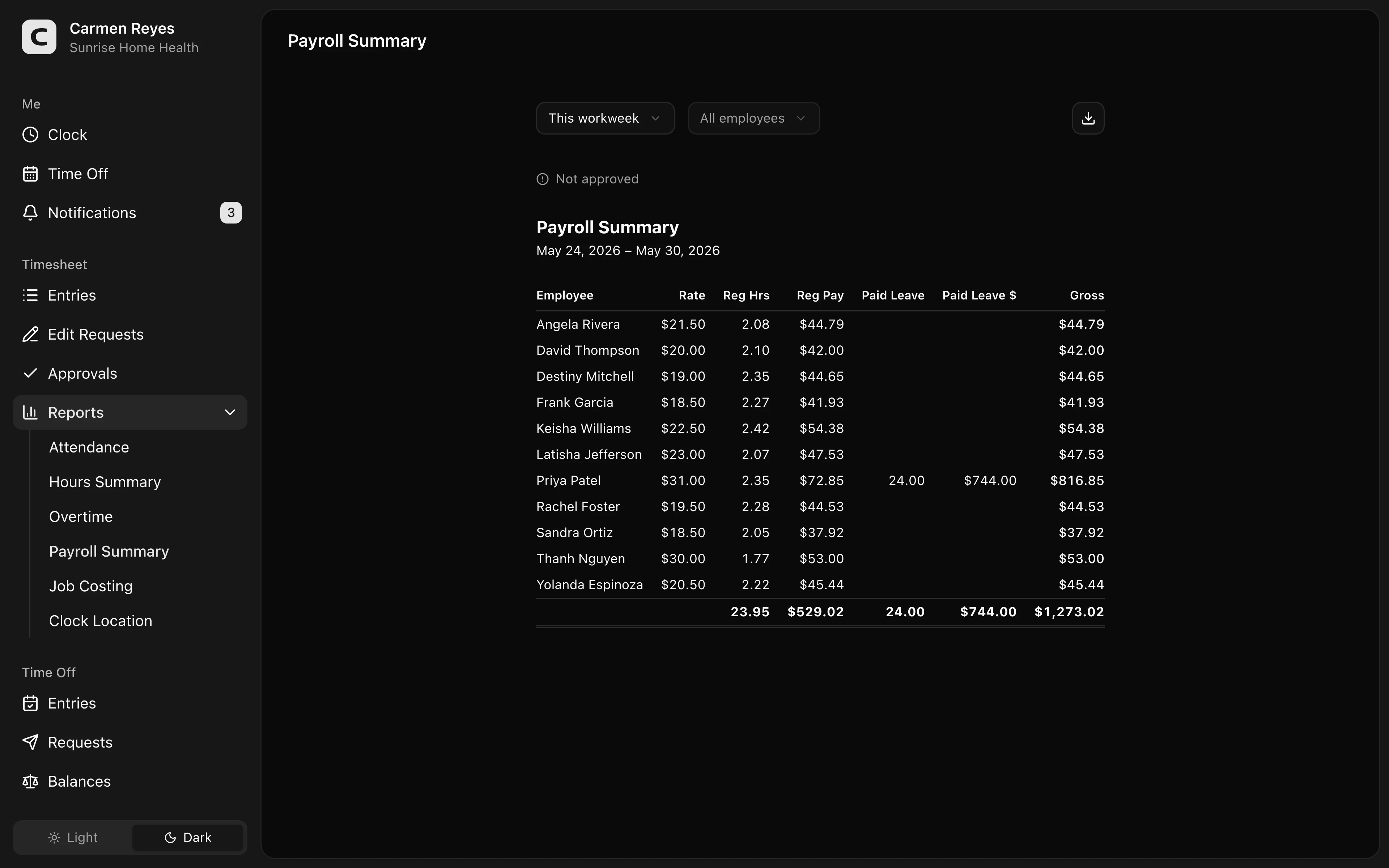
What this report shows
For each employee in the date range:
- Pay rate and pay type (hourly or salary)
- Regular hours and pay
- Overtime tiers — hours and pay for each multiplier (1.5×, 2×, etc.)
- Paid leave hours and pay
- Unpaid leave hours
- Total hours and gross pay
A totals row at the bottom sums every column across the team. Overtime, paid leave, and unpaid leave columns only appear when there's data in them.
Filters
Date range and employee select in the toolbar. A banner above the table shows how much of the period's timesheets are approved — review this before sending to payroll.
Exporting
The export menu downloads the table as CSV or copies it to the clipboard. Every pay-eligible column appears separately so you can map them to your payroll system's pay codes.
Common questions
An employee's gross pay looks wrong. Start with their pay rate and pay type in Staff. If those are correct, the per-tier hours come from the same calculation as the Overtime report — open that to see the underlying breakdown.
Pay rate is blank for someone. Open their Staff page and set a pay rate. Without one, the calculated pay columns stay empty (hours still count toward totals).
Where do I configure overtime multipliers and thresholds? Settings → General.
How do I send this to my payroll provider? Export as CSV and import into your payroll tool. Most have a mapping step where you align this CSV's columns to their pay codes.