Settings
Staff
Everyone with access to your workspace — invite, change roles, set pay rates, and remove access.
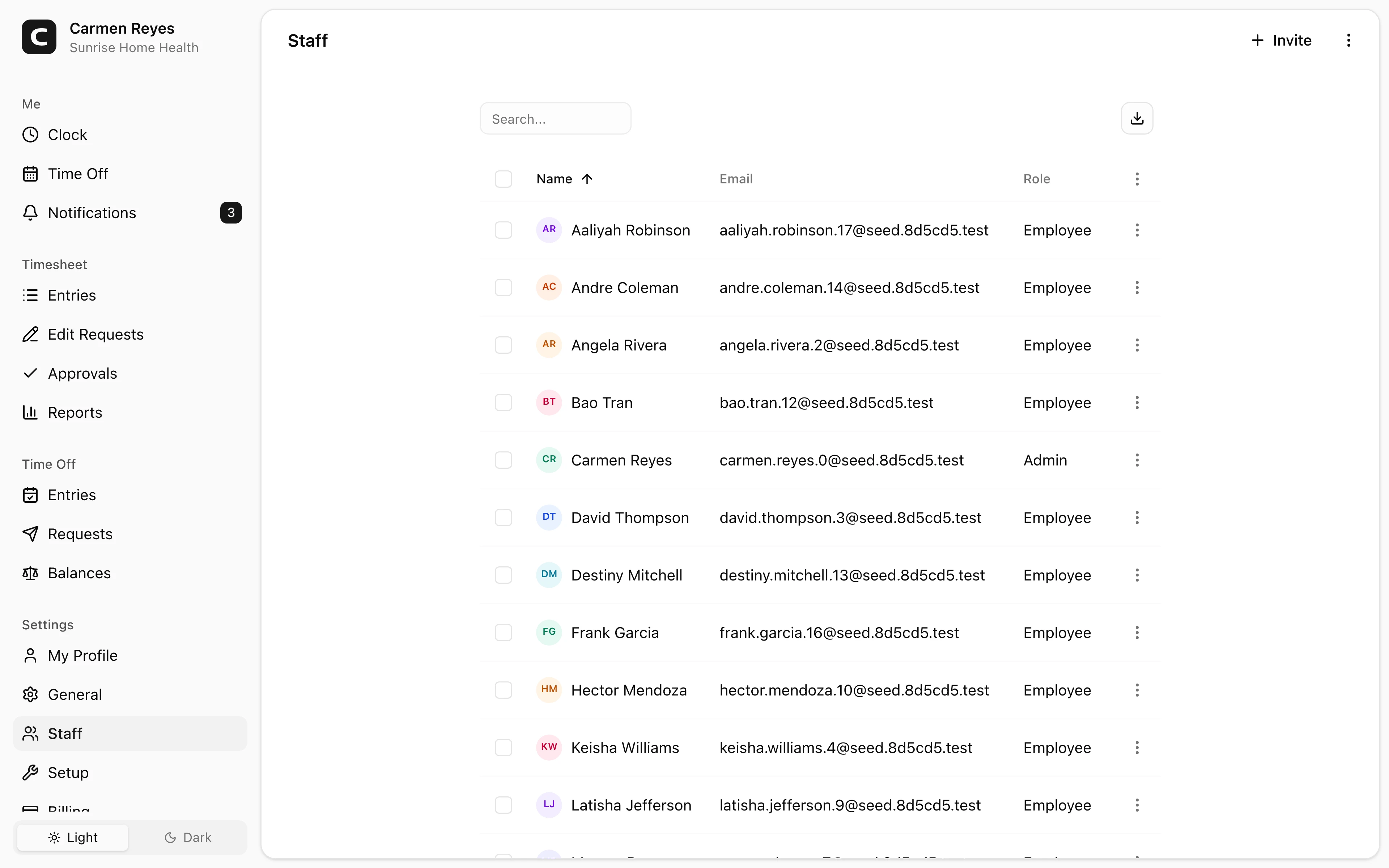
What this page shows
Every member of the workspace, with their role, contact details, pay info, and custom fields. Click a row's Edit member in the row menu to open the full member profile.
The page header shows pending invitations and provides the Invite action.
Inviting members
Press Invite and paste one or more email addresses (comma-separated or one per line), then pick a role:
- Employee — clocks in and out, manages their own timesheet, requests leave.
- Admin — full access: every employee capability plus approvals, reports, and workspace settings.
Everyone in a single invite batch gets the same role. Each invited person receives an email link to join.
Changing roles
Use Change role in the row menu (or as a bulk action after selecting rows) to switch members between Employee and Admin.
Removing members
Remove revokes access but keeps the member's historical data — entries, approvals, leave. To restore access later, send a fresh invite.
Per-member settings
Open Edit member to set:
- Hire date and exemption status (exempt members are excluded from overtime calculation)
- Pay type (hourly or salary), pay rate, and pay schedule
- Work schedule override — different days or hours than the workspace default
- Personal info (phone, address, custom fields)
Common questions
The invite email didn't arrive. Check spam first. If still missing, send again with Invite. If multiple attempts fail, confirm the address is correct.
Can I import staff from a CSV? The Invite dialog accepts many emails pasted at once (comma-separated or one per line) — that's the closest thing to bulk import. Everyone in a batch gets the same role; invite separately if you need mixed roles.
How do I transfer admin access before someone leaves? Promote another user to Admin first via Change role, then ask them to remove or demote you.