Me
Time Off
Check your leave balances and request time off.
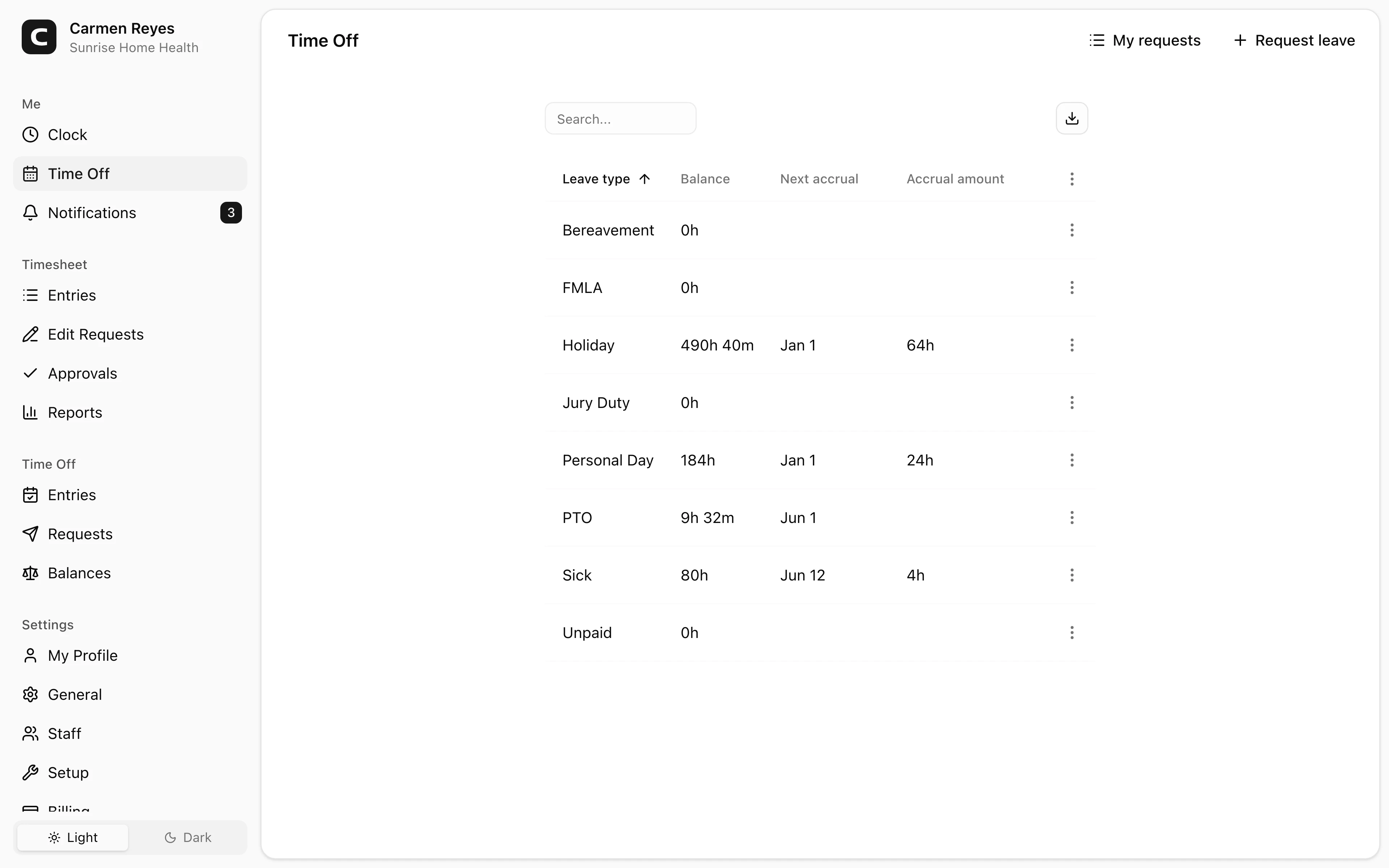
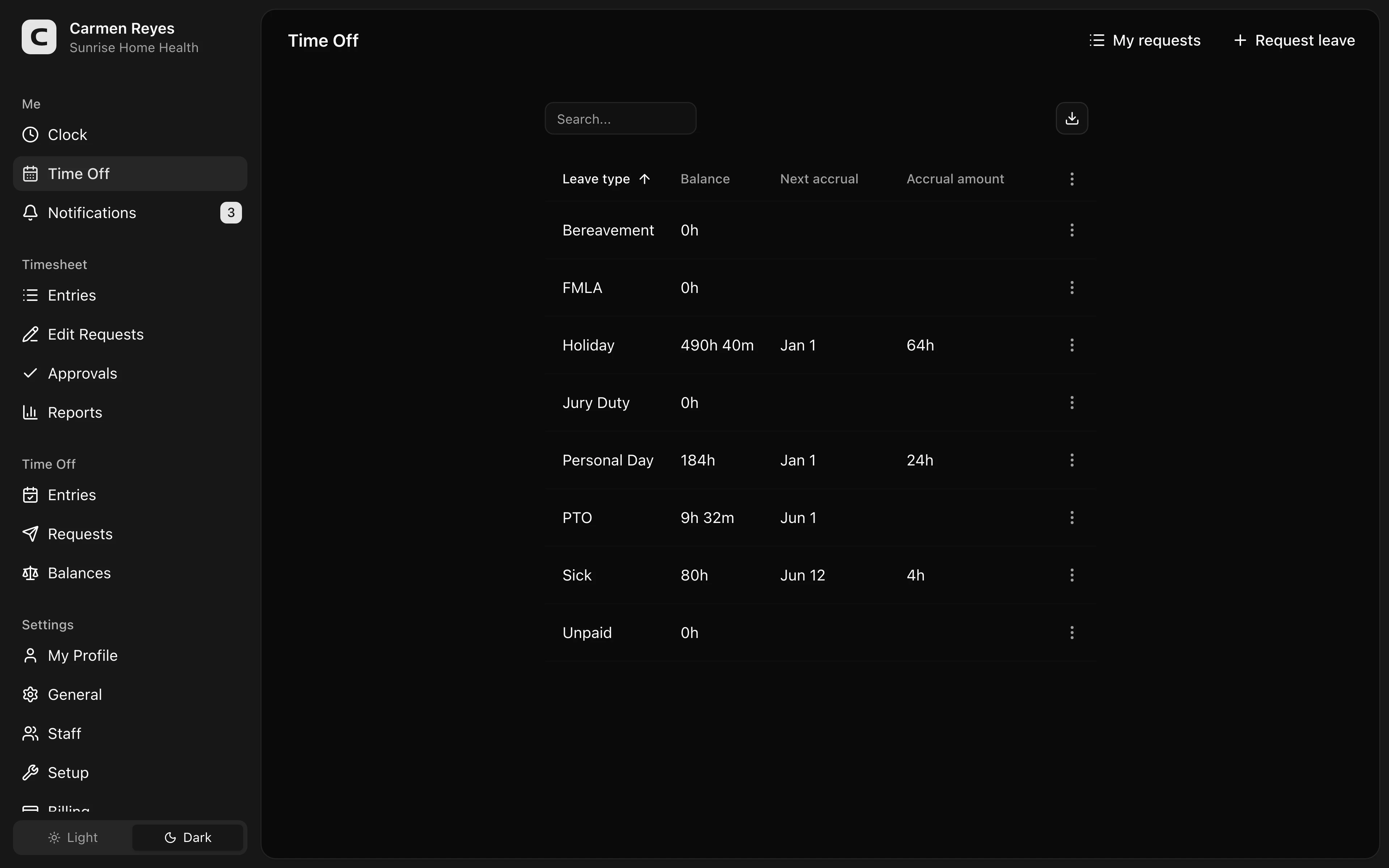
Your leave balances
Each row is one leave type with your current balance and the next scheduled accrual. A negative balance appears in red.
Open a row's menu and choose View ledger to see every accrual, usage, and adjustment for that leave type.
Requesting time off
Press Request leave to open the dialog. Pick the leave type, set the hours per day (e.g. 8 for a full day, 4 for a half-day), select the days on the calendar, and optionally add a note for your manager. Press Submit.
The request appears in My requests as Pending while your manager reviews it.
Managing your requests
Open My requests to see your pending, approved, and rejected requests.
- Pending — you can cancel a request before it's decided. To change one, cancel and submit a new request.
- Approved or rejected — you can't change these yourself. If approved leave needs to be adjusted or removed, ask your manager.
Common questions
Why is my balance lower than I expected? Pending requests reduce your balance before approval. Open View ledger for the leave type to see every accrual, usage, and adjustment.
When does my balance go up? Each leave type has its own accrual rule — by hours worked, by pay period, or annually. The Next accrual column shows the next date and amount.
Why can't I edit a pending request? Pending requests can only be cancelled, not edited. Cancel and resubmit with the correct details.