Timesheet
Time entries
Use Timesheet to review, add, edit, archive, and approve employee time entries.
No login required. Opens in one click.
What this page shows
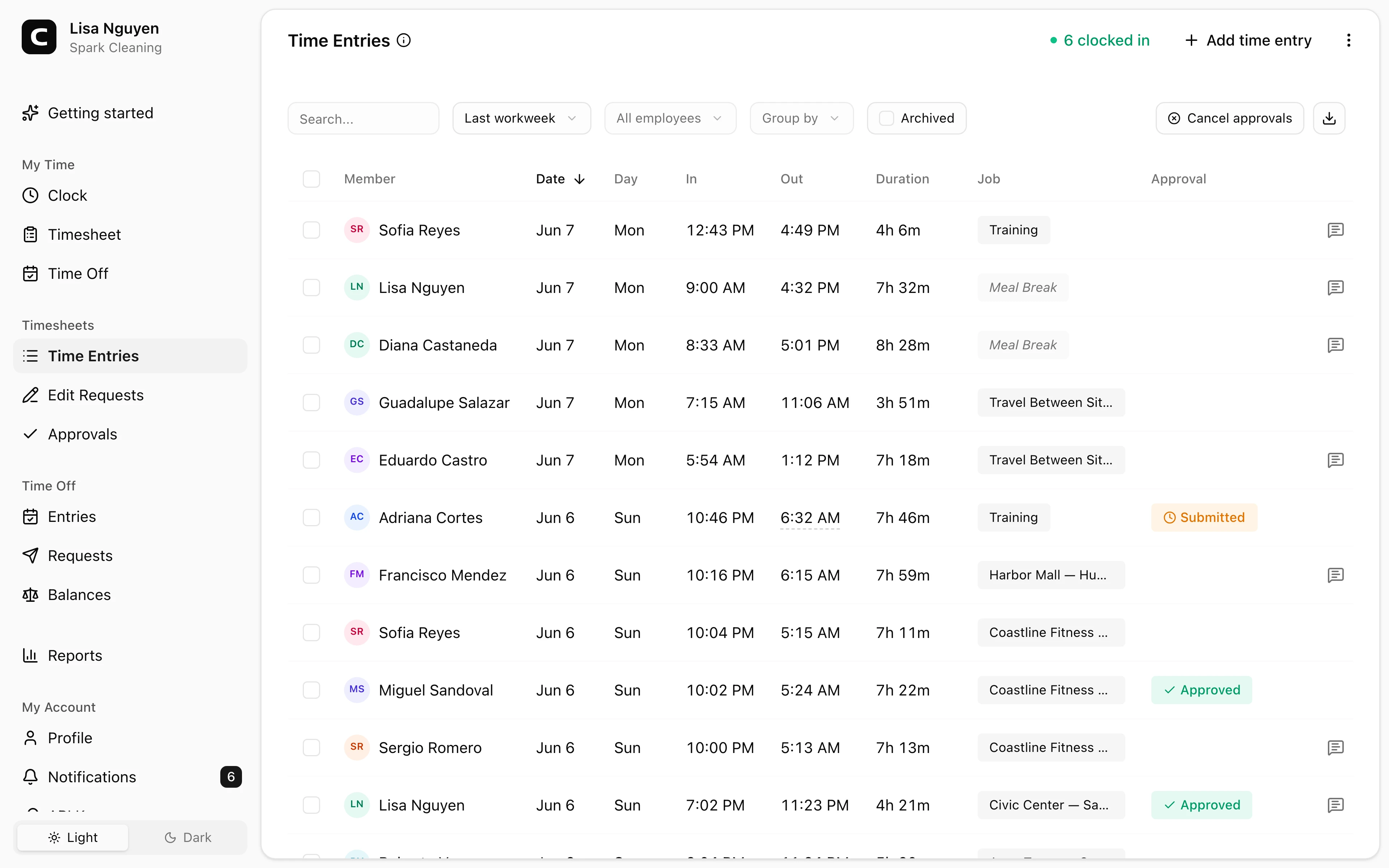
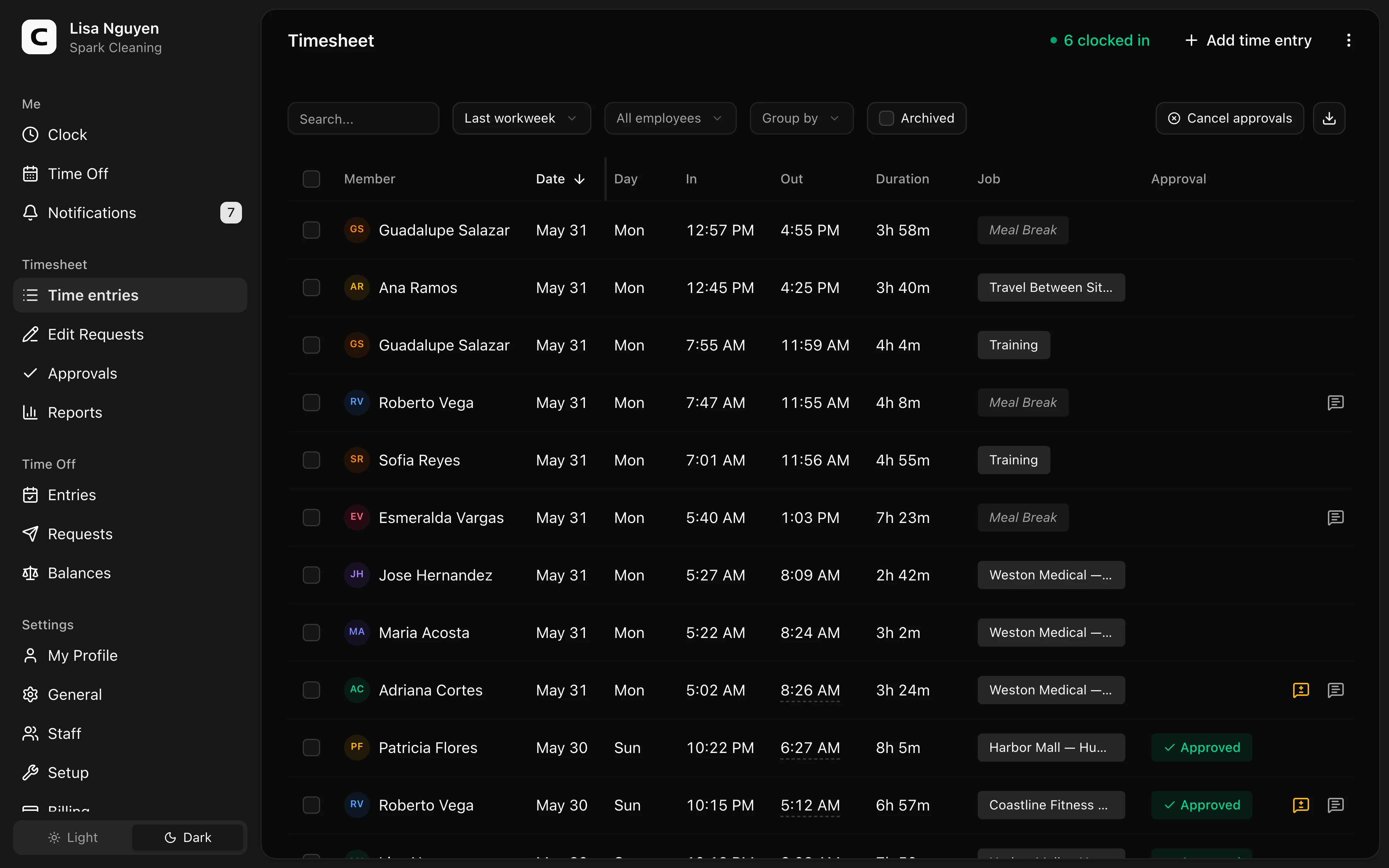
The team timesheet shows employee clock-ins and clock-outs with date, time, duration, job, and approval status when those fields apply. Filter by employee or date range in the toolbar.
Add time entry in the page header adds a time entry for any employee. Clocked in shows who's currently on the clock.
Reviewing and editing
Click cells to edit inline; the row menu's Edit time entry opens the full form (in/out times, job, note, custom fields). Open Edit history to see the recorded time changes for a time entry.
The clock-location indicator on a row shows whether available clock-in or clock-out location data matched a recognized location. Open it for details.
Approving timesheets
Each row's approval pill reflects the submission state of the timesheet that includes the time entry:
- Submitted — employee submitted; awaiting your decision
- Approved — locked; employees use edit requests for changes
- Rejected — sent back with a note
- No approval pill — the time entry isn't part of any submission yet
To approve the timesheets currently represented in the table, press Approve in the toolbar. Once approved, the toolbar switches to Approved; use it to cancel and reopen time entries for editing. To cancel one approval, open the approval pill on a row.
Adding time entries
Press Add time entry in the page header. Choose the employee and set the in time (required). Out time, job, note, and custom fields are optional — leave the out time blank for an open shift the employee will close themselves.
Archiving
The row menu's Archive removes a time entry from timesheets and reports (or select multiple rows and use Archive in the toolbar). Toggle Archived in the toolbar to see archived time entries and Restore to bring them back.
Common questions
An employee's time entry is wrong but their timesheet is approved. Click the row's approval pill to cancel the approval (add a note explaining why), edit the time entry, then re-approve. Alternatively, the employee can submit an edit request from their Clock page.
I added a time entry but it doesn't have an approval status. Time entries get a Submitted/Approved/Rejected status only when they're part of a timesheet submission. Direct admin-added time entries don't go through that flow until the employee submits the period.
Where do I see overtime hours? The Overtime report breaks out which hours triggered which rule. Hours Summary shows per-employee totals split into regular, overtime, and paid leave.