Time off
Time Off Balances
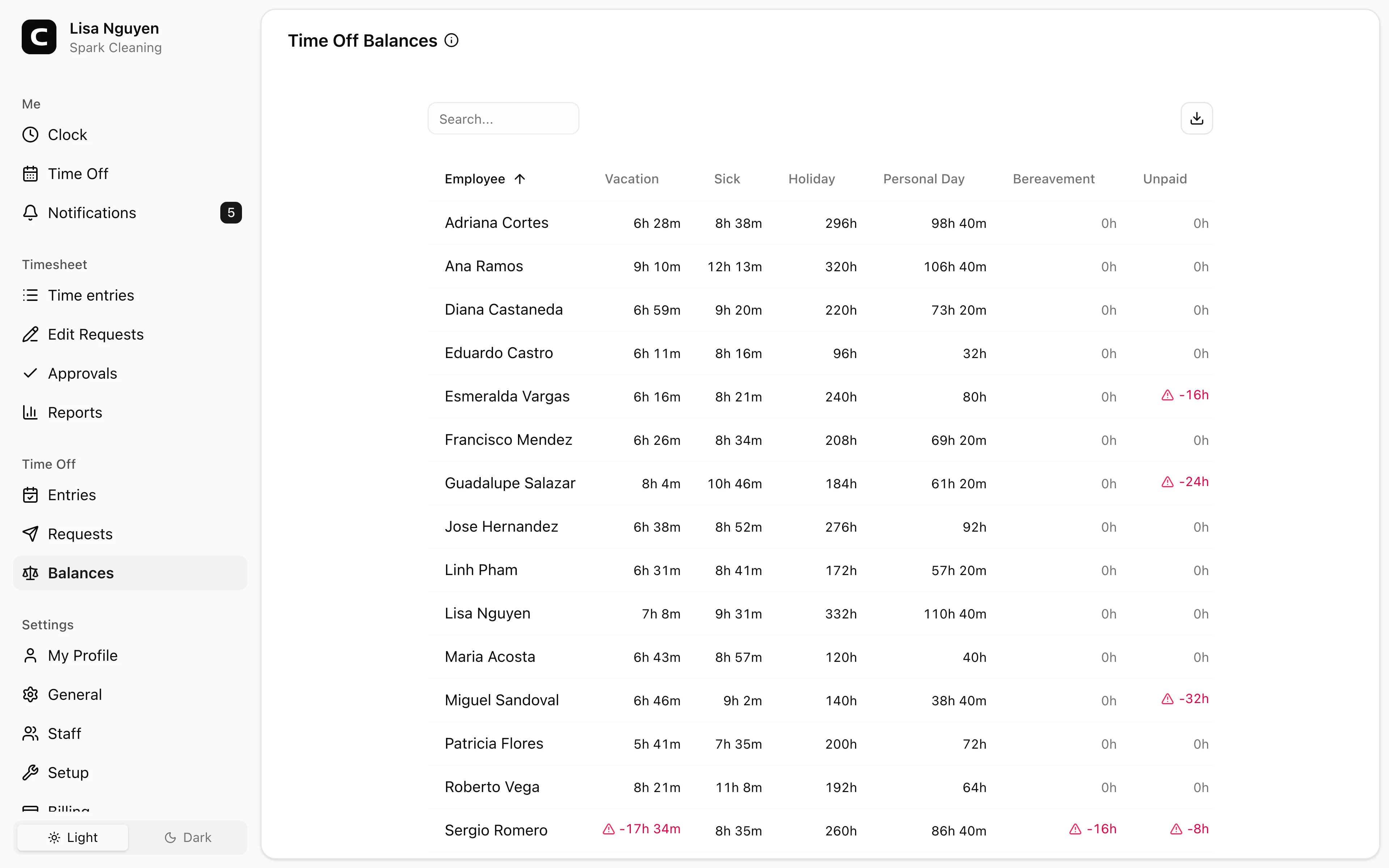
Review and adjust each employee's current time off balance.
No login required. Opens in one click.
What this page shows
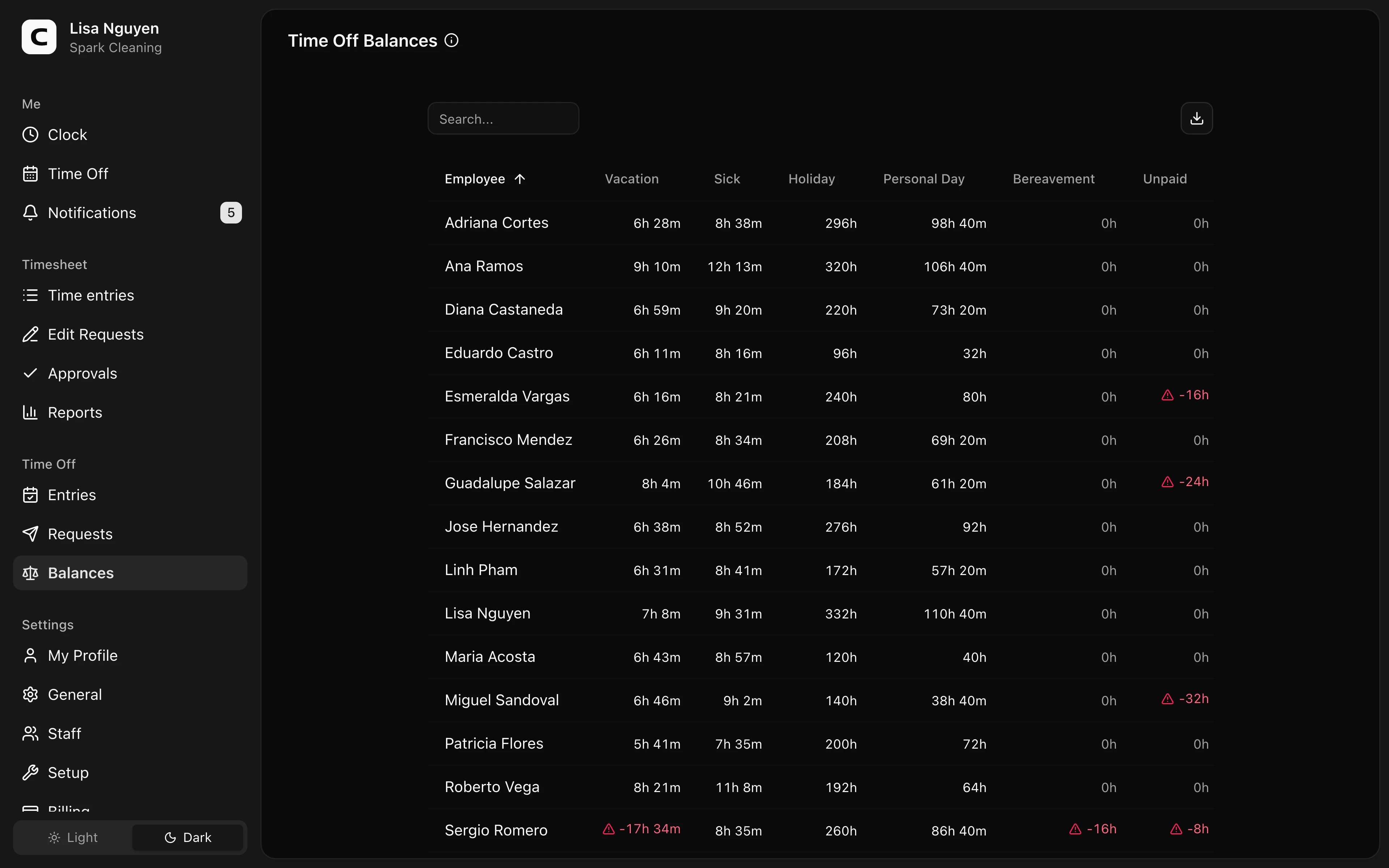
A matrix of every employee (rows) against every time off type (columns). Each cell is that employee's current balance for that time off type.
A warning triangle flags cells that need attention:
- A red balance with a red triangle means the balance is below zero.
- An amber triangle means the balance is at or near the negative floor allowed for that time off type.
Drilling in
Click any balance cell to open the ledger for that employee + time off type. The ledger lists every accrual, usage, and adjustment, most recent first, with the current balance shown beneath.
Making an adjustment
From the ledger dialog, press Adjust to open the adjustment form. Enter Hours — positive to add, negative to subtract — and a required Reason explaining the adjustment. Set an Effective date if the adjustment should post on a specific day. The adjustment appears in the ledger immediately and updates the balance.
Use adjustments for one-off grants, corrections, or carry-over that needs to be recorded manually.
When to use a different page
- Approved time off entries → Time Off Entries
- Pending time off waiting for review → Time Off Requests
- Accrual rules per time off type → Time Off Types (Settings → Setup)
Common questions
- A balance looks wrong.
Click the cell to open the ledger and scan its dated entries — accruals, usages, and adjustments — for an unexpected change. That's usually where the balance diverged.
- An employee says they earned more time off than shown.
Check the accrual rule for that time off type on the Time Off Types page, then open the ledger to see which accruals have already posted.
- Can I export balances?
Yes. Open the download menu in the table toolbar and choose Download CSV for a snapshot, or Copy to clipboard.
Related
Time Off
Check your time off balances and request time away.
Time Off Requests
Approve or reject employee time off requests.
Time Off Entries
Review, add, edit, or archive recorded time off across your employees.
Time Off Types
Define vacation, sick time, and other time off types, including whether they are paid and how balances accrue.
How time off accruals work
Understand the accrual methods, caps, and carryover behind every time off balance.