Time off
Time Off Entries
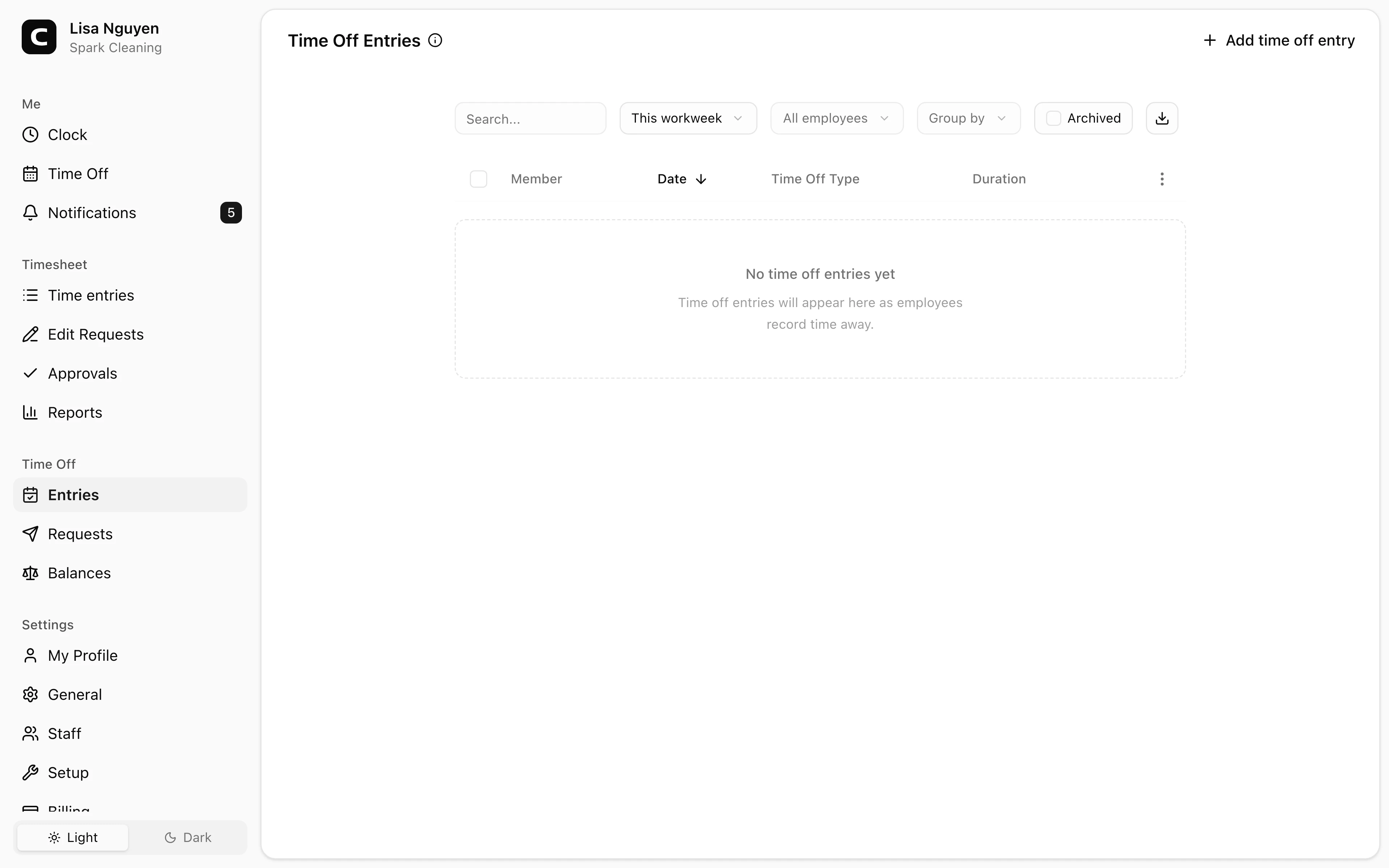
Review, add, edit, or archive recorded time off across your employees.
No login required. Opens in one click.
What this page shows
One row per time off entry, with the employee, the date the time off was taken, the time off type, and how many hours it counted for. Each day of a multi-day time off is its own row.
Entries land here in two ways:
- Approved time off requests create entries automatically once you approve them on the Time Off Requests page.
- Manual entries — use Add time off entry in the page header to record time off on someone's behalf.
If an entry has a note — left by the requester or added manually — a speech-bubble icon appears on the row. Click it to read.
Filters
Date range and employee in the toolbar. Toggle Archived to see archived entries instead of live ones.
Editing and archiving
- Edit entry (row menu) — opens a dialog to change the time off type, hours, or note. Balances adjust automatically.
- Archive (row menu, or select rows and use the toolbar to archive several at once) — removes the entry from balances and reports. Toggle Archived in the toolbar and use Restore to bring an archived entry back.
When to use a different page
- Requests still waiting on a decision → Time Off Requests
- Current accrual and remaining balance per employee → Time Off Balances
Common questions
- An employee's time off isn't showing up.
Check the date range and employee filter first. If it's still missing, the request may not be approved yet — check Time Off Requests for pending items.
- How do I archive several time off entries at once?
Select the rows you want with the checkboxes, then press Archive in the toolbar that appears. To undo, toggle Archived and Restore the entries. For a wholesale correction to someone's balance, the Time Off Balances page lets you adjust a balance directly with a required reason.
- How are the hours decided for multi-day time off?
Each entry stores the hours for that date. Editing an entry lets you change the time off type, hours, or note; to move time off to a different date, archive the entry and add a new one for the correct day.
Related
Time Off
Check your time off balances and request time away.
Time Off Requests
Approve or reject employee time off requests.
Time Off Balances
Review and adjust each employee's current time off balance.
Time Off Types
Define vacation, sick time, and other time off types, including whether they are paid and how balances accrue.
How time off accruals work
Understand the accrual methods, caps, and carryover behind every time off balance.