Time off
Time Off Requests
Approve or reject employee time off requests.
No login required. Opens in one click.
What this page shows
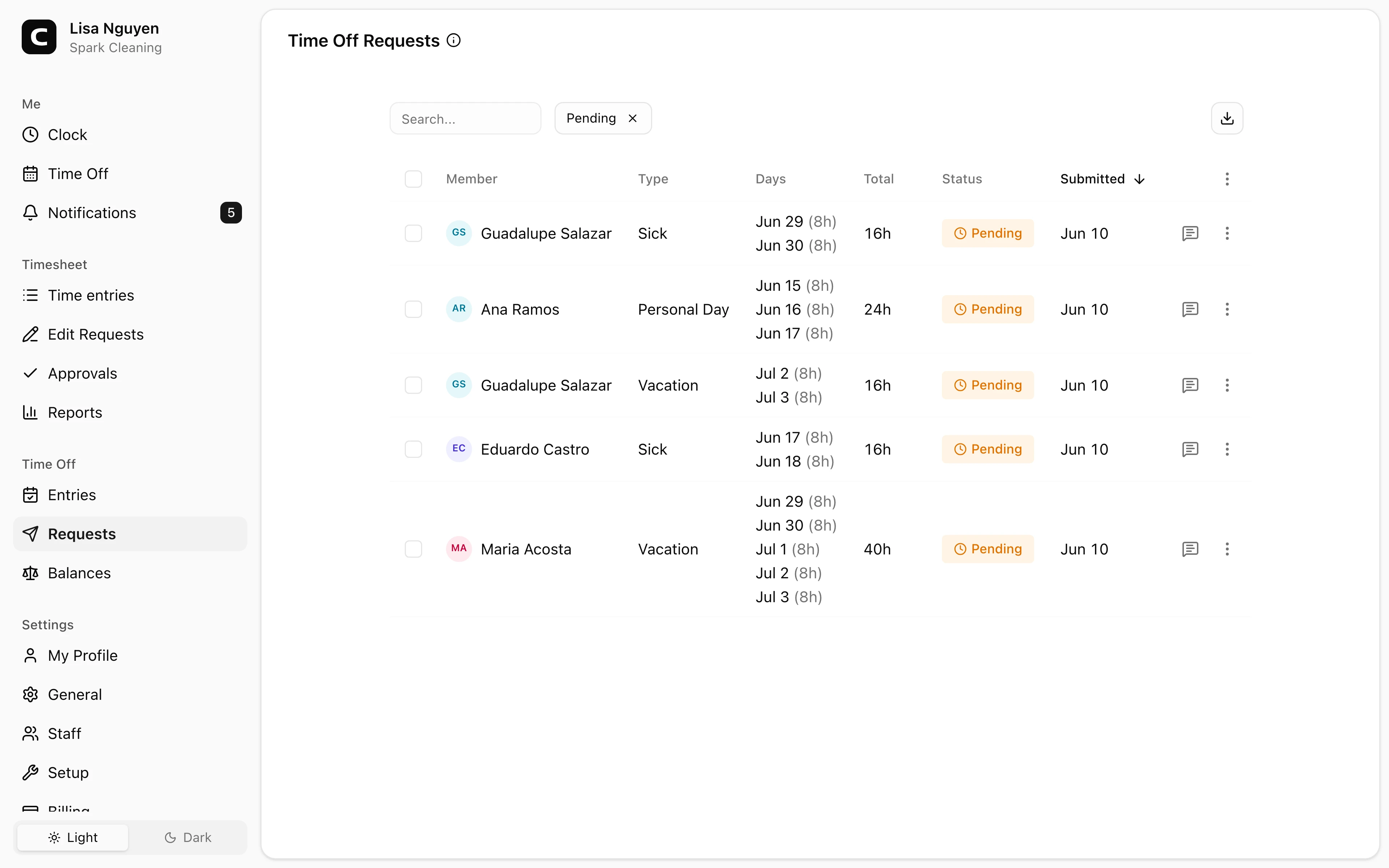
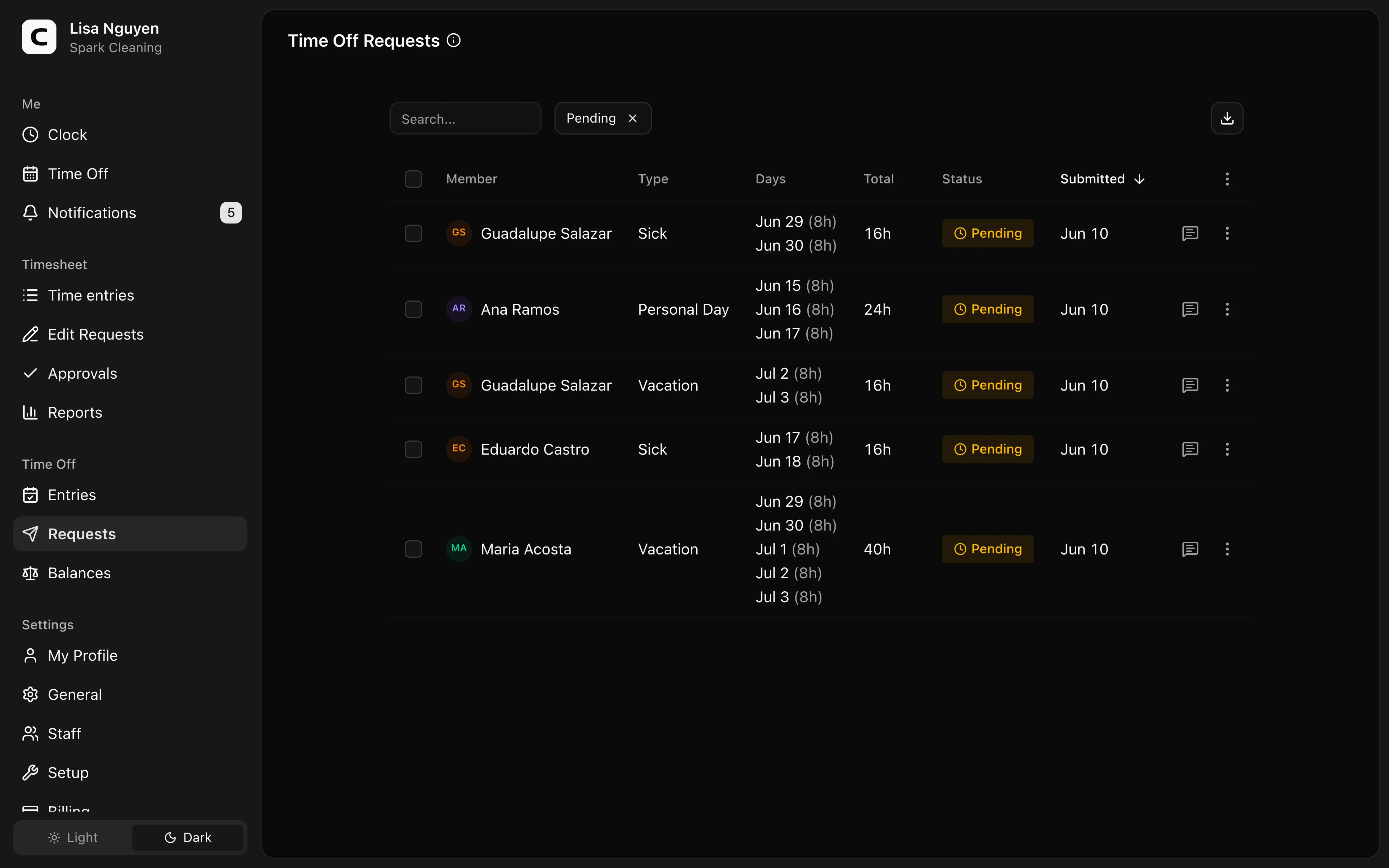
Every time off request your employees have submitted, with the employee, time off type, the specific dates and hours requested, total hours, and status. The list defaults to Pending — use the status filter in the toolbar to also see Approved or Rejected.
If a request has a note from the employee or your prior review note, a speech-bubble icon appears on the row; click to read.
Reviewing a request
Open the row menu and choose Review request for a pending request. The dialog shows the date-by-date breakdown and lets you approve or reject the request. When you reject, your note is included with the employee's notification.
To act on many at once, select rows and use Approve or Reject in the toolbar. Bulk decisions don't carry a per-row review note; review individually for that.
What happens after a decision
- Approved — the time off is recorded as entries on the Time Off Entries page, and the hours are deducted from the employee's balance.
- Rejected — no time off entries are created. The employee is notified.
Common questions
- The dates or hours aren't quite right.
You can't edit a request — only approve or reject. Either reject with a note explaining what you'd accept (the employee resubmits), or approve and then fix the resulting entries on the Time Off Entries page.
- Can I approve part of a request?
No — approval is all-or-nothing. Reject with a note asking the employee to resubmit a smaller request.
- Where do approved requests live after this page?
Each approved request becomes one or more entries on the Time Off Entries page (one per day). For per-employee balance summaries, see Time Off Balances.
Related
Time Off
Check your time off balances and request time away.
Time Off Entries
Review, add, edit, or archive recorded time off across your employees.
Time Off Balances
Review and adjust each employee's current time off balance.
Time Off Types
Define vacation, sick time, and other time off types, including whether they are paid and how balances accrue.
How time off accruals work
Understand the accrual methods, caps, and carryover behind every time off balance.