Clocking & time entries
Timesheet
Review your recorded time entries and submit them to your manager for approval.
No login required. Opens in one click.
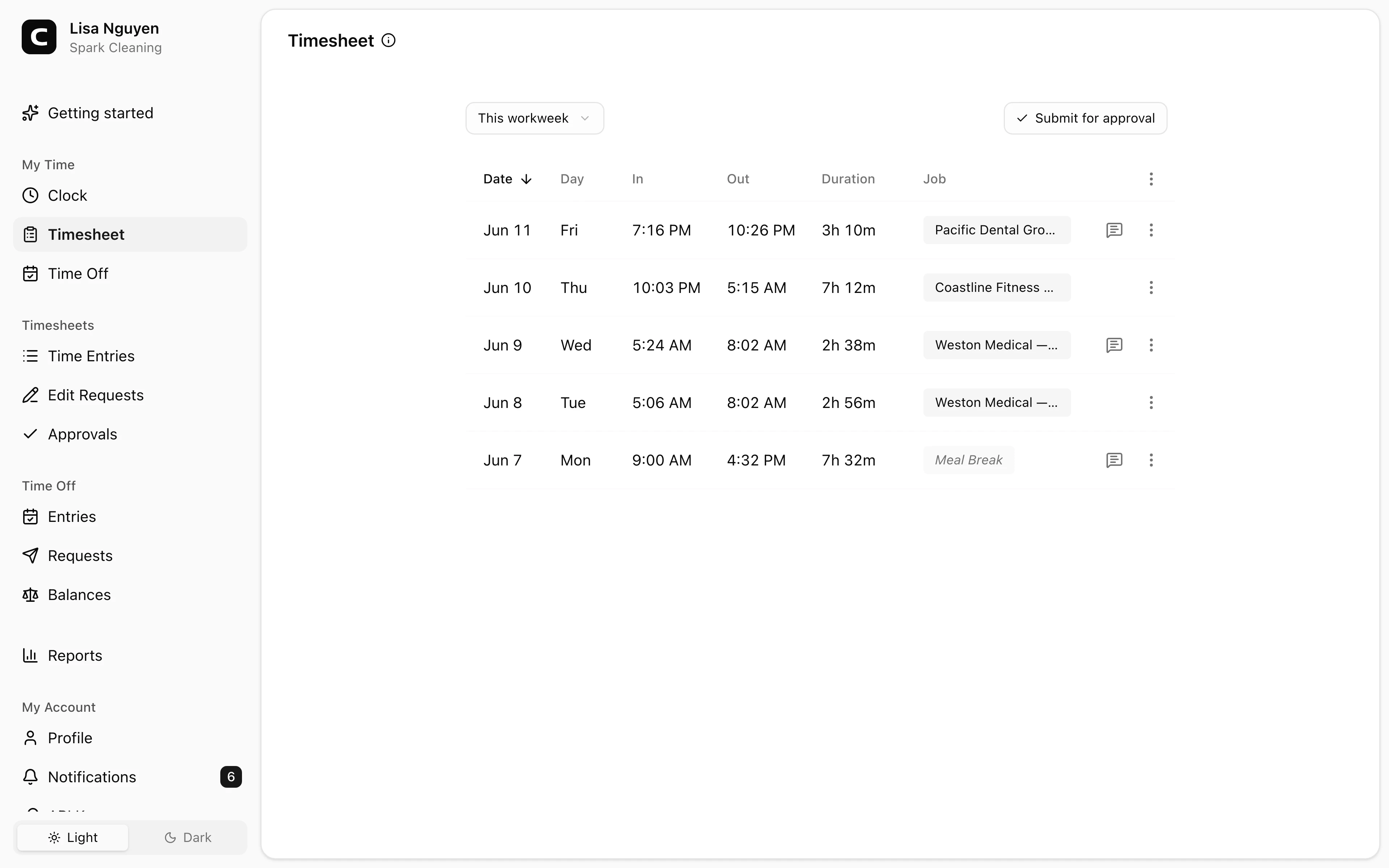
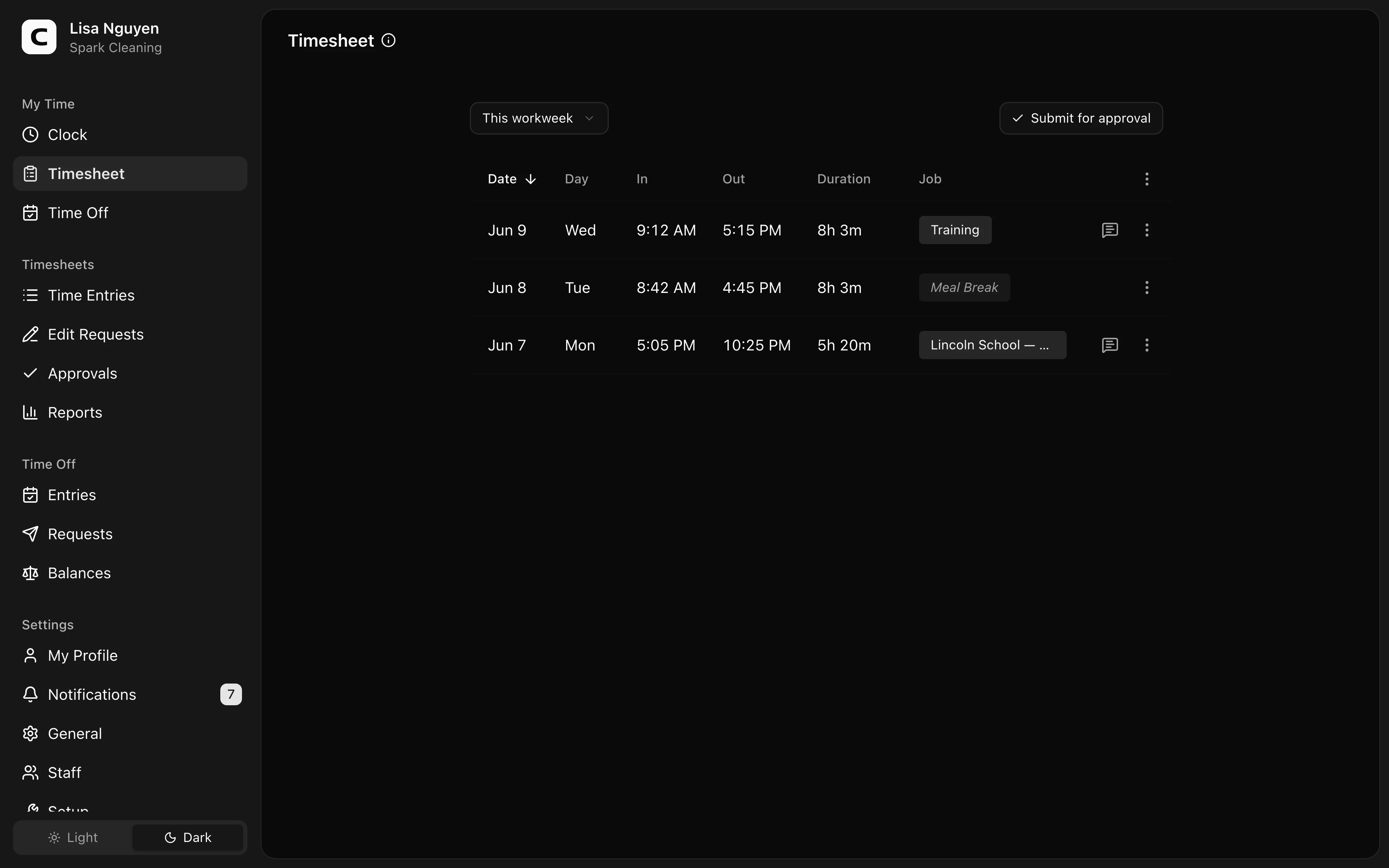
What this page shows
Your own time entries for the selected period — date, in and out times, and duration, plus the job when your workspace uses jobs. Use the date filter to switch periods; This workweek and Last workweek are one press away.
Entries are created when you clock in and out from the Clock page, a kiosk, or by phone. You can't add or edit entries here directly — see below for requesting a correction.
Submitting your timesheet
Press Submit for approval in the toolbar. The Submit timesheet dialog confirms the period and takes an optional note for your manager; press Submit.
While the submission is pending, the toolbar shows Pending approval — press it and choose Cancel submission if you need to make further changes, then submit again. Once your manager decides, the status shows Approved or Rejected; open it to see who reviewed it, when, and any notes.
Approved entries are locked — to change one, request an edit.
Requesting an edit
If an entry is wrong, open the row menu on that entry and choose Request edit — set the corrected times or job and explain the change. Requesting a time entry edit walks through the full flow.
If a shift is missing entirely — you never clocked in — ask your manager to add the entry; edit requests only change entries that exist.
Common questions
- I see a wrong or duplicate entry.
You can't edit or delete an entry directly — open the row menu, choose Request edit, and your manager will review the fix.
- My timesheet was rejected.
Open the Rejected status to read your manager's review note, then request edits on the entries that need fixing.
- Why don't I see a Submit button?
Each period has one active submission. Once you've submitted, the toolbar shows its status instead — cancel a pending submission to make changes and submit again.
Related
Clock
Clock in at the start of your shift and out at the end, with a job and notes when your workspace uses them.
Requesting a time entry edit
Ask your manager to fix a recorded time entry — correct the times, the job, or add a note.
Time entries
Review, add, edit, and approve your employees' time entries.
Edit Requests
Approve or reject employee-requested changes to time entries.
Approvals
Approve, reject, or cancel submitted timesheets by employee and period.