Workspace setup
Employees
Invite employees, edit profile and pay details, and handle owner-only access changes.
No login required. Opens in one click.
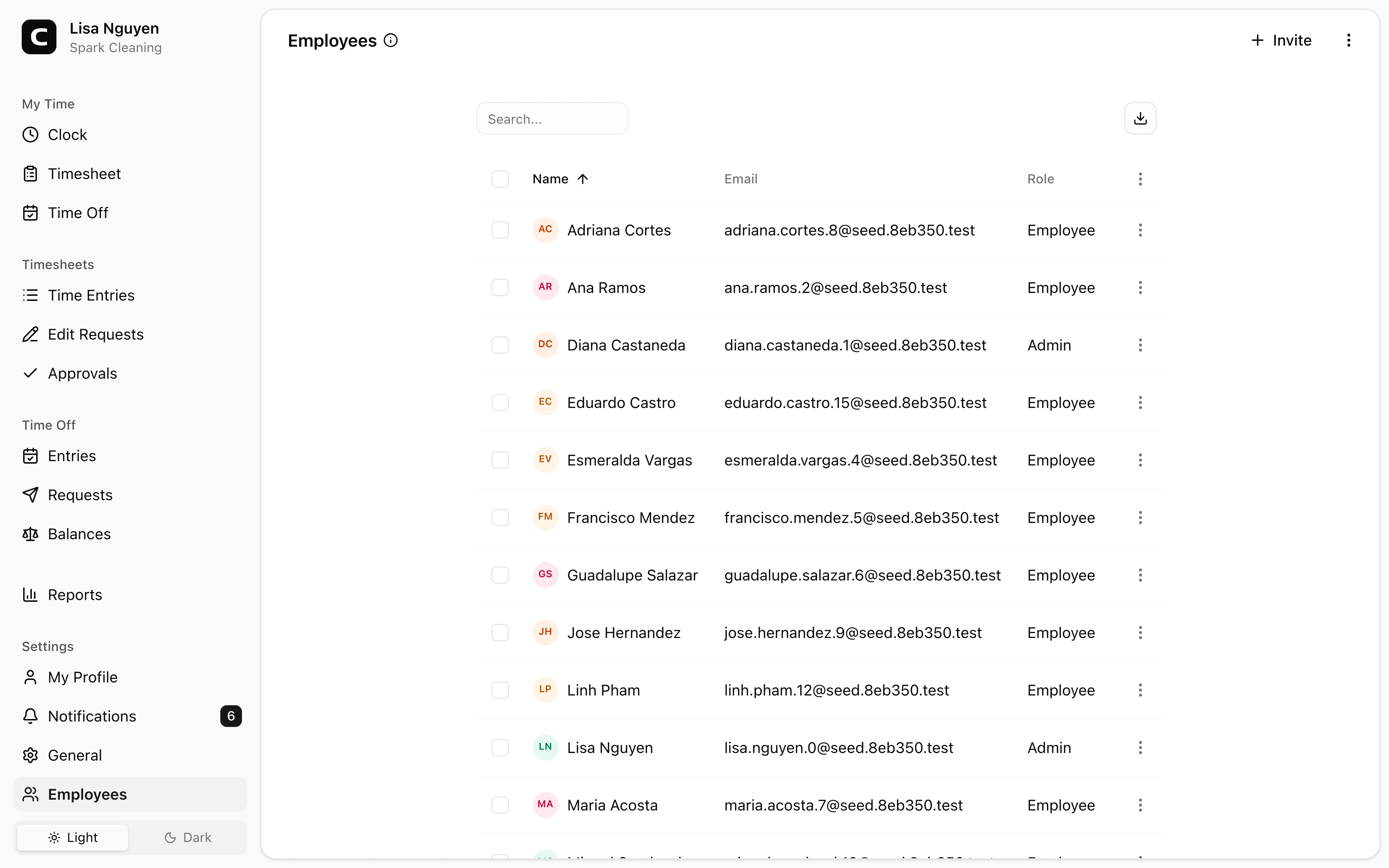
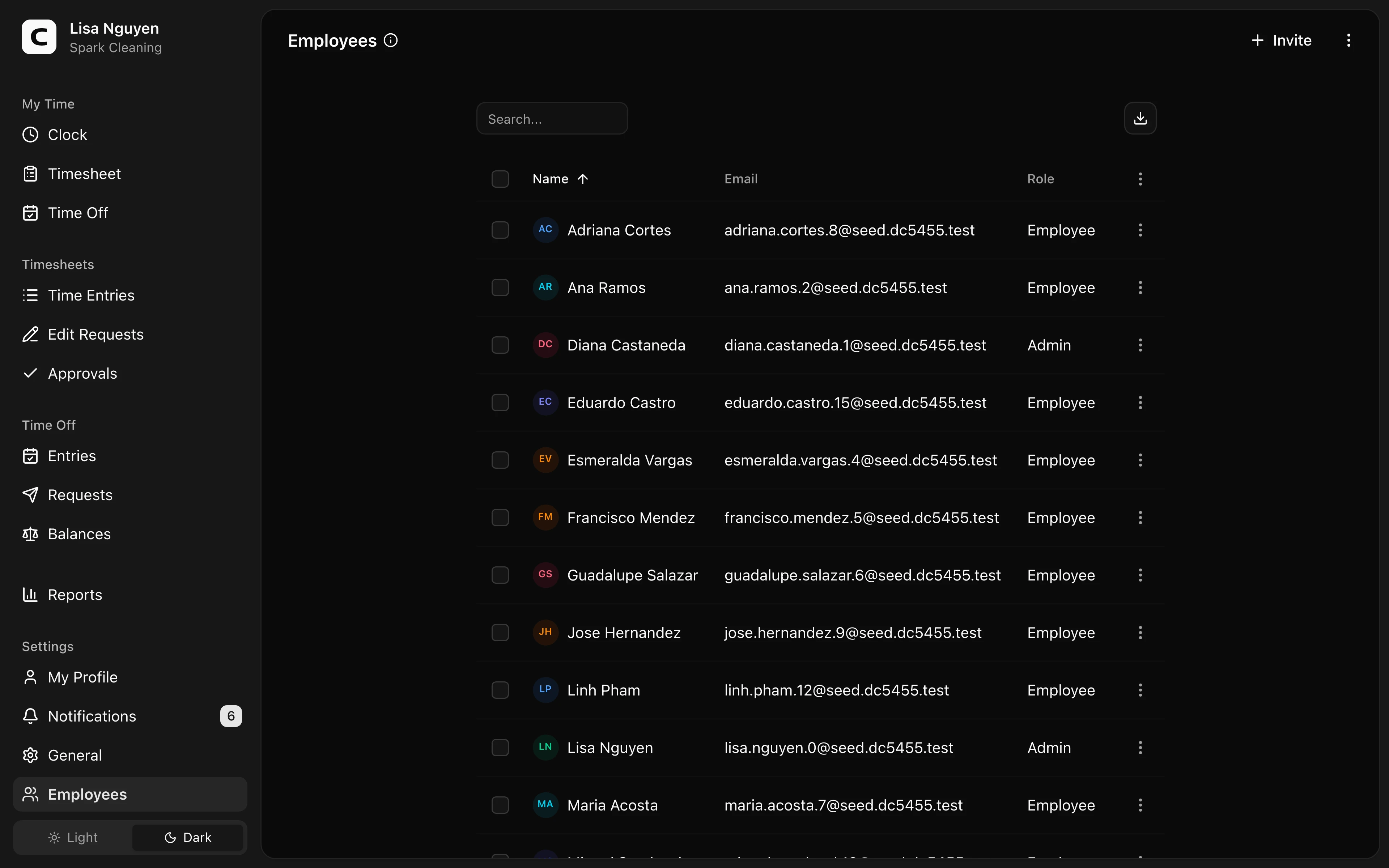
What this page shows
Every employee appears with role, contact details, pay info, and custom fields. Use Edit employee in the row menu to open the full employee profile.
The page header shows pending invitations and provides the Invite action.
Inviting employees
Press Invite and paste one or more email addresses (comma-separated or one per line), then pick a role:
- Employee — clocks in and out, manages their own timesheet, requests time off.
- Admin — full access: every employee capability plus approvals, reports, and workspace settings.
Everyone in a single invite batch gets the same role. Each invited person receives an email link to join.
Changing roles and access
The owner can use Change role in the row menu (or as a bulk action after selecting rows) to switch employees between Employee and Admin.
The owner can use Remove to revoke access while keeping the employee's historical records. To restore access later, send a fresh invite.
Employee settings
Open Edit employee to set:
- Hire date and exemption status (recorded on the employee for payroll review)
- Pay type (hourly or salary), pay rate, and pay schedule
- Work schedule override — different days or hours than the workspace default
- Personal info (phone, address, custom fields)
Clock-in credentials aren't on the employee profile — set up kiosk PINs for everyone on the Kiosks page and phone clocking on the Phone Clocking page, each listing every employee with their setup status.
Common questions
- The invite email didn't arrive.
Check spam first. If still missing, send again with Invite. If multiple attempts fail, confirm the address is correct.
- Can I invite several people at once?
Yes. The Invite dialog accepts many emails pasted at once, comma-separated or one per line. Everyone in a batch gets the same role; invite separately if you need mixed roles.
- How do I transfer admin access before someone leaves?
The owner should promote another user to Admin with Change role before the person leaves. Then the new admin can keep managing employee details, and the owner can remove or demote the departing person if needed.
Related
Roles & access
Who can see and do what — the difference between employees, admins, and the owner.
Custom fields
Add employee and time-entry fields for the details your workspace needs to track.
Jobs
Group time entries by job, project, client, or task so you can review where hours and labor costs go.
Company
Keep your company name, time zone, and address current.
General settings
Set workspace-wide rules for the workweek, rounding, and overtime.
API Keys
Connect third-party apps to your Clockspot workspace without sharing your password.