Workspace setup
Timesheet Settings
Set required time-entry details, unrecognized-location warnings, and clock-time rounding.
No login required. Opens in one click.
What this page controls
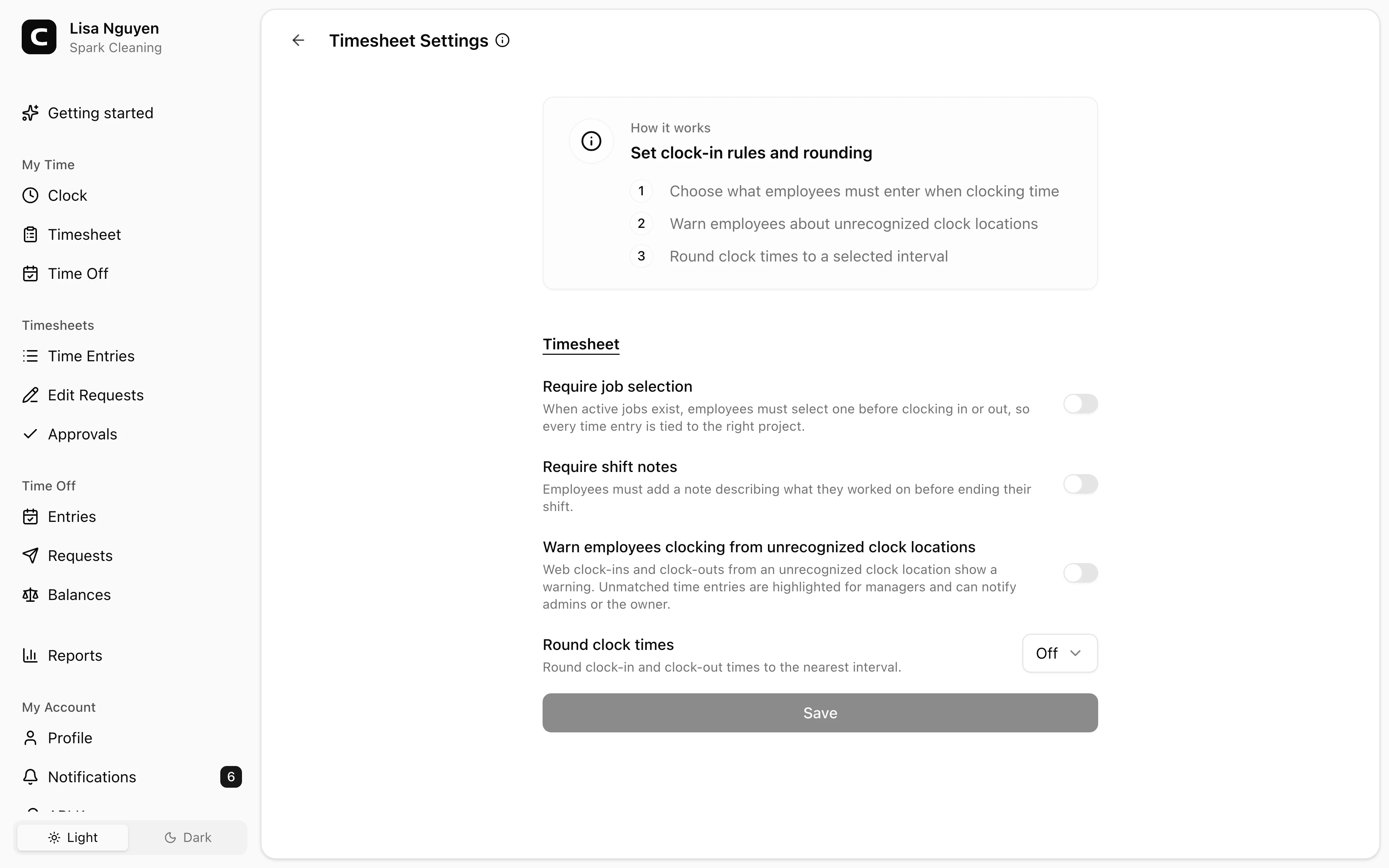
Timesheet Settings controls what employees must enter when recording time, when Clockspot warns about unrecognized clock locations, and whether clock-in and clock-out times are rounded.
Required time-entry details
Use Require job selection when employees should choose an active job before clocking in or out. The selected job stays on the time entry and appears in job-based reports.
Use Require shift notes when employees should add a note before ending a shift.
Unrecognized clock locations
Use Warn employees clocking from unrecognized clock locations to show a warning before a web clock-in or clock-out continues when no Clock Location matches.
If the employee proceeds, admins and the owner can be notified, and the time entry is highlighted for managers to review. The same entries also appear in the Location Compliance report.
Clock-time rounding
Use Round clock times to choose whether clock-in and clock-out times are rounded to Off, 5 min, 6 min, or 15 min.
Common questions
- Where do I create the jobs employees can select?
Use Jobs to create jobs, projects, clients, or tasks. If no active jobs exist, Clockspot does not block clocking for missing job selection.
- Does the location warning stop the clock action?
No. The employee sees the warning and can still proceed. If they do, admins and the owner can be notified, and the time entry is highlighted for managers to review.
- Where do I define recognized clock locations?
Use Clock Locations to create locations with geolocation, IP, or device rules.
Related
Employees
Invite employees, edit profile and pay details, and handle owner-only access changes.
Roles & access
Who can see and do what — the difference between employees, admins, and the owner.
Custom fields
Add employee and time-entry fields for the details your workspace needs to track.
Jobs
Group time entries by job, project, client, or task so you can review where hours and labor costs go.
Company
Keep your company name, time zone, and address current.
Time Tracking Settings
Find the settings that control clock-ins, schedules, overtime, jobs, time off types, locations, kiosks, and phone clocking.
Work Schedule
Set the default workweek and scheduled hours used by attendance and workweek-based reports.
Overtime Settings
Choose the current overtime thresholds and multipliers used by Clockspot reports.
API Keys
Connect third-party apps to your Clockspot workspace without sharing your password.