Workspace setup
Compensation
Set each employee's pay type, hourly rate when applicable, exemption status, and pay schedule, and keep a history of pay changes.
No login required. Opens in one click.
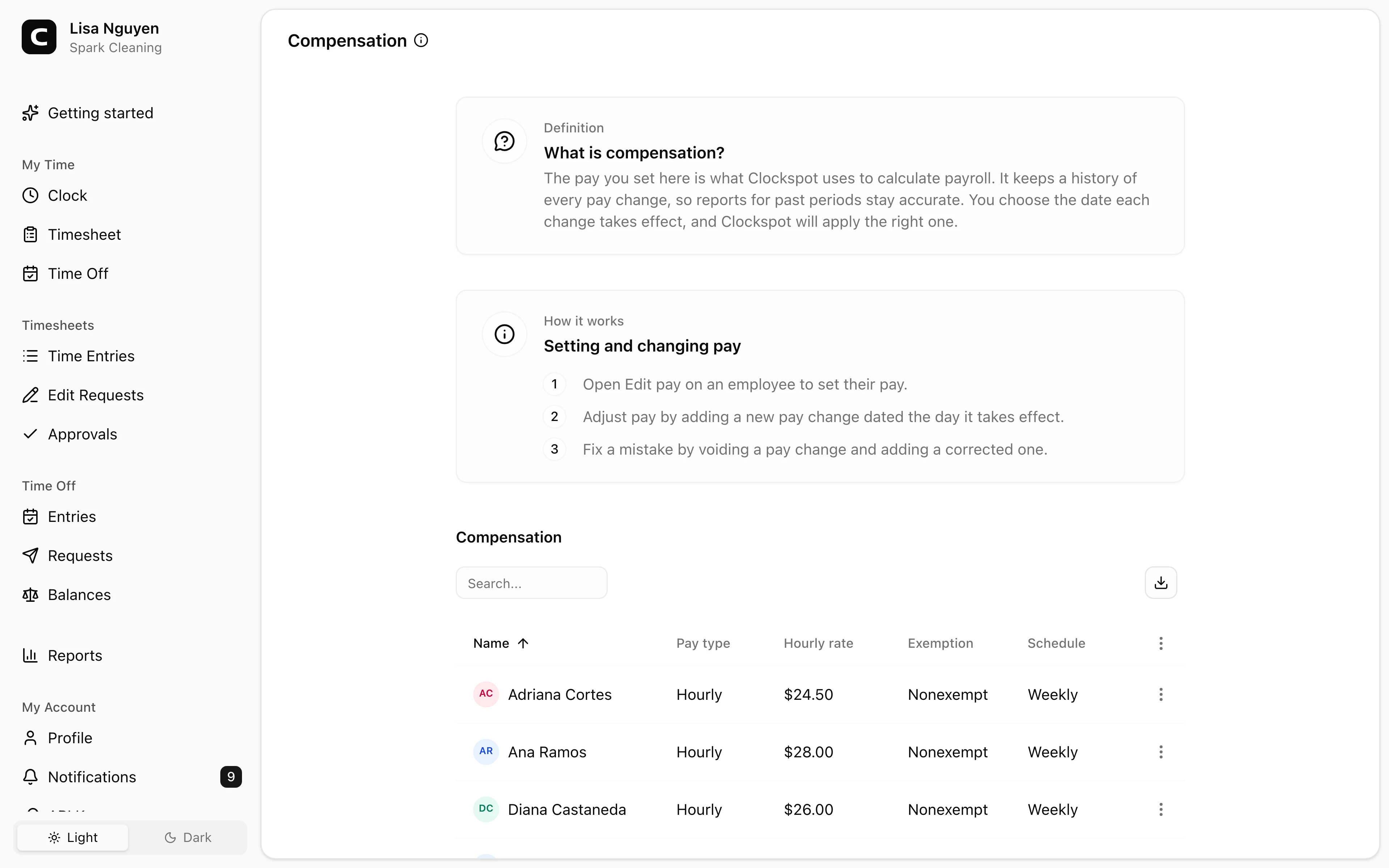
Compensation is where you keep pay setup for active employees. Each employee shows here with their current pay; open Edit pay in the row menu to set it or change it.
What each employee's pay setup covers
- Pay type — Hourly or Salary.
- Hourly rate — the rate used when the pay type is hourly.
- Exemption — Exempt or Nonexempt, meaning whether the employee is exempt from overtime.
- Schedule — how often they are paid: weekly, biweekly, semi-monthly, or monthly.
An employee with no effective pay has blank pay columns. Their hours still record, but Payroll Summary needs effective hourly compensation to calculate gross pay. Salary pay changes stay in Pay history, but Payroll Summary marks salary rows Needs review instead of calculating a gross amount.
Pay changes and history
Each entry is a pay change with an effective date. A pay change starts on its effective date and applies until the next one, so a raise is just a new pay change dated the day it takes effect. Older entries stay in the employee's pay history for your records.
To fix a mistake, open Pay history, choose Void pay change on the wrong pay change, then open Edit pay and add a corrected one for the same effective date. Voiding keeps the entry in history but removes it from pay calculations.
Common questions
- An employee's pay columns are blank.
Open Edit pay and add their first pay change with the pay type, hourly rate when hourly, exemption status, and pay schedule. Until then their hours record but Payroll Summary can't calculate gross pay.
- How do I give someone a raise?
Open Edit pay and add a new pay change dated the day the new rate takes effect. The previous rate still applies to hours worked before that date.
- I entered the wrong rate.
Open Pay history, choose Void pay change on the wrong pay change, then open Edit pay and add the corrected one for the same effective date.
- Where do I set how often employees are paid?
Pay schedule is part of each employee's pay here, not on Work Schedule, which sets the worked-hours week.
Related
Employees
Invite employees, edit profile details, and handle owner-only access changes.
Roles & access
Who can see and do what — the difference between employees, admins, and the owner.
Custom fields
Add employee and time-entry fields for the details your workspace needs to track.
Jobs
Group time entries by job, project, client, or task so you can review where hours and labor costs go.
Company
Keep your company name, time zone, and address current.
Time Tracking Settings
Find the settings that control clock-ins, schedules, overtime, jobs, time off types, locations, kiosks, and phone clocking.
Timesheet Settings
Set required time-entry details, unrecognized-location warnings, and clock-time rounding.
Work Schedule
Set the default workweek and scheduled hours used by attendance and workweek-based reports.
Overtime Settings
Choose the current overtime thresholds and multipliers used by Clockspot reports.
API Keys
Connect third-party apps to your Clockspot workspace without sharing your password.