See where time goes
Every clock-in can carry a job, so reports show hours by job, project, or client instead of one undifferentiated total.
Job costing
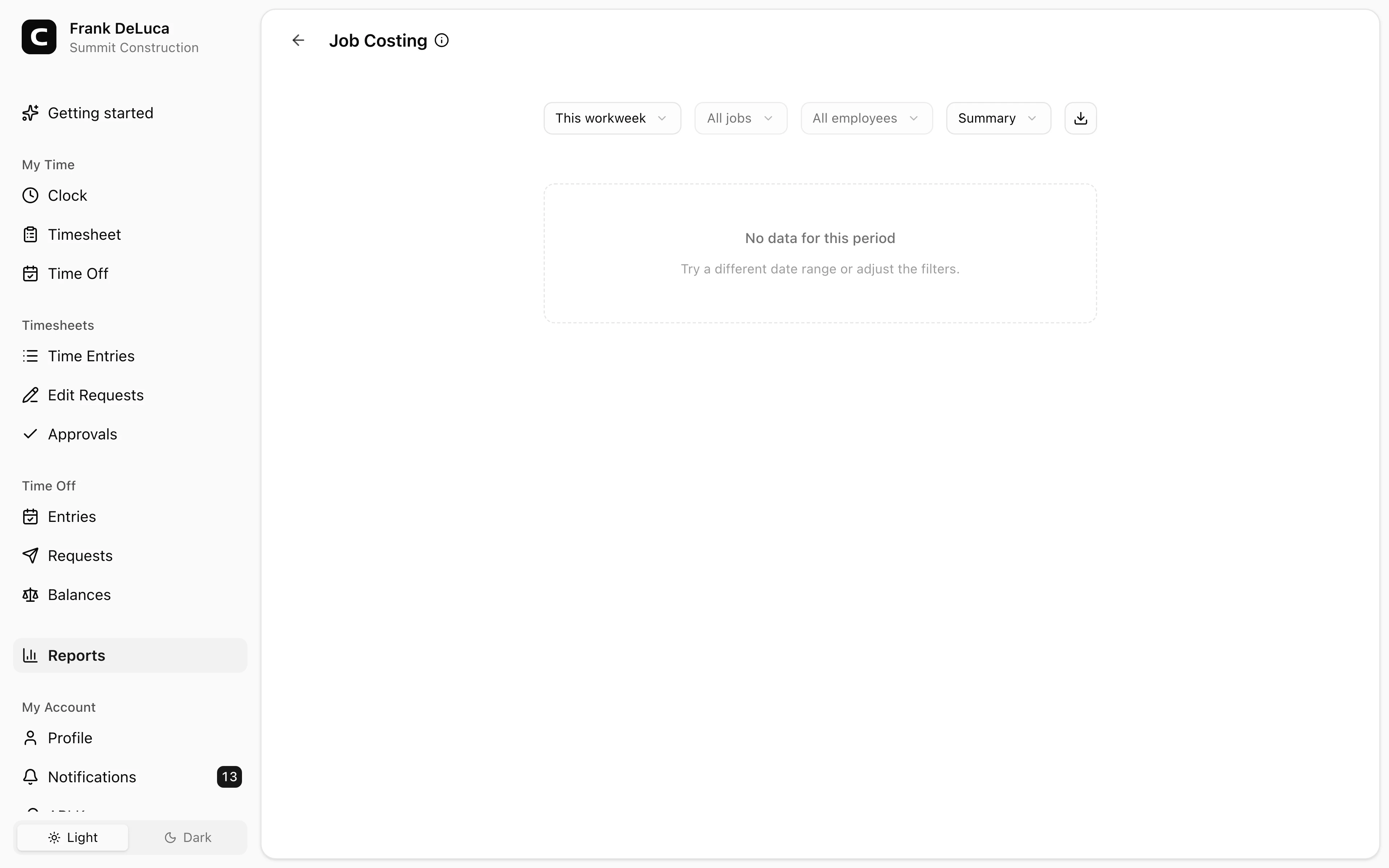
See how many hours your employees logged against each job. Clockspot turns clock-ins into job, by-job, and by-employee hour reports you can review and export before payroll or client billing.
Hours by job
Group time by job, project, or client.
Three views
Summary, by job, or by employee.
Built from approved time
See how much of the period is final.
Export anywhere
CSV, clipboard, or print.
Job costing benefits
Job costing shows where employee hours actually went, so you can see which jobs, projects, or clients took the most time, back up client invoices, and catch jobs that ran long.
Hours grouped by job, project, or client.
Every clock-in can carry a job, so reports show hours by job, project, or client instead of one undifferentiated total.
Per-job hour totals give you a record to attach to an invoice or hand to a client or accountant.
When a job is taking more hours than expected, you can see it in the report instead of finding out at payroll.
A status line shows how many timesheets in the period are approved, so you know whether the hours are final.
Customer story
It insures accurate time reporting and job costing, and reduced bookkeeping time saves well more than the cost of the service.
Al Roberts
A J Roberts Industrial, Inc.
Employees attach a job to their time, and Clockspot reports the hours by job for any date range.
Assign time to jobs
Clock-ins carry the job so the report can group hours by it instead of leaving one undifferentiated total.
Read the report
For any date range, open the view that answers your question.
Review and export
Once timesheets are approved, take the numbers wherever they need to go.
Common questions
No. The job costing report shows hours by job. For pay totals with hourly rates, including regular and overtime, use the Payroll Summary report.
Those hours appear under (No job), sorted last. To keep future entries assigned, create the jobs employees should pick and turn on Require job selection for clock-ins from employee accounts and kiosks.
Yes. Employees pick a job from their own account or a kiosk. For phone clock-ins, assign the job a phone code so the call can ask for it.
Yes. Download a CSV, copy to the clipboard, or print. The export matches the view you are looking at, with subtotals and a grand total.
Keep reading
Cleaning companies should track hours by client or job when that detail affects billing, job costing, approvals, payroll review, or records.
Construction crews should track time by job site when job detail affects payroll review, job costing, billing, approval, or records.
A cleaning proof-of-work record should show crew time, client or job labels, corrections, approval, and which non-time records need separate review.
Use cleaning crew time records to answer client questions about job hours, locations, corrections, approvals, and payroll-ready records.