One shared device
A single tablet or computer at the door lets employees clock in without using their own device.
Time clock kiosk
Turn a tablet or computer at the door into a shared clock-in screen. Employees clock in and out with their own PIN, and optional photo capture adds review context where you need it.
Shared device
One tablet or computer for shared clock-ins.
Personal PIN
Each entry ties to the right person.
Register once
Stays signed in across restarts.
Optional photos
Add verification photos on selected kiosks.
Kiosk benefits
A kiosk gives employees one place to clock in, without anyone needing their own device, while a personal PIN and optional photo capture keep each clock-in reviewable.
A shared tablet or computer plus a PIN per employee.
A single tablet or computer at the door lets employees clock in without using their own device.
Each employee clocks in with their own PIN, so a shared screen still ties every entry to the right person.
Register the device once; it stays on the clock screen and signed in across restarts.
Kiosk clock-ins become time entries you review, approve, and export for payroll, with photo context when enabled.
Set up a shared device, let employees clock in with a PIN, and manage every kiosk from one page.
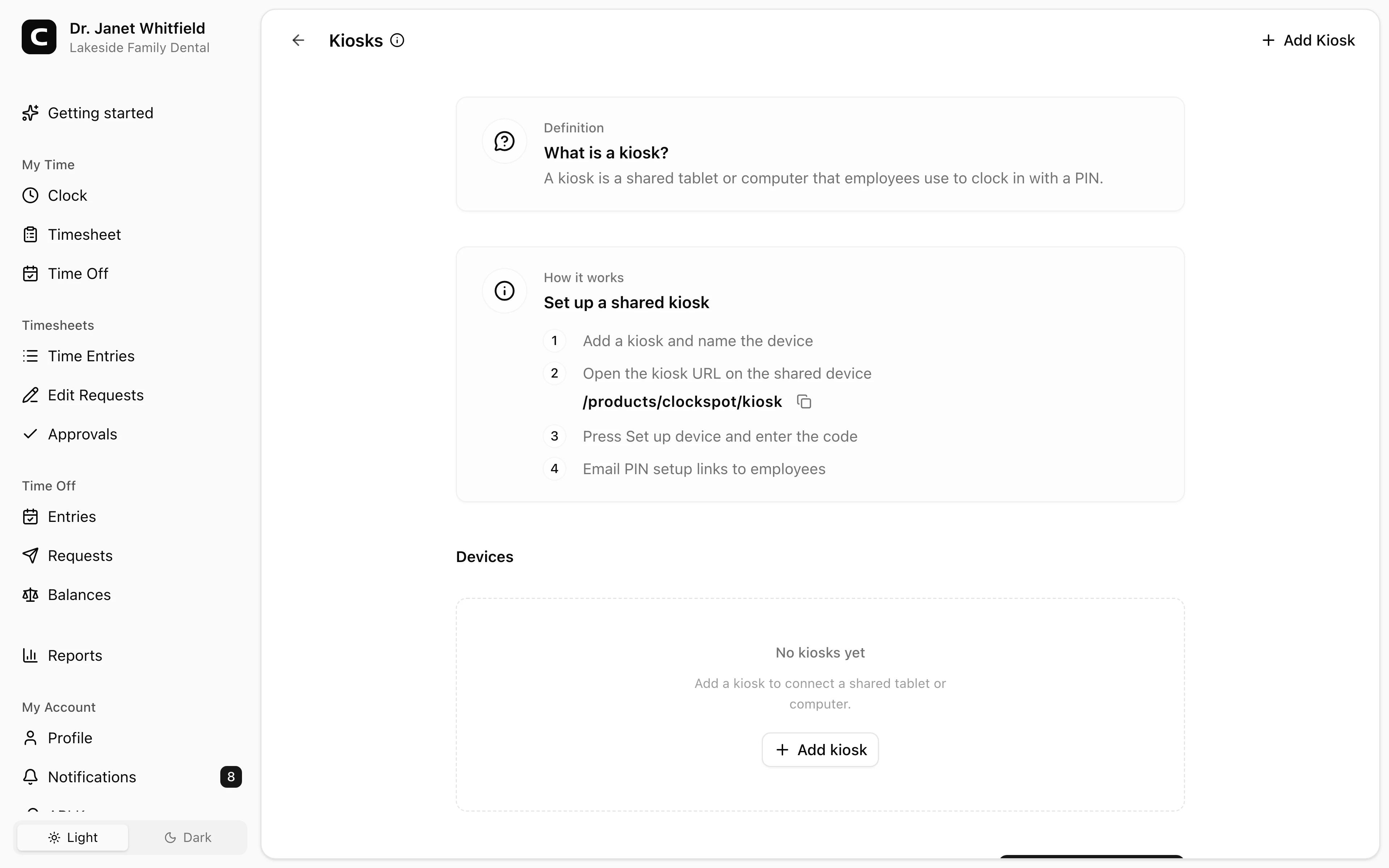
Set up the device
Open the kiosk address on the shared device and register it once.
Clock in with a PIN
A personal PIN keeps a shared screen private to each person.
Manage the rollout
The Kiosks page shows device status and who still needs a PIN.
Common questions
No. A kiosk is a shared tablet or computer, and employees clock in with a personal PIN, so no one needs their own device.
Any tablet or computer with a web browser. You open the kiosk address once, register the device, and it stays on the clock screen across restarts.
Email PIN setup links so employees choose their own, or set a PIN for them. The Kiosks page lists every employee with their PIN status.
Yes. Photo capture is optional per kiosk. When it is enabled, Clockspot attempts a photo on clock-in and clock-out, and camera issues do not block the punch.
A kiosk clock-in becomes a time entry you can review, approve, and export for payroll, alongside clock-ins from employee accounts and phone clocking.
Keep reading
Employees can clock in by phone call, a shared computer, or a browser link, with no app to install. Here is how to keep those hours payroll-ready.
How to reduce buddy punching without turning a payroll problem into a biometric privacy problem.
Set up a time clock by deciding who tracks time, when employees clock in, how mistakes are fixed, who approves hours, and how records are kept.
Use GPS time tracking when location affects payroll, job costing, field work, approvals, or trust. Here is what to look for before choosing a GPS time clock.